> ## Documentation Index
> Fetch the complete documentation index at: https://docs.cxp.crescendo.ai/llms.txt
> Use this file to discover all available pages before exploring further.
# Invite someone into a conversation
> Use Conference to add an agent to Chat and Voice, or add an external endpoint to a supported Voice call.
# Invite someone into a conversation
**Coming soon.** This guide describes the forthcoming Conference workflow.
Production availability has not yet been verified.
Use **Conference** when you want another person to help with the same live
conversation. You remain a participant and the conversation's assignment stays
the same. For example, you can invite a billing specialist while continuing to
help the customer.
## Before you invite
* You need permission to read and reply to the conversation.
* You must participate in every active Chat and be connected to its Voice call,
when present. You do not need to be the assigned agent.
* The conversation must be Open or Pending. The invited agent must be an active
user with the required conversation access, and cannot already participate in
the selected conversation or another Voice call.
* Conference includes all active Chat and Voice interactions. You do not choose
individual media or invite several people in one request.
* Translated calls that use separate rooms are not supported by Conference.
The invited agent must be **Online**. An Online agent can be **Ready**, **Not Ready**
or **Off Duty**; an Off Duty supervisor can still accept a direct request for help.
Away and Offline agents are excluded. An invitation is different from a routed assignment.
## Invite an agent
1. Open the conversation. Beside its media controls in the right rail, select
**Invite to conference** (the person-with-plus icon). Hover or focus the icon
to see its label or why it is unavailable.
2. Search by agent name or team, such as Billing. Use **All online** (the default),
**On duty** (Ready and Not Ready), or **Ready** to narrow the results.
3. Select one agent, then select **Send invitation**. The familiar avatar dot and
status word show their availability; the subtitle shows their teams.
4. Wait for their response. You can select **Cancel** while it is
still waiting for a reply. After sending, keyboard focus moves to the invitation status.
To invite again while it is pending, cancel the current invitation first.
The picker stays beside the call controls so you can use the transcript, Mute and
Hold while choosing. On narrower layouts, it opens as a dialog. If the agent is
no longer Online when you send, refresh the list and choose another agent.
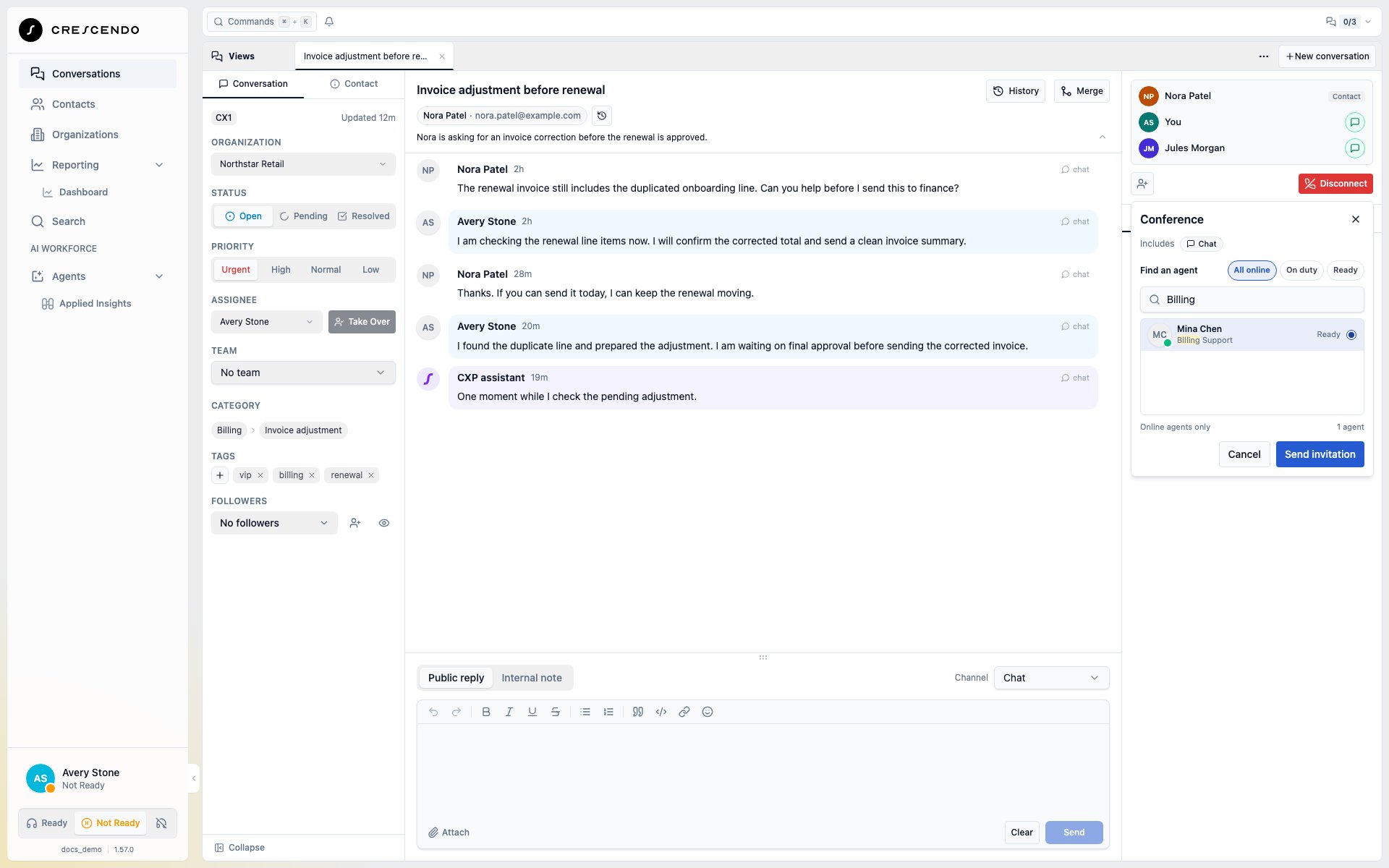 The list is a snapshot of Online colleagues, including those who are Off Duty.
Someone shown may already be on another call or become unavailable while you
choose; CXP checks whether the invitation can proceed when you send it. If team
search is temporarily unavailable, search by the agent's name instead.
The agent has 60 seconds to respond. If you see **Reply deadline passed**,
response controls are removed; this message does not itself confirm a final
operation result. After acceptance, Cancel is no longer available.
## Respond to an invitation
The global invitation banner shows who invited you, the conversation, its media
and the response deadline. Select **View waiting requests** when more than one
invitation needs attention.
* Select **Accept** to join. The conversation opens in your workspace.
* Select **Decline** to leave your current work unchanged.
If Accept is rejected because you were on another call, the reason appears in
your invitation. You can respond again after leaving that call while the reply
window is still open. The inviting agent continues to see **Waiting for reply…**.
If the captured call ends or changes, the invitation becomes **Invite unavailable**.
The inviting agent can still **Cancel** a pending invitation. Closing a notice
with **×** only hides it; it does not cancel an invitation.
For Voice, the browser where you requested acceptance connects through the
existing Softphone. Allow microphone access when prompted. **Connecting…**
does not mean Chat participation is ready: when the invitation includes Chat
and Voice, Chat becomes available only after the whole join completes.
You may already hear the call while Voice is connecting.
If you reopen a preparing invitation after a reload, use **Connect Voice** when
offered. This connects the existing invitation; you do not Accept it again.
Connected Chat and Voice channels have green circular indicators beside each
participant. Calling and unavailable connection states remain visually distinct.
These channel indicators describe connection; the picker dots describe availability.
## When the customer adds Voice after Chat
After a Chat-only Conference completes, the customer can add Voice to that Widget
conversation. Each eligible Chat agent gets access to the call, regardless of who
is assigned. Each agent selects **Join Call** to connect their own microphone;
adding Voice does not connect agent audio automatically.
An agent already handling another call keeps Chat access and can try **Join Call**
after leaving that call. If one agent leaves, the remaining agent can continue.
The customer can stop and restart Voice without changing the assignment or asking
for another Conference invitation.
Call access counts toward your Voice workload before you connect audio. If you
select **Disconnect** before joining, CXP cancels your unused call access as well
as your Chat participation. Other participants remain. Read any partial-failure
message and retry the unfinished disconnection.
## Add an external endpoint
External calling requires an Open conversation with Voice only, a supported
call configuration, and an enabled calling identity. Your administrator must
have configured outbound calling and at least one outbound caller ID.
1. Select **Invite to conference**, then **Contact** or **Phone number**.
2. Under **Contact**, search by name, email, or phone and select an existing
contact. Choose the saved number to call; contacts without a callable
international number are disabled. Under **Phone number**, enter the full
number with its country code.
3. Review **Caller ID**, the number used to call the external participant.
A single configured caller ID is selected and shown with its optional name.
If several are configured, choose one from the highlighted field. Calling is
unavailable until a caller ID is selected.
4. Review the destination number on the **Call** button, then select it to place
one call.
The list is a snapshot of Online colleagues, including those who are Off Duty.
Someone shown may already be on another call or become unavailable while you
choose; CXP checks whether the invitation can proceed when you send it. If team
search is temporarily unavailable, search by the agent's name instead.
The agent has 60 seconds to respond. If you see **Reply deadline passed**,
response controls are removed; this message does not itself confirm a final
operation result. After acceptance, Cancel is no longer available.
## Respond to an invitation
The global invitation banner shows who invited you, the conversation, its media
and the response deadline. Select **View waiting requests** when more than one
invitation needs attention.
* Select **Accept** to join. The conversation opens in your workspace.
* Select **Decline** to leave your current work unchanged.
If Accept is rejected because you were on another call, the reason appears in
your invitation. You can respond again after leaving that call while the reply
window is still open. The inviting agent continues to see **Waiting for reply…**.
If the captured call ends or changes, the invitation becomes **Invite unavailable**.
The inviting agent can still **Cancel** a pending invitation. Closing a notice
with **×** only hides it; it does not cancel an invitation.
For Voice, the browser where you requested acceptance connects through the
existing Softphone. Allow microphone access when prompted. **Connecting…**
does not mean Chat participation is ready: when the invitation includes Chat
and Voice, Chat becomes available only after the whole join completes.
You may already hear the call while Voice is connecting.
If you reopen a preparing invitation after a reload, use **Connect Voice** when
offered. This connects the existing invitation; you do not Accept it again.
Connected Chat and Voice channels have green circular indicators beside each
participant. Calling and unavailable connection states remain visually distinct.
These channel indicators describe connection; the picker dots describe availability.
## When the customer adds Voice after Chat
After a Chat-only Conference completes, the customer can add Voice to that Widget
conversation. Each eligible Chat agent gets access to the call, regardless of who
is assigned. Each agent selects **Join Call** to connect their own microphone;
adding Voice does not connect agent audio automatically.
An agent already handling another call keeps Chat access and can try **Join Call**
after leaving that call. If one agent leaves, the remaining agent can continue.
The customer can stop and restart Voice without changing the assignment or asking
for another Conference invitation.
Call access counts toward your Voice workload before you connect audio. If you
select **Disconnect** before joining, CXP cancels your unused call access as well
as your Chat participation. Other participants remain. Read any partial-failure
message and retry the unfinished disconnection.
## Add an external endpoint
External calling requires an Open conversation with Voice only, a supported
call configuration, and an enabled calling identity. Your administrator must
have configured outbound calling and at least one outbound caller ID.
1. Select **Invite to conference**, then **Contact** or **Phone number**.
2. Under **Contact**, search by name, email, or phone and select an existing
contact. Choose the saved number to call; contacts without a callable
international number are disabled. Under **Phone number**, enter the full
number with its country code.
3. Review **Caller ID**, the number used to call the external participant.
A single configured caller ID is selected and shown with its optional name.
If several are configured, choose one from the highlighted field. Calling is
unavailable until a caller ID is selected.
4. Review the destination number on the **Call** button, then select it to place
one call.
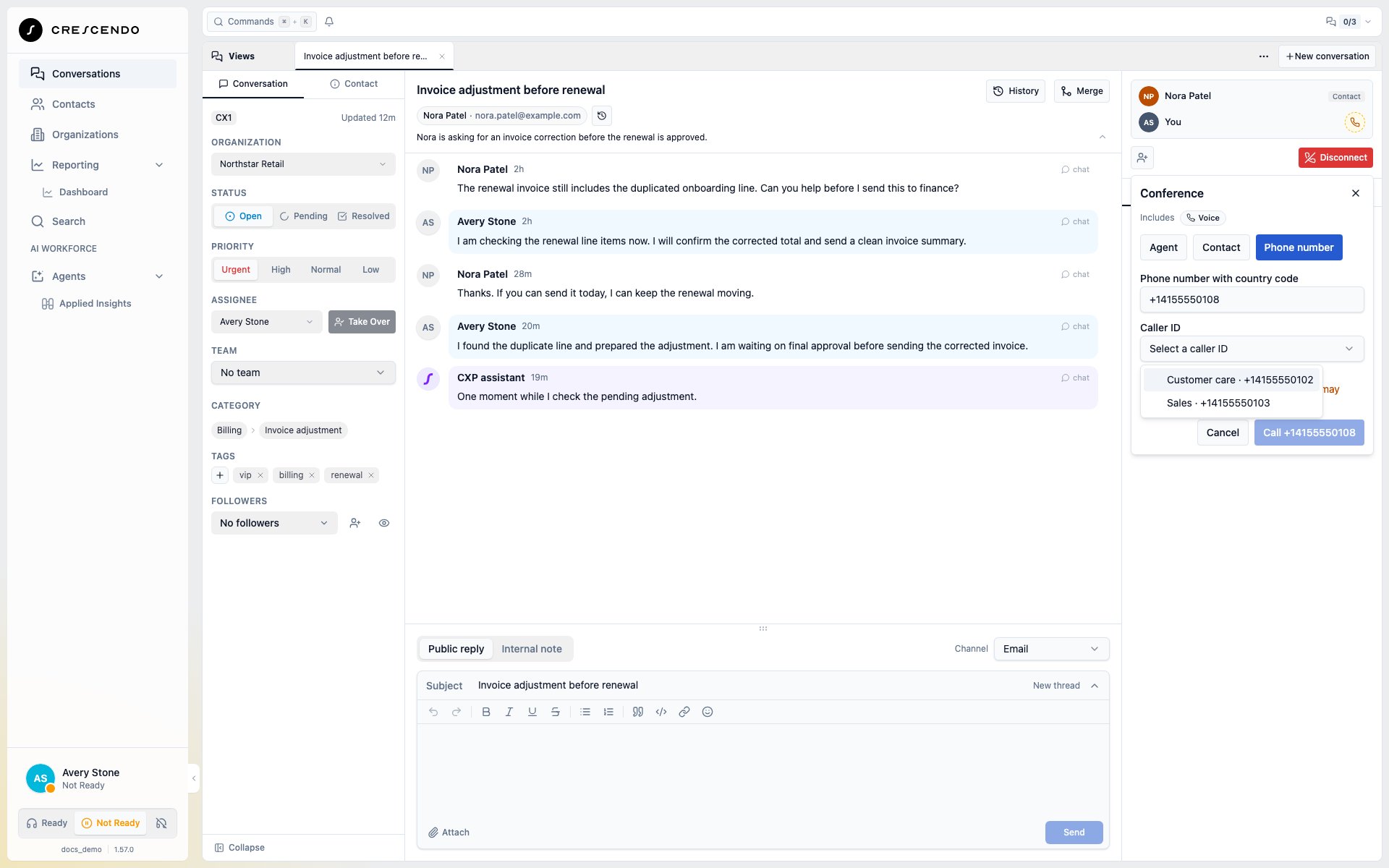 **Calling…** shows that the connection attempt is in progress. A connected
endpoint may be a person, voicemail or an automated system. Other viewers see
**External participant**; the initiating agent can see the number in the
invitation's progress.
### Cancel an external attempt
Select **Cancel** beside **Calling…** if you selected the wrong destination or
no longer want to wait. This cancels the added external endpoint and keeps your
original customer call connected during normal disconnection.
The status changes to **Cancelling…** while disconnection is confirmed, then
**Conference cancelled**. If the external party joins first, CXP preserves that
completed Conference and tells you it already joined. Closing a dialog or
dismissing a result does not cancel a call.
If you leave before the external party joins, or the original call ends, CXP
stops the unfinished attempt automatically. Once the Conference has completed,
leaving preserves the remaining joined participants.
**Calling…** shows that the connection attempt is in progress. A connected
endpoint may be a person, voicemail or an automated system. Other viewers see
**External participant**; the initiating agent can see the number in the
invitation's progress.
### Cancel an external attempt
Select **Cancel** beside **Calling…** if you selected the wrong destination or
no longer want to wait. This cancels the added external endpoint and keeps your
original customer call connected during normal disconnection.
The status changes to **Cancelling…** while disconnection is confirmed, then
**Conference cancelled**. If the external party joins first, CXP preserves that
completed Conference and tells you it already joined. Closing a dialog or
dismissing a result does not cancel a call.
If you leave before the external party joins, or the original call ends, CXP
stops the unfinished attempt automatically. Once the Conference has completed,
leaving preserves the remaining joined participants.
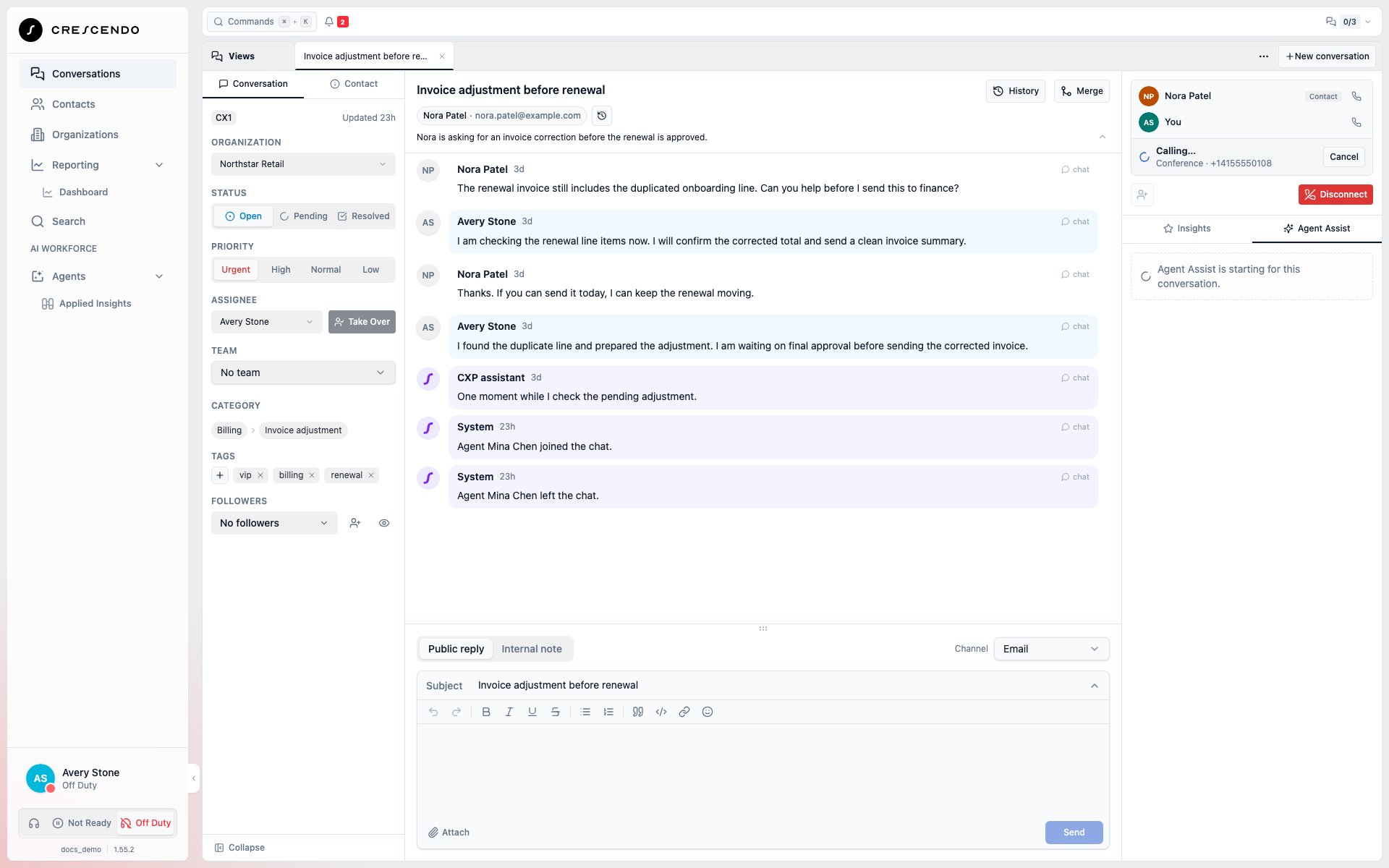 Selecting a contact here chooses a number to dial. It does not replace the
conversation's customer. Contact and Phone number are available only while no
Chat is active. Only enabled outbound caller IDs are offered. A number the
customer dialed may be marked in that list when it is also enabled for outbound
calling; receiving a call on a number does not automatically make it available
as a caller ID.
Voice transcripts keep each agent's name. An added phone endpoint is identified
as **External participant**. Recordings use the conversation's existing recording
configuration and include the shared call audio.
## Understand the result
| Status | Meaning |
| - | - |
| Waiting for reply… | The agent has not accepted or declined. |
| Accepting… / Connecting… | Joining is in progress. |
| Calling… | An external attempt is in progress; its initiator can select **Cancel**. |
| Cancelling… / Stopping… | The attempt is being stopped; disconnection is not yet confirmed. |
| Conference cancelled | The external attempt was cancelled and its cleanup is confirmed. |
| Conference stopped — call ended | The original call ended before the external Conference completed. |
| Bob joined / You joined | Conference completion was confirmed. |
| Reply deadline passed | The reply window has ended. Close the notice with **×**; checking again cannot extend it. |
| Invite unavailable | The captured call changed or the invitation is no longer usable. The initiator can **Cancel** while it is still pending. |
| Mina couldn’t join / You couldn’t join the call | The attempt failed; read any disconnection warning too. |
| Result or connection status unavailable | Use **Check result** or **Check connection status** when offered, and inspect current participants. |
Routine invitation status appears below the participants as one compact row,
for example **Mina Chen · Reply deadline passed** with a close button. The
recipient's banner keeps the inviter's name and conversation visible. A confirmed
success clears after about eight seconds; hovering or focusing it pauses that
timer. Participant membership remains visible.
Selecting a contact here chooses a number to dial. It does not replace the
conversation's customer. Contact and Phone number are available only while no
Chat is active. Only enabled outbound caller IDs are offered. A number the
customer dialed may be marked in that list when it is also enabled for outbound
calling; receiving a call on a number does not automatically make it available
as a caller ID.
Voice transcripts keep each agent's name. An added phone endpoint is identified
as **External participant**. Recordings use the conversation's existing recording
configuration and include the shared call audio.
## Understand the result
| Status | Meaning |
| - | - |
| Waiting for reply… | The agent has not accepted or declined. |
| Accepting… / Connecting… | Joining is in progress. |
| Calling… | An external attempt is in progress; its initiator can select **Cancel**. |
| Cancelling… / Stopping… | The attempt is being stopped; disconnection is not yet confirmed. |
| Conference cancelled | The external attempt was cancelled and its cleanup is confirmed. |
| Conference stopped — call ended | The original call ended before the external Conference completed. |
| Bob joined / You joined | Conference completion was confirmed. |
| Reply deadline passed | The reply window has ended. Close the notice with **×**; checking again cannot extend it. |
| Invite unavailable | The captured call changed or the invitation is no longer usable. The initiator can **Cancel** while it is still pending. |
| Mina couldn’t join / You couldn’t join the call | The attempt failed; read any disconnection warning too. |
| Result or connection status unavailable | Use **Check result** or **Check connection status** when offered, and inspect current participants. |
Routine invitation status appears below the participants as one compact row,
for example **Mina Chen · Reply deadline passed** with a close button. The
recipient's banner keeps the inviter's name and conversation visible. A confirmed
success clears after about eight seconds; hovering or focusing it pauses that
timer. Participant membership remains visible.
 A missing Conference result does not mean anyone left. When current participation
clearly shows the invited agent in every part of the invitation and no connection
warning remains, CXP keeps that old history notice quiet. Otherwise it explains
that the result is unavailable without offering a check that cannot recover it.
If current participation cannot be checked, the roster is labelled **Last known
participants** and a connection-status check remains available.
Brief disconnection checks run quietly. If confirmation takes longer, one warning
appears with **Check now** and clears automatically when disconnection is confirmed.
Known connection failures and unavailable status appear immediately. A failed
invitation keeps its failure message while audio may still be connected;
**Disconnection confirmed** appears only when CXP observed that cleanup finish.
If external disconnection cannot be confirmed, the existing safety process may
end the affected call. CXP keeps the connection warning until cleanup is confirmed.
A bottom-right connection warning stays visible when you navigate away.
A check reads the latest information. It does not place another call or repeat
Accept. Fast checks finish without a flashing spinner; slower checks show
**Checking…**. An unchanged read says **Checked just now — no change**; a failed
read explains what could not be checked. If an uncertain Accept result is found,
the invitation shows its current state, including response controls if it is
still waiting for a reply.
CXP does not automatically retry an uncertain external call. Avoid creating
another attempt until you have checked the current participants and resolved
any connection warning.
## Leave without removing everyone
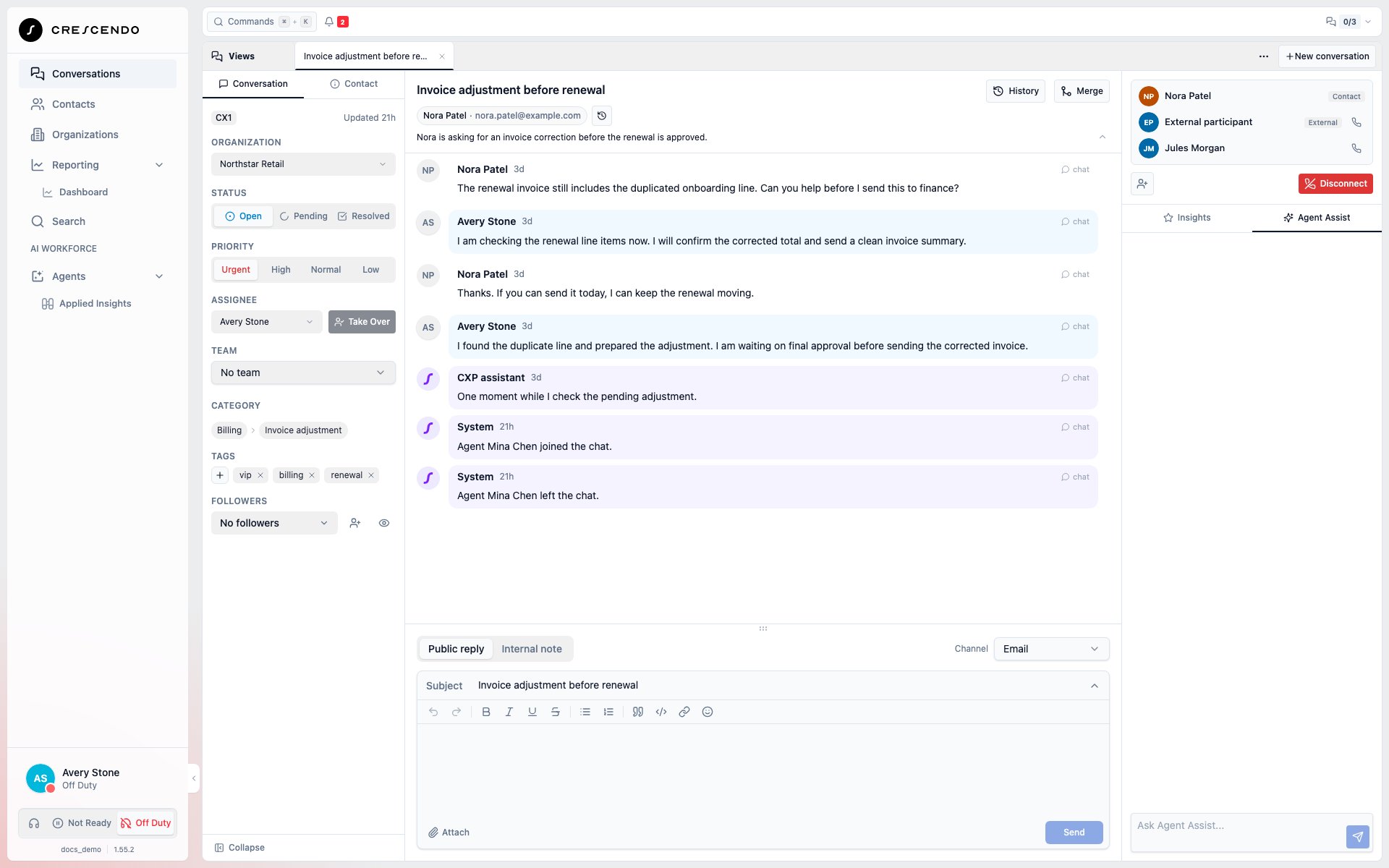
Use the existing **Disconnect** action to leave your Chat participation and the
Voice connection in that browser. Assignment stays unchanged. An ordinary phone
conference continues while at least two people or phone endpoints remain; when
only one remains, the call ends. A Widget customer's Voice call can remain after
an agent leaves.
The contact row remains available for context. Its Chat and Voice icons show the
customer's current participation, independently of other people still in the call.
A missing Conference result does not mean anyone left. When current participation
clearly shows the invited agent in every part of the invitation and no connection
warning remains, CXP keeps that old history notice quiet. Otherwise it explains
that the result is unavailable without offering a check that cannot recover it.
If current participation cannot be checked, the roster is labelled **Last known
participants** and a connection-status check remains available.
Brief disconnection checks run quietly. If confirmation takes longer, one warning
appears with **Check now** and clears automatically when disconnection is confirmed.
Known connection failures and unavailable status appear immediately. A failed
invitation keeps its failure message while audio may still be connected;
**Disconnection confirmed** appears only when CXP observed that cleanup finish.
If external disconnection cannot be confirmed, the existing safety process may
end the affected call. CXP keeps the connection warning until cleanup is confirmed.
A bottom-right connection warning stays visible when you navigate away.
A check reads the latest information. It does not place another call or repeat
Accept. Fast checks finish without a flashing spinner; slower checks show
**Checking…**. An unchanged read says **Checked just now — no change**; a failed
read explains what could not be checked. If an uncertain Accept result is found,
the invitation shows its current state, including response controls if it is
still waiting for a reply.
CXP does not automatically retry an uncertain external call. Avoid creating
another attempt until you have checked the current participants and resolved
any connection warning.
## Leave without removing everyone
Use the existing **Disconnect** action to leave your Chat participation and the
Voice connection in that browser. Assignment stays unchanged. An ordinary phone
conference continues while at least two people or phone endpoints remain; when
only one remains, the call ends. A Widget customer's Voice call can remain after
an agent leaves.
The contact row remains available for context. Its Chat and Voice icons show the
customer's current participation, independently of other people still in the call.
 See [Chat and Voice together](../agent/voice-and-softphone#handle-chat-and-voice-together)
for partial disconnection and reconnect behavior.
Conference does not transfer ownership or provide a separate handover-completion
step.
This documentation is built and hosted on [Mintlify](https://mintlify.com), a developer documentation platform.
See [Chat and Voice together](../agent/voice-and-softphone#handle-chat-and-voice-together)
for partial disconnection and reconnect behavior.
Conference does not transfer ownership or provide a separate handover-completion
step.
This documentation is built and hosted on [Mintlify](https://mintlify.com), a developer documentation platform.