> ## Documentation Index
> Fetch the complete documentation index at: https://docs.cxp.crescendo.ai/llms.txt
> Use this file to discover all available pages before exploring further.
# Using Views
> Create personal and shared conversation queues, configure filters and presentation in Edit View, and refine a View without changing its saved definition.
A View is a named conversation list that saves filters, sort order, visible
columns, and column order. Use Views for recurring work: your assigned
conversations, urgent requests, or customer follow-ups that need attention.
Coming soon. This article describes the shared Search and Views experience
awaiting release. Production availability has not yet been confirmed.
## Choose the right kind of View
You need permission to read conversations to use Views. Creating or changing
personal Views requires personal-view management permission; managing shared
Views requires the corresponding administrator permissions. User and Viewer can read existing permitted Views but cannot create, edit, delete, or save their personal order. See [Roles and permissions](../reference/roles-and-permissions).
| Kind | Purpose |
| ------------ | --------------------------------------------------------------------------------------------------------------------------------------- |
| **Built-in** | Start with My Conversations, Open Conversations, or All Conversations. Their definitions are managed by CXP. |
| **Team** | See Open conversations assigned to a team you belong to, including All Agents when applicable. These queues are provided automatically. |
| **Shared** | Give agents a common saved queue. Authorized administrators configure it. |
| **Personal** | Keep a saved queue for your own workspace. It is visible to its owner. |
**Available Live Conversations** has a separate live-work workflow. It does not
use the configurable Search/View editor described here.
## Open and use a View
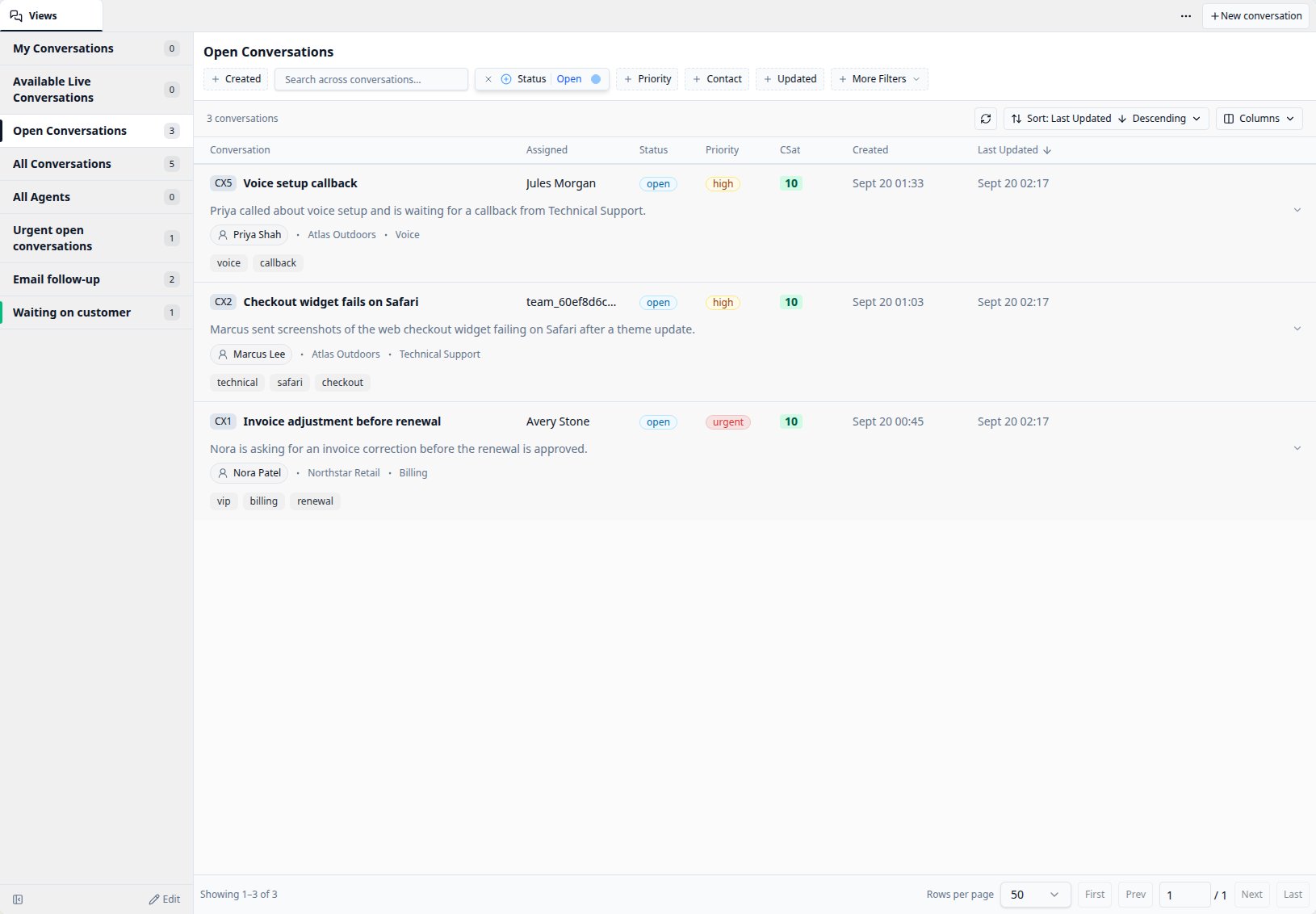
1. Open **Conversations** and select the **Views** tab.
2. Choose a View in the left panel. Its name and saved count help you find the
queue; hover over its entry for the description.
3. Review the populated filters. The table opens with that View's saved columns
and sort order.
4. Open a conversation row to work on it. Select a Contact pill to open the
contact, or expand a row's summary to read more.
 Use the keyword box, Created and Updated dates, or filter chips to narrow the
list. Keyword edits search after a two-second pause; the inline magnifying glass
searches immediately. The same [manual filter controls](searching-conversations#adjust-filters-manually)
are available in Search and Views, including Contact, Organization, Team,
Assignment, and include/exclude actions.
### Refine your session or save a change
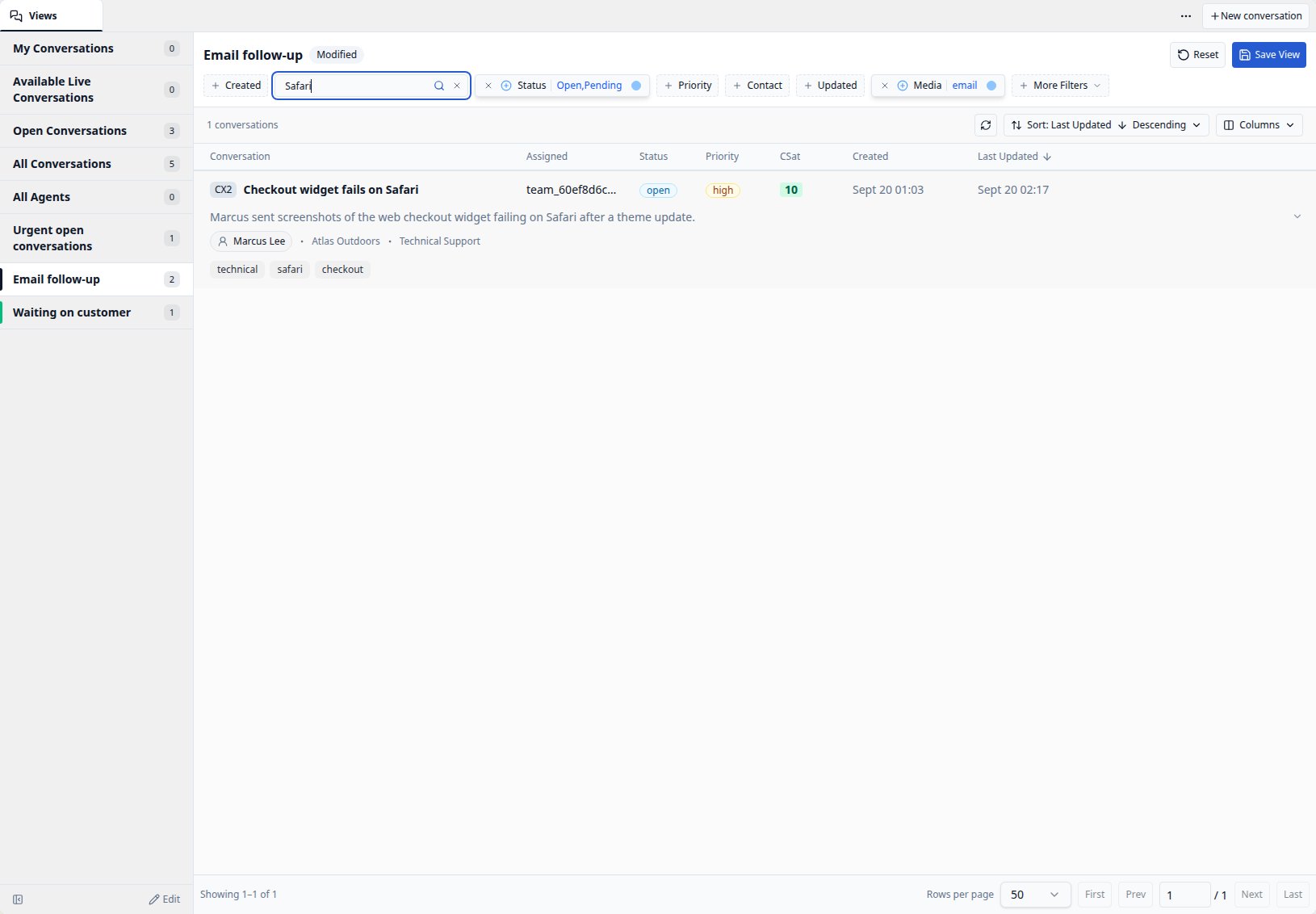
Changing filters, sort, or columns marks the opened View **Modified**. These
changes affect your current View session. Other Views and Search keep their own
settings.
Use the keyword box, Created and Updated dates, or filter chips to narrow the
list. Keyword edits search after a two-second pause; the inline magnifying glass
searches immediately. The same [manual filter controls](searching-conversations#adjust-filters-manually)
are available in Search and Views, including Contact, Organization, Team,
Assignment, and include/exclude actions.
### Refine your session or save a change
Changing filters, sort, or columns marks the opened View **Modified**. These
changes affect your current View session. Other Views and Search keep their own
settings.
 | Action | Result |
| -------------------------------- | ------------------------------------------------------------------------------------------------------------------------- |
| Adjust a filter, sort, or column | Refine the current View session. The saved definition stays in place. |
| **Reset** | Restore this View's saved filters, sort, visible columns, and column order. |
| **Save View** | Persist the current configuration when you have permission to edit this configured View. Shared changes affect its users. |
The count beside a View in the left panel describes its saved criteria. The
count above the table describes your current, possibly modified criteria.
Use the table's **Refresh** icon to reload results and update relative date ranges.
The description/Apply request box is available in the View definition editor.
When using an opened View, refine it with the visible controls.
## Create a View
Choose the starting point that suits your work:
* **From Search:** configure the results, select **Save as View**, enter a name,
and Save. This creates a personal View with the current filters, sort, columns,
and prompt text as its description.
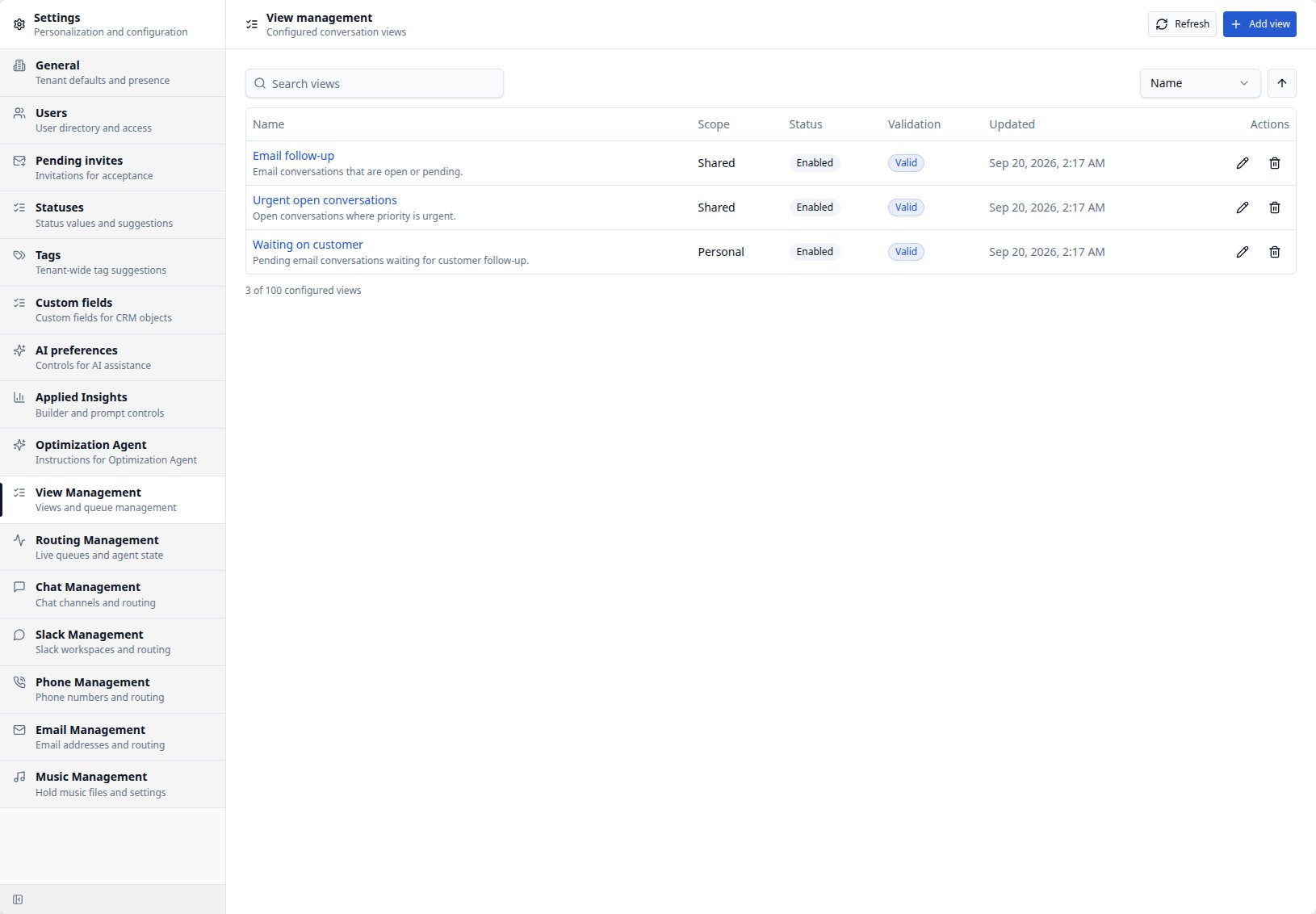
* **From Conversations:** select **Edit** at the bottom of the Views panel, then
**Add view** to open the personal View creation dialog.
* **From My Profile → Views:** select **Add view**, or use an existing View's
pencil action to edit your personal definition.
* **From Settings → Views:** authorized administrators can add or edit configured
Views and choose **Personal** or **Shared** scope.
The Views panel's **Edit** mode also lets you reorder the list for your own
workspace. It does not change another user's order or open the definition editor
for every View. Use My Profile or Settings to edit a View's name or description.
| Action | Result |
| -------------------------------- | ------------------------------------------------------------------------------------------------------------------------- |
| Adjust a filter, sort, or column | Refine the current View session. The saved definition stays in place. |
| **Reset** | Restore this View's saved filters, sort, visible columns, and column order. |
| **Save View** | Persist the current configuration when you have permission to edit this configured View. Shared changes affect its users. |
The count beside a View in the left panel describes its saved criteria. The
count above the table describes your current, possibly modified criteria.
Use the table's **Refresh** icon to reload results and update relative date ranges.
The description/Apply request box is available in the View definition editor.
When using an opened View, refine it with the visible controls.
## Create a View
Choose the starting point that suits your work:
* **From Search:** configure the results, select **Save as View**, enter a name,
and Save. This creates a personal View with the current filters, sort, columns,
and prompt text as its description.
* **From Conversations:** select **Edit** at the bottom of the Views panel, then
**Add view** to open the personal View creation dialog.
* **From My Profile → Views:** select **Add view**, or use an existing View's
pencil action to edit your personal definition.
* **From Settings → Views:** authorized administrators can add or edit configured
Views and choose **Personal** or **Shared** scope.
The Views panel's **Edit** mode also lets you reorder the list for your own
workspace. It does not change another user's order or open the definition editor
for every View. Use My Profile or Settings to edit a View's name or description.
 ## Configure the Edit View dialog
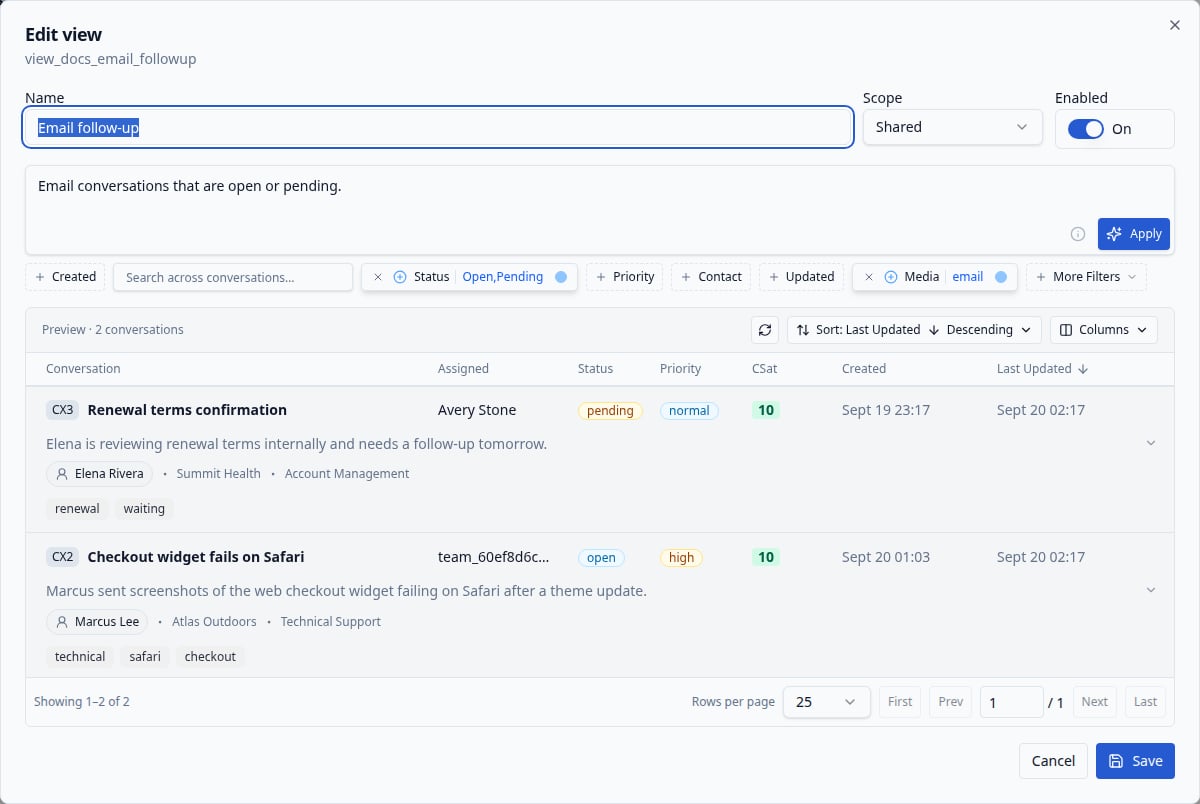
The **New view** and **Edit view** dialogs use the same editor. You can configure
everything manually, use a description to generate the criteria, or combine
both approaches.
## Configure the Edit View dialog
The **New view** and **Edit view** dialogs use the same editor. You can configure
everything manually, use a description to generate the criteria, or combine
both approaches.
 ### 1. Set the name, scope, and enabled state
* **Name:** give the queue a clear purpose, such as “Open work needing follow-up”.
A name is required to save.
* **Scope:** choose Personal for your own queue or Shared for a common queue.
Personal-only entry points keep the scope Personal and do not show this selector.
* **Enabled:** keep it On to make the View available in the conversation workspace.
Turn it Off to retain its definition while removing it from the normal list.
### 2. Describe the conversations and apply the request
Enter the purpose in **Describe the conversations you want to see…**. This
three-row text area also holds the View's saved description; there is no separate
Description field.
For example:
> Open conversations created in the past week and not updated in the last hour. Show Conversation, Assigned, Priority and Last Updated. Sort by Last Updated, oldest first.
Select **Apply** to generate filters and the explicitly requested columns and
sort. Review the resulting controls and preview. An explanation appears above
the input for five seconds; the **info** icon beside Apply opens it again.
Typing a description does not generate changes until you select Apply. Apply
updates the draft and preview; **Save** persists the View. You can also type a
description and configure the filters manually without using generation.
Generation uses the same supported controls as Search. Unmentioned controls
remain as currently configured. If the request is unsupported or ambiguous,
refine the request or select the intended records manually. See
[natural-language search](searching-conversations#describe-the-conversations-you-want-to-see)
for examples and limits.
### 3. Check dates and filters
New Views start with **Created: Last 30 days**. Change or remove that range if
your queue needs older conversations. Existing Views keep their saved ranges.
For the follow-up example, confirm **Created: Last 7 days**, **Status: Open**,
and **Updated: Last hour** in exclude mode. Use More Filters for additional
criteria. **Team** refers to the conversation's team association; use
**Assignment** for conversations owned by an agent or assigned team.
### 4. Choose columns and sort in the preview
The preview updates automatically after you apply filters or a generated
request. Keyword edits use the same two-second delay as Search.
Use **Sort** to select a column and direction, or select a sortable table header.
You can sort by a column even when it is hidden. Open **Columns** to show/hide
columns using the left checkboxes and reorder them with the right arrows.
Conversation always remains visible. The icon before Sort refreshes the preview.
New Views start with **Conversation, Assigned, Status, Priority, CSat, Created,
and Last Updated**. Add optional columns such as Contact, Organization, Team,
Category, Resolved, or Closed when they help explain the queue. These presentation
choices are saved per View and do not change Search or another View.
Check the preview count and sample conversations before saving. For the example
above, every result should be Open, created in the past week, and last updated
outside the past hour. A zero count can be correct if no current conversation
meets those conditions.
### 5. Save and verify
Select **Save**, then open the View from Conversations. Confirm its filters,
columns, sort, and results match the intended queue. **Cancel** closes the editor
without saving the draft. Keep shared View changes coordinated with the people
who use the queue.
## Keep Views useful
Review shared queues periodically and disable or delete those no longer needed.
Personal Views can help test a proposed queue before an administrator shares it.
If a View shows **Needs recreation**, its owner or an authorized administrator
must rebuild it with the current controls and save a replacement. Opening or
cancelling the editor preserves the previous definition; conversion is not automatic.
Ordinary Views show production conversations; Search can also include test
conversations. Counts can differ for that reason. Browse the first **10,000**
matches with page controls; narrow the filters for larger lists. Views start at
50 rows per page, while the editor preview starts at 25. Recent updates can take
a short time to appear in results.
See [Views administration](../admin/views) for queue ownership guidance and
[Conversations](../agent/conversations) for working on a selected conversation.
### 1. Set the name, scope, and enabled state
* **Name:** give the queue a clear purpose, such as “Open work needing follow-up”.
A name is required to save.
* **Scope:** choose Personal for your own queue or Shared for a common queue.
Personal-only entry points keep the scope Personal and do not show this selector.
* **Enabled:** keep it On to make the View available in the conversation workspace.
Turn it Off to retain its definition while removing it from the normal list.
### 2. Describe the conversations and apply the request
Enter the purpose in **Describe the conversations you want to see…**. This
three-row text area also holds the View's saved description; there is no separate
Description field.
For example:
> Open conversations created in the past week and not updated in the last hour. Show Conversation, Assigned, Priority and Last Updated. Sort by Last Updated, oldest first.
Select **Apply** to generate filters and the explicitly requested columns and
sort. Review the resulting controls and preview. An explanation appears above
the input for five seconds; the **info** icon beside Apply opens it again.
Typing a description does not generate changes until you select Apply. Apply
updates the draft and preview; **Save** persists the View. You can also type a
description and configure the filters manually without using generation.
Generation uses the same supported controls as Search. Unmentioned controls
remain as currently configured. If the request is unsupported or ambiguous,
refine the request or select the intended records manually. See
[natural-language search](searching-conversations#describe-the-conversations-you-want-to-see)
for examples and limits.
### 3. Check dates and filters
New Views start with **Created: Last 30 days**. Change or remove that range if
your queue needs older conversations. Existing Views keep their saved ranges.
For the follow-up example, confirm **Created: Last 7 days**, **Status: Open**,
and **Updated: Last hour** in exclude mode. Use More Filters for additional
criteria. **Team** refers to the conversation's team association; use
**Assignment** for conversations owned by an agent or assigned team.
### 4. Choose columns and sort in the preview
The preview updates automatically after you apply filters or a generated
request. Keyword edits use the same two-second delay as Search.
Use **Sort** to select a column and direction, or select a sortable table header.
You can sort by a column even when it is hidden. Open **Columns** to show/hide
columns using the left checkboxes and reorder them with the right arrows.
Conversation always remains visible. The icon before Sort refreshes the preview.
New Views start with **Conversation, Assigned, Status, Priority, CSat, Created,
and Last Updated**. Add optional columns such as Contact, Organization, Team,
Category, Resolved, or Closed when they help explain the queue. These presentation
choices are saved per View and do not change Search or another View.
Check the preview count and sample conversations before saving. For the example
above, every result should be Open, created in the past week, and last updated
outside the past hour. A zero count can be correct if no current conversation
meets those conditions.
### 5. Save and verify
Select **Save**, then open the View from Conversations. Confirm its filters,
columns, sort, and results match the intended queue. **Cancel** closes the editor
without saving the draft. Keep shared View changes coordinated with the people
who use the queue.
## Keep Views useful
Review shared queues periodically and disable or delete those no longer needed.
Personal Views can help test a proposed queue before an administrator shares it.
If a View shows **Needs recreation**, its owner or an authorized administrator
must rebuild it with the current controls and save a replacement. Opening or
cancelling the editor preserves the previous definition; conversion is not automatic.
Ordinary Views show production conversations; Search can also include test
conversations. Counts can differ for that reason. Browse the first **10,000**
matches with page controls; narrow the filters for larger lists. Views start at
50 rows per page, while the editor preview starts at 25. Recent updates can take
a short time to appear in results.
See [Views administration](../admin/views) for queue ownership guidance and
[Conversations](../agent/conversations) for working on a selected conversation.