

Before you enable authentication
Coordinate activation with your CXP operator. You need a supported widget build, a configured customer identity tenant with at least one enabled supported login method, and an approved list of HTTPS website origins. The authentication service and chat runtime must be deployed before publishing the protected configuration. Authentication is optional; existing widgets remain anonymous when the published configuration does not enable it. The widget discovers the authentication service through its chat settings response. You do not need authentication configuration on your website server or a separate widget build for each environment. If service configuration changes, customers may need to sign in again.Sign in to chat
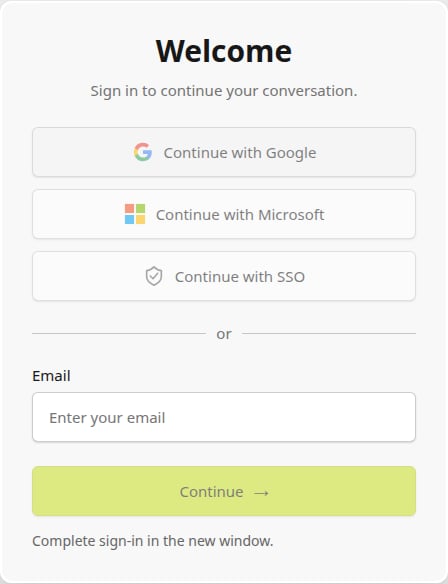
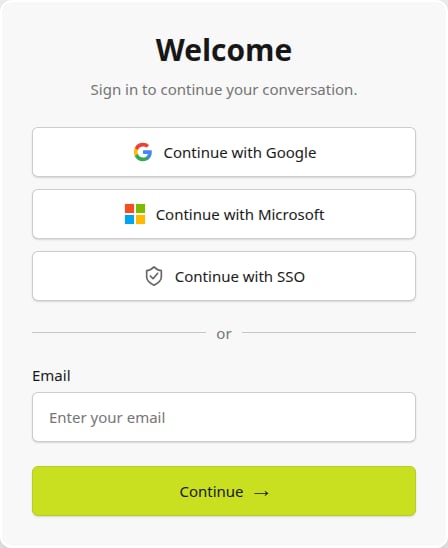
Select Log in in the widget. The popup offers the methods enabled in your configured customer identity tenant:- Continue with Google for the tenant’s native Google provider.
- Continue with Microsoft for the native Microsoft provider.
- Continue with SSO for corporate OIDC or SAML. If several corporate providers are enabled, choose one on the next screen.
- Email → Continue → Password → Sign in for email/password accounts. Use Forgot password? to request reset instructions.
Sign in and resume chat
The widget shows Authentication is required until you select Log in and finish signing in in the popup. Allow popups for your website. Conversation content and startup forms appear only after authentication succeeds.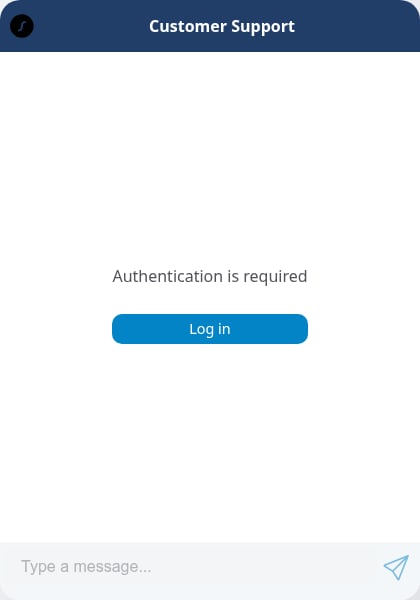
Continue in another tab
When another tab takes over the same chat, this tab pauses. Select Continue in this tab to use it again. Switching tabs alone does not send a pending message. If the widget says a message was not sent, send it again after continuing. Starting a new chat keeps the same valid login. Another open tab adopts the new chat and remains paused until you choose to continue there.Log out
Select Log out to clear the widget’s local authentication and conversation state and request revocation of the login. If local cleanup fails, the widget blocks chat and offers Retry log out. Logging out of the widget does not sign you out of the website or your identity provider. Widgets share browser storage for a website origin. Only one authentication scope is retained at a time. Use separate browser profiles for different people on a shared device: existing transcript and context storage is not a privacy boundary between people or simultaneously active tabs.Host-page integration
A host application may provide a current Firebase ID token before the user selects Log in:null when your application no longer wants to provide a host token.
You can also request logout from the host page:
setContext calls remain
editable; these values are not an identity assertion for contact matching.
Never collect tokens, callback URLs or chat connection URLs in analytics. For
support, use the non-secret support reference from widget authentication events.