

Holiday windows
Coming soon. Prepare holiday behavior ahead of time and publish the agent once. At the configured start, CXP uses the dated setting; at the exclusive end, it resumes the ordinary weekly behavior without another publication.Prerequisites
You need Owner or Admin access to the Concierge Agent and an editable draft. Confirm the agent’s Business Hours timezone before entering dates.Add a window
- Open Agents > Concierge, select your agent, and open Handoff.
- Select Create draft or open its existing draft.
- Under Holiday windows, select Add holiday.
- Enter a label and use the date and time pickers to select the local start and end in the agent’s timezone. The end is exclusive: a full-day closure runs from midnight on the holiday to midnight the next day.
- Choose an effect and add any message overrides.
- Select Apply to draft, then Preview. Use the holiday selector to inspect another window; Details lets you enter a test date and time.
- Select Save draft, then use the existing Publish draft action.
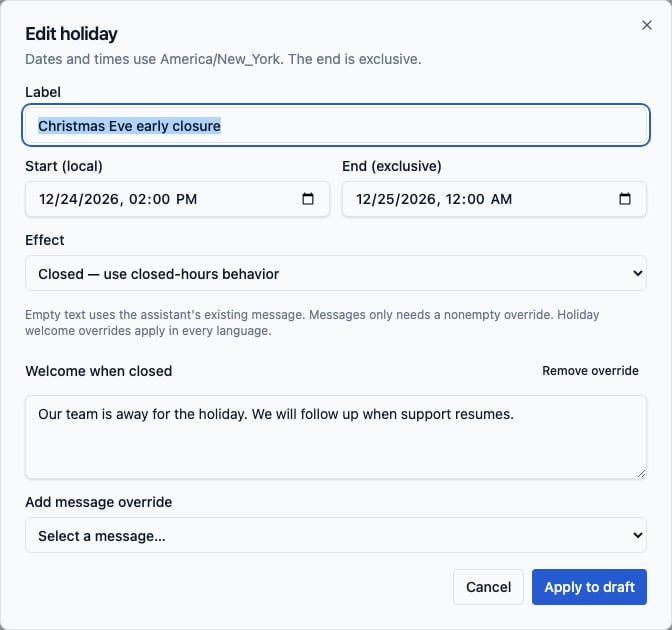
For example, close from December 24 at 2:00 PM through December 26 at 9:00 AM
in the agent’s timezone, and set Welcome when closed to:
Our team is away for the holiday. We will follow up when support resumes.If only the greeting needs to change, use Messages only with a Welcome override instead. Configuring a notice does not enable Business Hours.