

Coming soon. This article describes the shared Search and Views experience
awaiting release. Production availability has not yet been confirmed.
Before you start
You need access to Search and permission to read conversations. Saving a search as a personal View also requires permission to manage personal Views. Your role determines which actions are available.Open Search
- Expand Reporting in the sidebar and select Search.
- Check Created. A new search starts with Last 30 days. Select another range, or remove the filter with × to search without a creation-date limit.
- Describe the conversations you want, enter a keyword, or add filters.
- Review the matching conversations in the table. Open a row to read the conversation, or select its Contact pill to open the contact record.
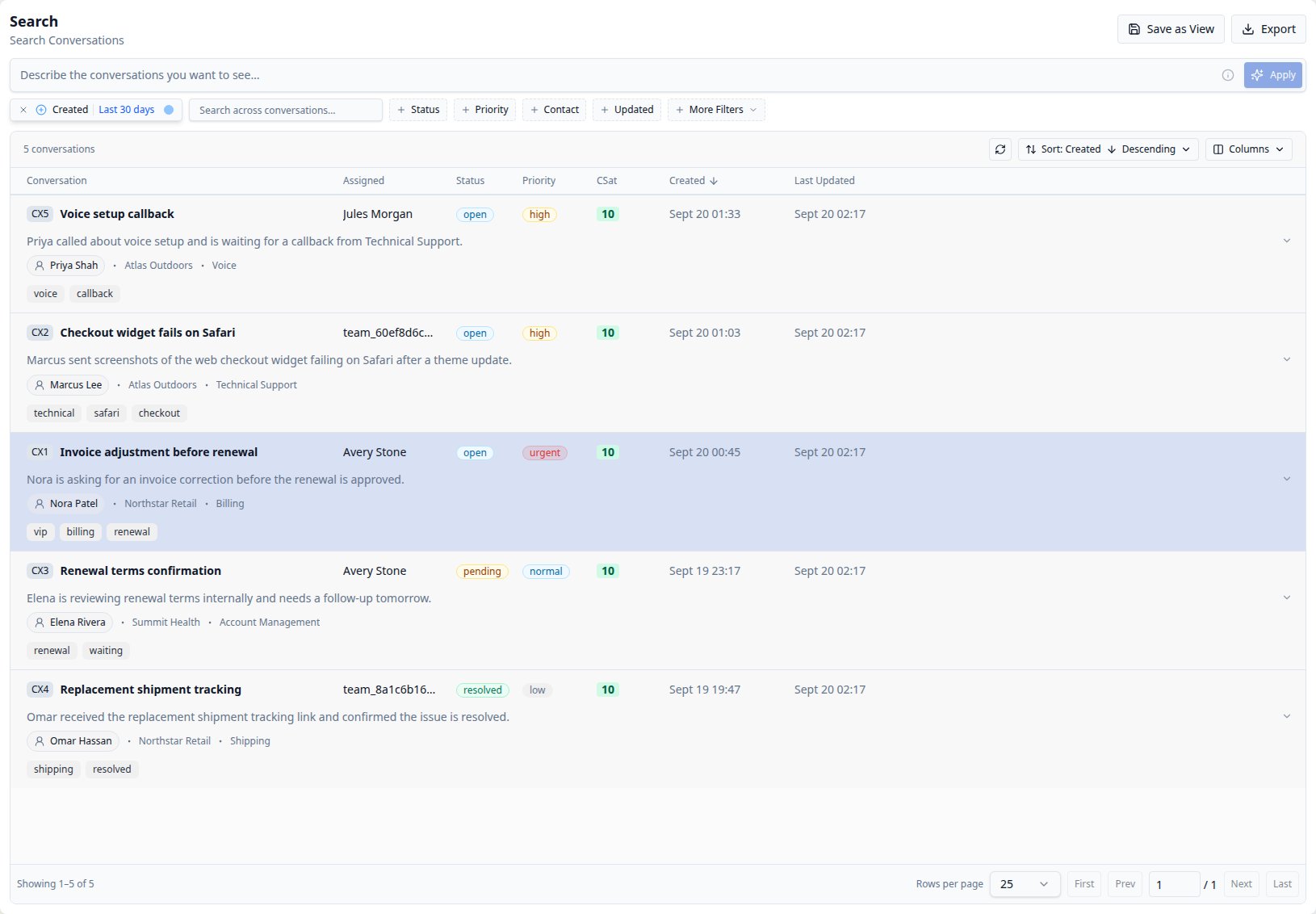
Search brings the request box, filters, and conversation results together.
Describe the conversations you want to see
The Describe the conversations you want to see… box turns a plain-language request into the filters shown below it. You can also ask for a sort order, which columns to display, and their order.-
Enter a request, for example:
Find open high-priority conversations created in the last 30 days. Sort by Last Updated, newest first.
- Select the stars Apply button inside the box.
- Review the updated date ranges, filter chips, and sort. Search runs automatically after the request is applied.
- Check the explanation that appears above the box for five seconds. Select the info icon beside Apply to show or hide it again.
- Adjust any generated control manually to refine the results.
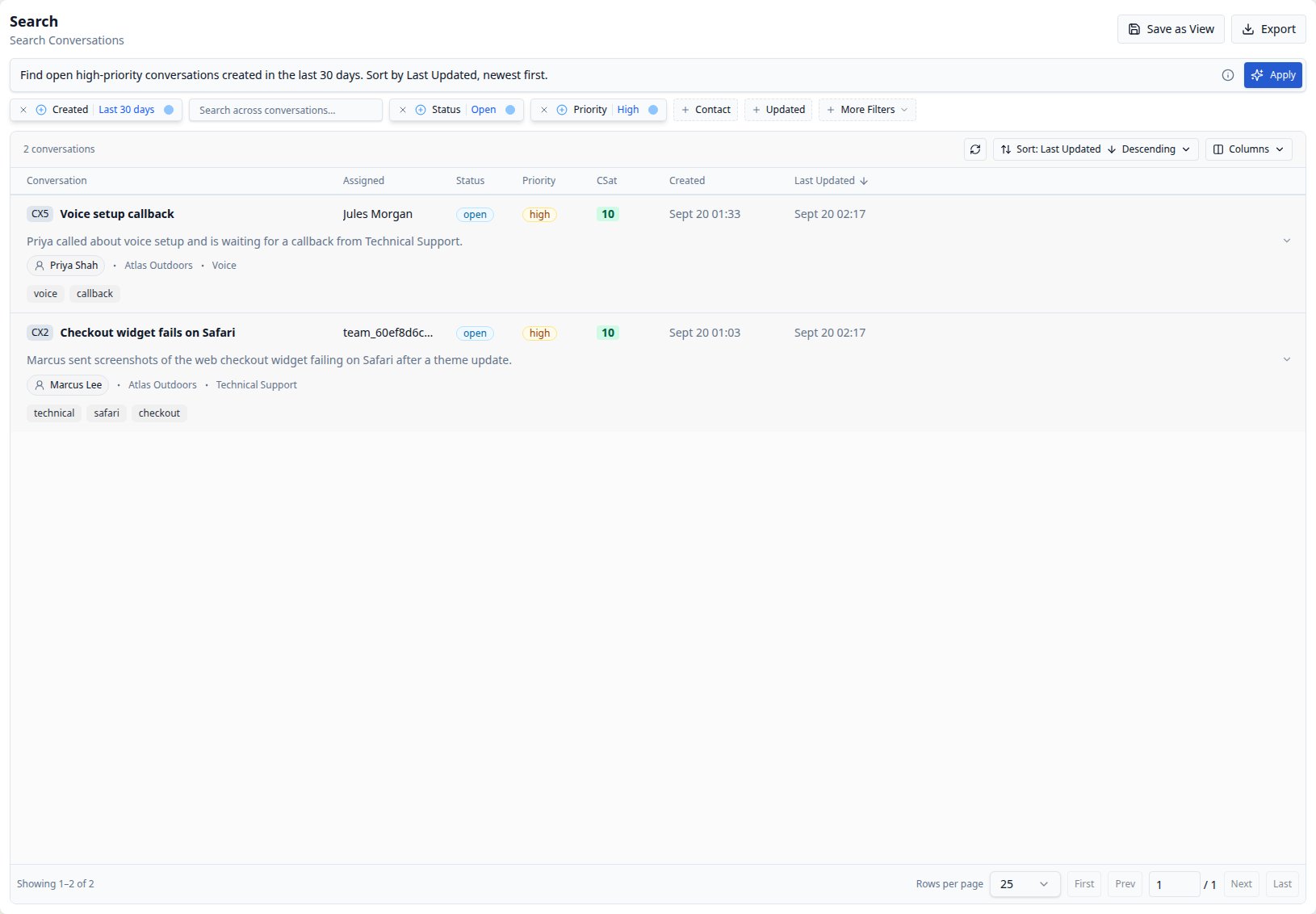
This request sets Status to Open, Priority to High, and Last Updated to descending order.
Generation works with your current configuration. Controls you do not ask to
change stay as they are, including the current/default columns and sort. Clear
unwanted filters first, or explicitly ask to change them.
Requests must map to available controls. If a request needs an unsupported
condition or an ambiguous Contact, Organization, Team, or agent, the explanation
asks you to refine it and the existing configuration stays in place. Select the
intended record in the corresponding filter, then try again. General Match all /
Match any groups and OR conditions across different filters are not available.
Adjust filters manually
Select a filter to choose its values, then select Apply in its popup. You can edit filters generated from a description in exactly the same way as filters you added yourself.
The filter row wraps when it needs more space. Once you add a filter from
More Filters, it appears as a regular chip alongside the others.
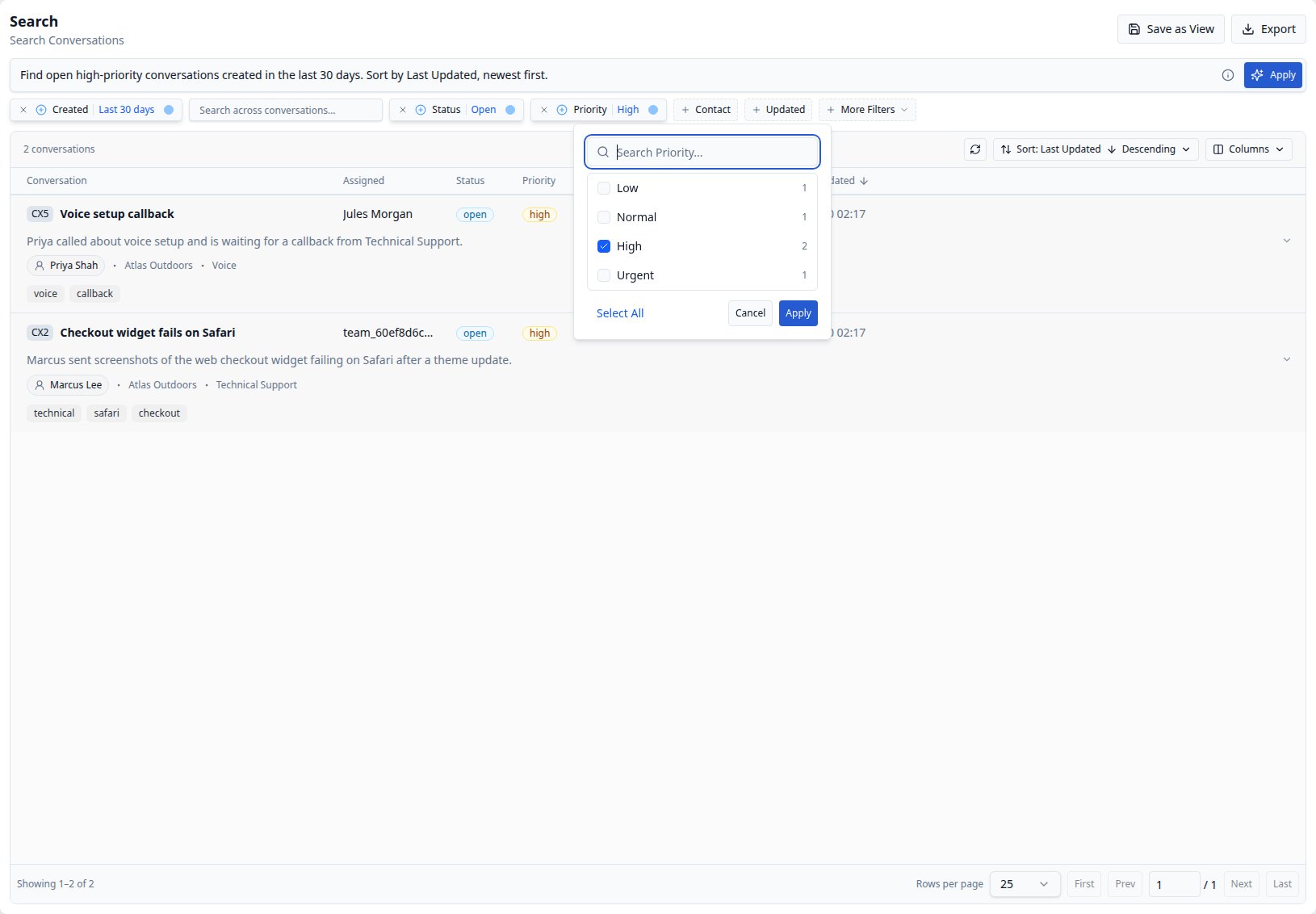
Open a filter chip to adjust its selected values, then apply the change.
- Select its plus/minus circle to switch between including and excluding matches.
- Select its colored dot to disable or re-enable it without losing its values.
- Select × to remove it.
Enter a keyword
Type in Search across conversations…. Results refresh two seconds after you stop typing. Select the inline magnifying glass to search immediately, or × to clear the keyword. Keywords can match conversation text and other searchable values, including Contact names and emails, Organization names, and Team names. An email address can match a mention in the conversation as well as its Contact. Use the Contact filter when you want conversations belonging to a particular person. You can enter an ID such asCX15, a quoted phrase such as "refund request",
or "refund request" OR invoice. Wildcards are also supported. Correct any
reported keyword syntax error before searching again. Keyword conditions apply
alongside your other filters.
Find conversations that have not been updated recently
For open conversations created in the past week but not updated in the past hour:- Set Created to Last 7 days.
- Set Status to Open.
- Set Updated to Last hour and apply the range.
- Select Updated’s plus/minus circle to exclude that range.
Read and arrange the results
Each row shows its column values, a summary, a linked Contact, the conversation’s Organization and Category when set, and conversation tags on their own line. Expand a summary to read the full text. These row details remain visible even when their corresponding optional columns are hidden.- Refresh: reload the current results using the icon before Sort.
- Sort: open the button showing the current column and direction. Use the up/down icon next to a column to sort ascending/descending. The active column is bold. You can sort by a hidden column, or select a visible column header.
- Columns: use the checkbox on the left to show or hide a column, and the arrows on the right to move it earlier or later. Showing or hiding a column does not rerun the search. Conversation always stays visible.
Save or export a search
To reuse the configuration, select Save as View, enter a View Name, and select Save. Save becomes available when the name is entered. This creates a personal View with the current filters, sort, visible columns and column order. Your description-box text becomes the View’s description. You stay in Search; open the new View from Conversations. See Using Views for configuration and sharing options. Select Export to download a CSV for the current search. Export uses its standard columns and returns up to 500 matching conversations; it does not change with the columns you show in the table.Result limits and troubleshooting
- Browse the first 10,000 matches using the page controls or page-number input. The total may be larger; narrow your filters to reach the work you need.
- Search starts with 25 rows per page. Adjust the page-size control as needed.
- If results seem missing, check Created’s default 30-day range, disabled or excluded filters, keyword syntax, and your access permissions. Recent changes can take a short time to appear; use Refresh to check again.
- Search includes indexed test conversations. Ordinary Views use production conversations, so a saved View can have a different count from the same Search.