Search and reporting
CXP includes Search and Reporting tools for finding historical conversations and reviewing operational performance. Expand Reporting in the sidebar to open Dashboard or, when your role permits it, Agent Workload and Agent Statuses. Coming soon: User joins Viewer in read access to Search and Dashboard. Existing Search exports remain available. Neither reader role can save a personal View. Agent Workload follows the separate role rule below; neither User nor Viewer gains access. See Roles and permissions.Search conversations
Use Search when you need to find conversations outside the active queue. Search supports:- Date range filtering
- Keyword search across conversation content and exact conversation IDs
- Status and priority filters
- Advanced natural-language search when enabled
- Server-backed pagination and sorting
- CSV export for the current search when allowed
CX15 directly in keyword search.
For a quick lookup without leaving your current workspace, open Commands from the top of the sidebar or press Ctrl/Command+K. If your text does not match a navigation command, entering at least three characters searches conversations and shows up to ten recently updated matches. Select Search more … to open this page with the same keyword already applied and searched.
Shared controls with Views — Coming soon
Search and ordinary Views will use the same criteria editor, including keywords, Contact/Organization/Team selectors, assignment, and a sort selector that works even for hidden columns. Natural-language generation will populate filters and explicitly requested sort/columns instead of displaying a raw query. See Searching conversations for illustrated requests, manual filter adjustments, and result controls. See Using Views to save a recurring queue and configure its definition. For live work, use Available Live Conversations. It refreshes every five seconds from a shared tenant list and initially shows conversations Created in the last 7 days (UTC), oldest first. Adjust or remove the Created filter to include older live work. Owners and Admins can use Repair when rows seem missing or stale; filters and sorting remain in place. Other roles do not see the Repair button.Use search responsibly
Search can expose customer history according to your permissions. Avoid exporting or sharing search results unless your role and tenant policy allow it.Dashboard
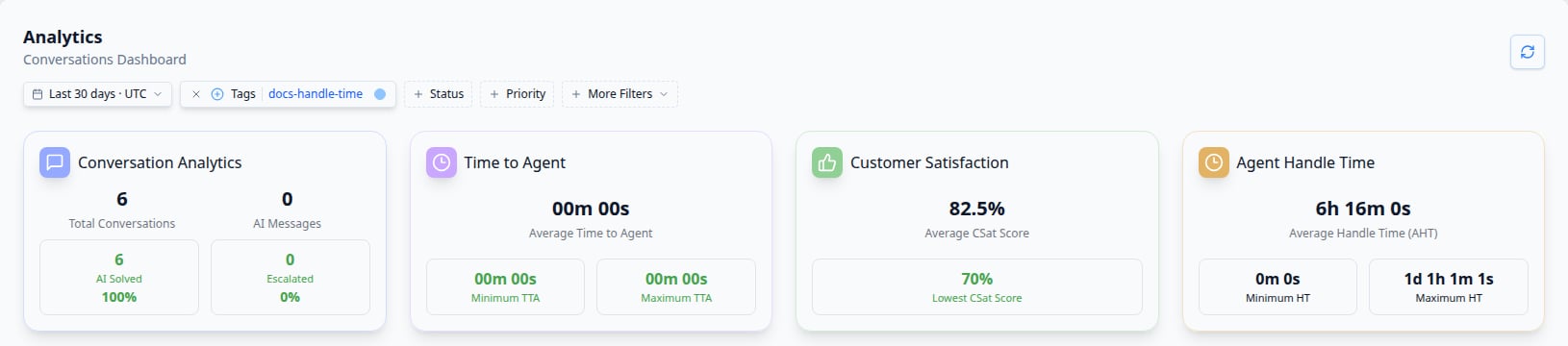
Use Dashboard to review support performance and AI Assistant behavior. Dashboard reporting can include:- Conversation volume
- Escalated conversation volume
- Time to agent
- Customer satisfaction estimates
- Agent Handle Time: average, minimum, maximum, and trend
- AI Assistant dashboard metrics
- Filterable charts and date ranges

Choose a reporting timezone
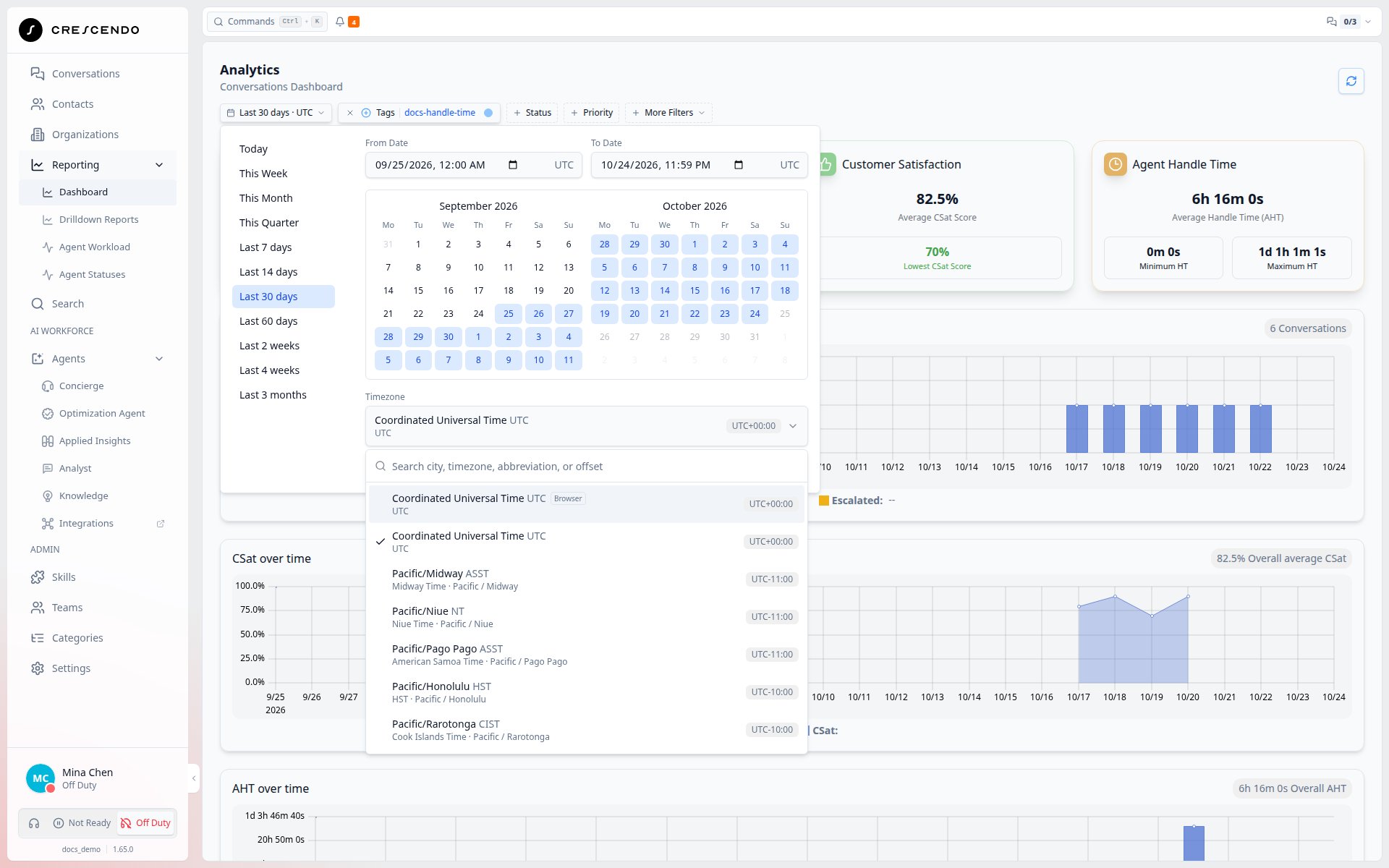
On Dashboard or Search, open the date-range selector and then Timezone. Search by city, timezone name, abbreviation, or UTC offset—for example,new york, EDT, or UTC+05:45.
Agent Workload
Owners, Admins, and Team Leads can open Reporting → Agent Workload to review current staffing and workload across the organization or one team. Team Leads can review teams they do not belong to without general Settings access. Agent, User, and Viewer retain Dashboard but not Agent Workload.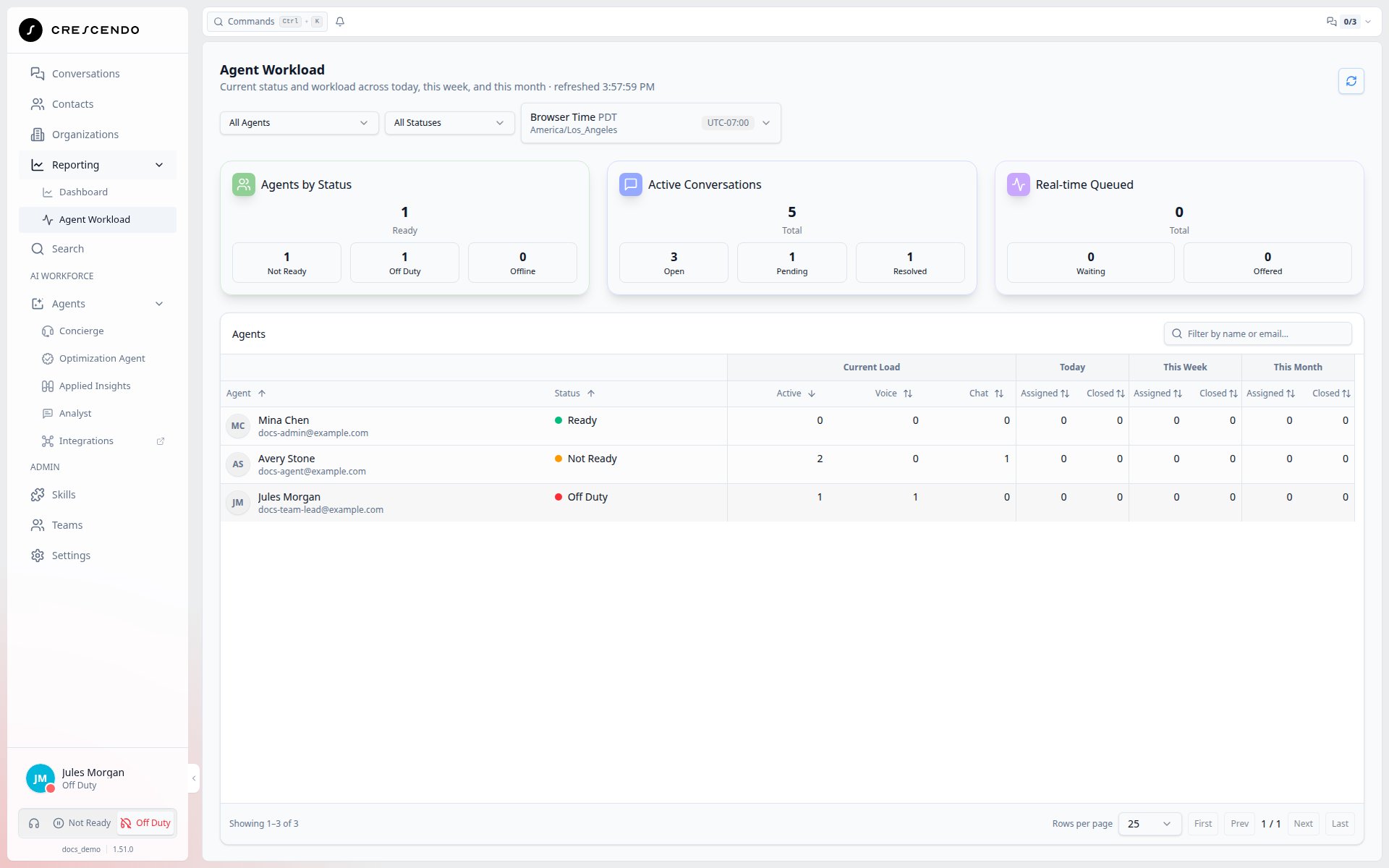
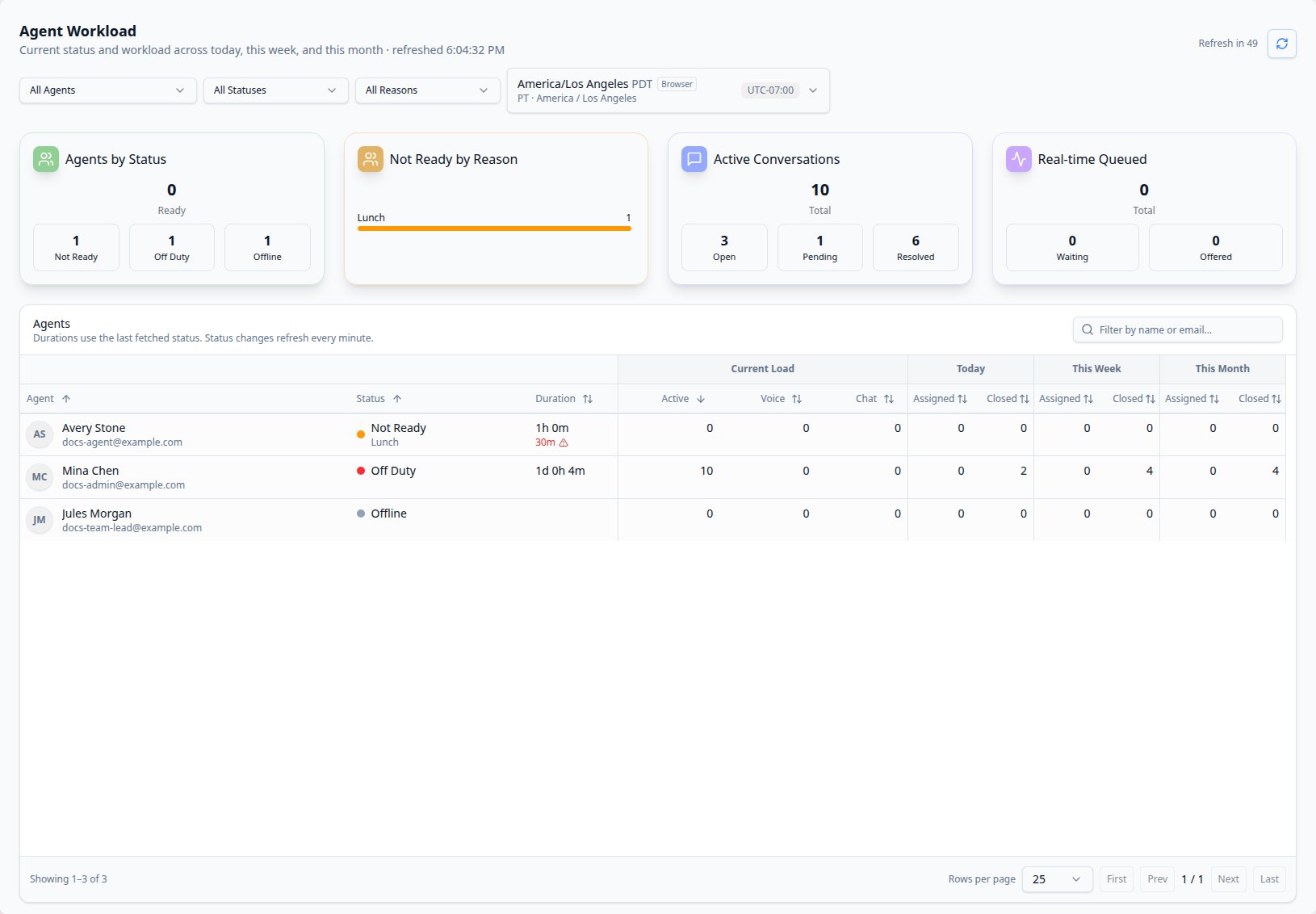
- Agents by Status: Ready, Not Ready, Off Duty, and Offline agents in the selected team scope. Agents without retained runtime state appear as Offline.
- Active Conversations: total non-closed conversations, with Open, Pending, and Resolved counts that add up to the total. When you select a configured team, all three card titles append that team’s name and Active Conversations counts only conversations associated with that team. With All Agents selected, card titles do not include a team suffix.
- Real-time Queued: total conversations currently Waiting or Offered by routing. All Agents sums every routing queue, including the default All Agents queue and configured team queues. Selecting a team scopes this card to that team’s queue only.
0m. Longer values retain completed minutes,
such as 1h 10m or 1d 3h 35m; exact hours and days retain zero lower units
(1h 0m, 1d 0h 0m). Each duration advances when another whole minute passes
from its own start, independently of report refreshes.
For Not Ready with a reason, the muted second line shows time in that specific
reason. Changing from Lunch to Break restarts the reason’s time while the overall
Not Ready time continues. Select the column heading to sort by overall time in
status; the reason duration does not affect sorting. Hover over a duration or
focus it with your keyboard to see the exact start date and time in the report’s
selected timezone.
When the current reason has a positive time limit, its duration turns red and
shows an alert as soon as its elapsed time exceeds that limit. The warning
updates while you stay on the page; it does not wait for the next report refresh.
It uses the reason’s duration, not the overall Not Ready time, and does not
change the agent’s status. Owners and Admins configure limits in
Settings > Statuses. See Not Ready reasons.
Offline agents have an empty Duration cell. A dash means the start time is
unavailable, including when current status data cannot be refreshed. The report
keeps those times unavailable through a retry until fresh status data returns.
These values describe the last fetched status, not accumulated working time or
an attendance history. See Not Ready reasons
to configure and review reasons.
The report refreshes automatically while you stay on this page. Refresh in 60
before the Refresh button counts down the seconds until the next
refresh; Refreshing… appears while it runs. The countdown restarts after each
attempt finishes, including a failed attempt. Select Refresh to update sooner.
Leaving the page stops automatic refresh. Background refreshes keep your filters,
sorting, scroll position, and current page; if results shrink, the table moves to
the last available page. The report marks unavailable or last-known values instead
of presenting them as zero and shows its last refresh time near the title.
Assigned counts any-state conversations currently assigned to the agent whose latest assignment time is in the displayed period. Closed counts currently closed conversations assigned to the agent whose durable close time is in the period. For a bounded first release, these period counts consider conversations created within the prior two calendar months. They use the current assignee, so they do not reconstruct prior assignment history or identify which agent performed a close. Open the conversation when you need its exact lifecycle.
Agent Statuses
Owners, Admins, and Team Leads can open Reporting > Agent Statuses to review captured availability for a period and timezone, starting with This Week. Apply dates and timezone inside Report dates; choose All Agents or a team to update immediately. There is no second Apply step. The report uses the current active agent roster and always shows Ready, Not Ready, configured and observed historical reasons, and Off Duty. A dash means no captured observations for that agent or reason. Select an agent’s name for daily totals in the applied timezone, then select a date to open Status History with totals, bars, and individual status changes. Use an entry’s Details action to inspect its times and counted duration. Not Ready has one stacked reason bar with a legend showing durations and shares of its total, including No Reason when observed. The back control returns to the agent summary. The page address keeps the dates, timezone, team, and selected agent, including a chosen preset’s label such as Today or This Week. Refresh keeps those exact dates and that agent’s daily view while retrieving fresh results. Search, sort, and page through the loaded result. Export > Export Report saves every filtered page of the displayed summary or daily table to a single Excel worksheet. History is best effort, and these durations describe availability rather than attendance or focused work. See Agent Statuses Reporting for daily history, date boundaries, renamed reasons, export scope, and limits.Applied Insights
All six roles retain saved-result/history reads and existing exports. Owner, Admin, Team Lead and User retain widget creation/editing, execution and Analyst. Agent and Viewer can read the latest saved results, including results generated by someone else in their organization, but cannot execute widgets for fresh data. Dashboard/settings/sharing management remains Owner/Admin-only. The Coming soon bot-configuration restrictions do not change these Insights permissions. When Applied Insights is enabled for your organization, it provides reusable, custom reporting separately from the fixed operational Dashboard. When it is not enabled, the navigation opens the legacy Crescendo application instead. Depending on your role, you can:- Ask follow-up questions in a private Analyst session without first creating a widget.
- Open tenant dashboards and reusable widgets.
- Preview and export displayed widget results.
- Build or refine widgets with the conversational builder.
- Import reusable widget specifications from the Shared library.
- Publish or unpublish a widget specification when you are an owner or admin.
Enable tile dashboards
If you are an owner or admin, open Settings > Applied Insights, scroll to Features, turn on Tile dashboards, and select Save. This option is off by default. New dashboards use Tiles while it is enabled, and you can convert an existing Classic dashboard from its Dashboard settings. Turning the option off keeps existing tile dashboards available. Use Reload to discard unsaved settings changes.
Place new widget components
Each tile on a tile dashboard shows one part of a widget, such as a KPI or a chart. When you edit a widget in the builder, its existing tiles stay where you placed them. If the edit adds a component, owners and admins see a notice on each tile dashboard that shows the widget, for example “Support overview has a new component that is not on this dashboard.” Select Place to add the new components after that widget’s other tiles, then adjust them in Edit layout if needed. The notice also clears when you save any layout change, including removing a tile you do not want.Stop and continue an Analyst investigation
The composer button shows Send when you type a message and Stop while Analyst works. After selecting Stop, a spinner remains until the investigation has stopped. Any partial answer stays available with a gray incomplete-answer notice. A stopped response is a normal action, not an error. With an empty draft, Continue investigation is available after a stopped run or a run that reached its continuation limit. It starts another investigation using the saved conversation and findings, without adding a message from you. Typing a new question switches the button to Send. Other empty, idle chats have an inactive button. Continue does not approve a pending Optimization proposal.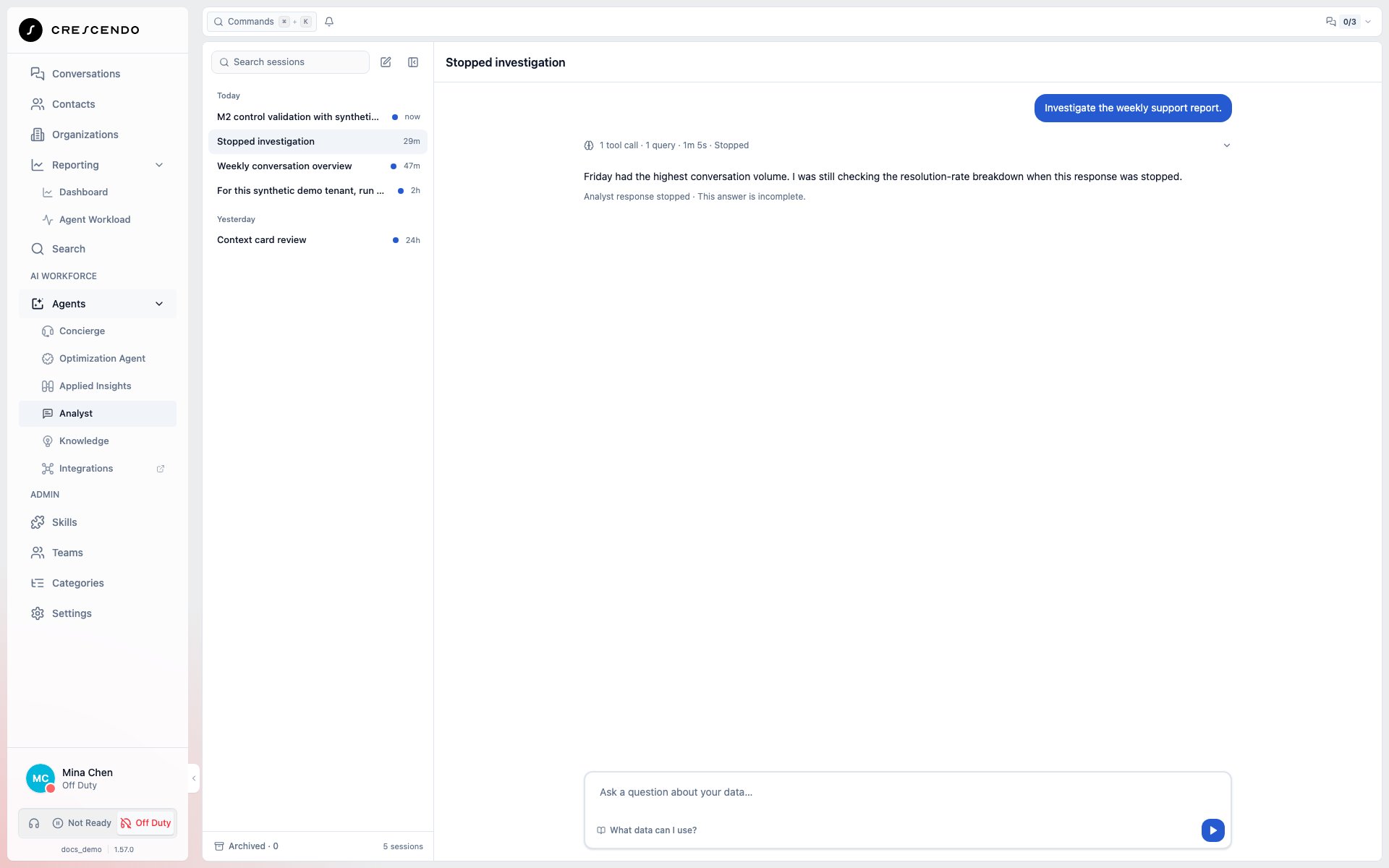
Fork an earlier Analyst message
Hover over a saved question or Analyst response and select the Fork icon to explore another direction. Keyboard focus also reveals the icon. Expand exploration to fork from an earlier progress message. Finish or stop the running investigation first. The new investigation contains the conversation and saved image attachments through the selected message. Forking a completed answer also preserves its Context, including reported dates, filters and scope metrics. Later messages stay in the original. A Forked from … divider links back to that point in the original investigation. Write your next question to continue independently.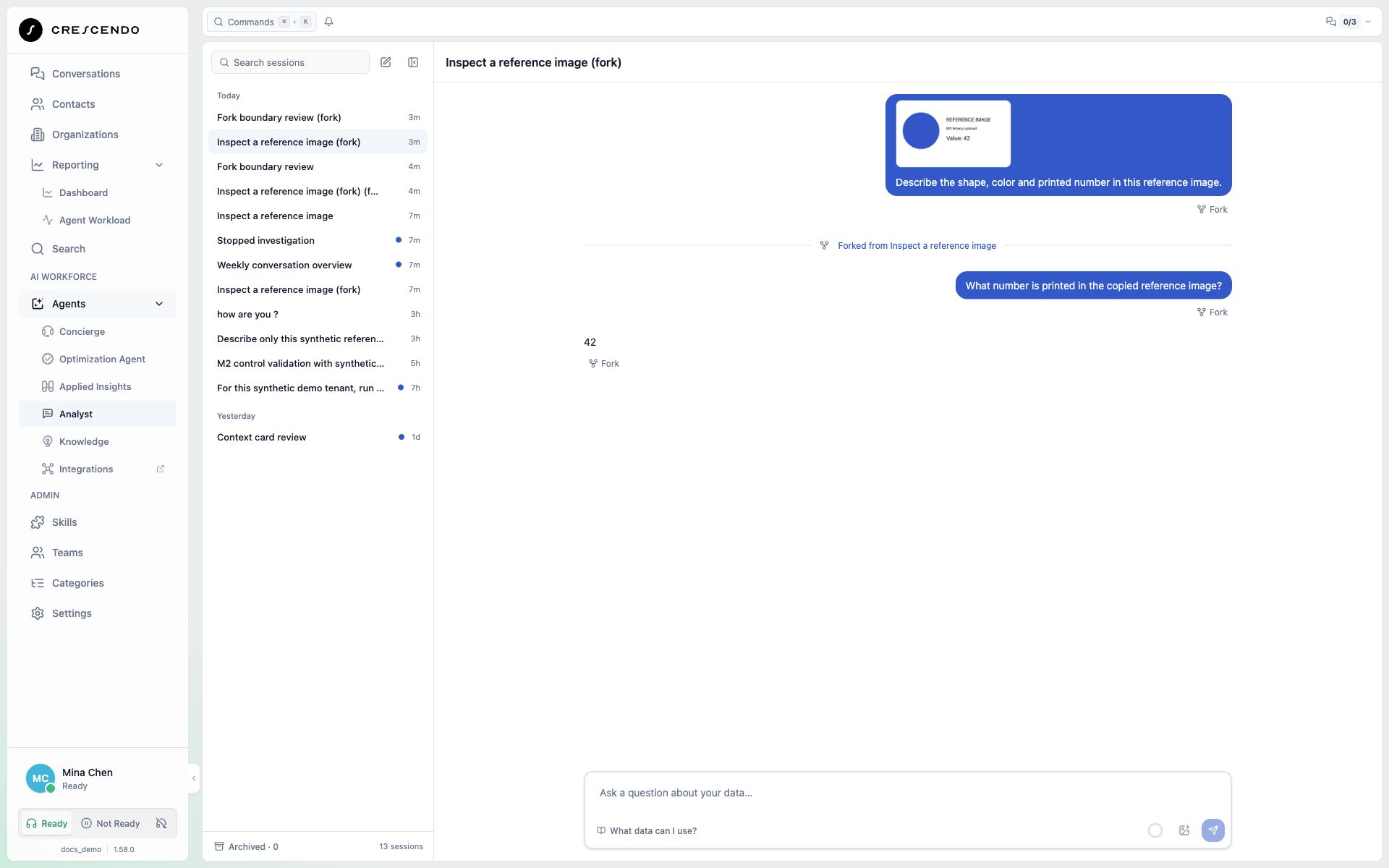
Attach reference images to Analyst
With Analyst access, you can attach up to four PNG, JPEG, GIF or WebP images alongside a text question. Select Attach images, check the thumbnails, and remove any image you do not want to send. Each image can be up to 20 MB, with 30 MiB combined per message; your organization may configure lower limits. Select Send to upload the images and start the investigation. If upload fails, your question and image previews remain available so you can remove an image or retry in the investigation that was just opened. If attachments become unavailable before your message is saved, the unsent question and image selection remain available to correct and retry. If Analyst is busy and cannot start your investigation, your question and images remain available to retry. Switching investigations keeps unsent drafts separate while the Analyst workspace stays open. A delayed rejection restores the question in its original investigation. If you have newer edits there, clear the current draft and select Restore unsent message to recover the earlier question. Unsent drafts do not survive a page reload. Saved images remain visible after reload and can still be previewed after you archive the investigation. Select a thumbnail to inspect it in an image preview dialog without leaving the chat. Images provide reference context; verified metrics still come from authorized data. The active conversation has a 40 MiB image budget. If a new message exceeds that budget, its images are not saved; remove the pending images to keep asking questions, or fork from an earlier message.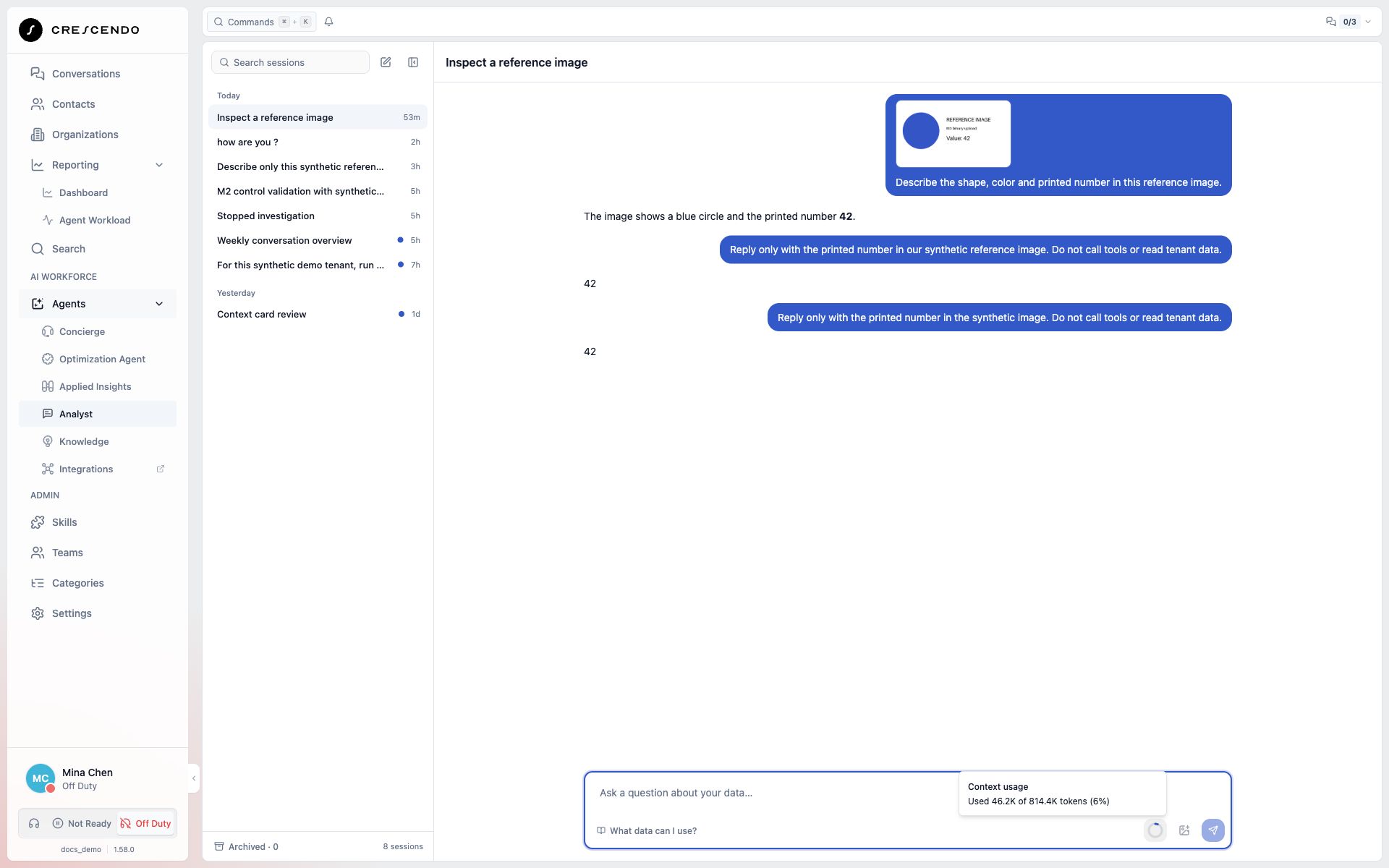
Inspect Analyst exploration
Analyst shows its progress while investigating. When its final answer starts, queries, validations, source discovery and other exploration steps collapse into one summary above the answer. The summary counts tool calls and shows the time spent exploring, excluding answer streaming. Select the summary to inspect the steps again. It stays expanded while the answer continues. Charts and action cards remain visible outside the exploration section. Older saved chats may omit timing when it was not recorded.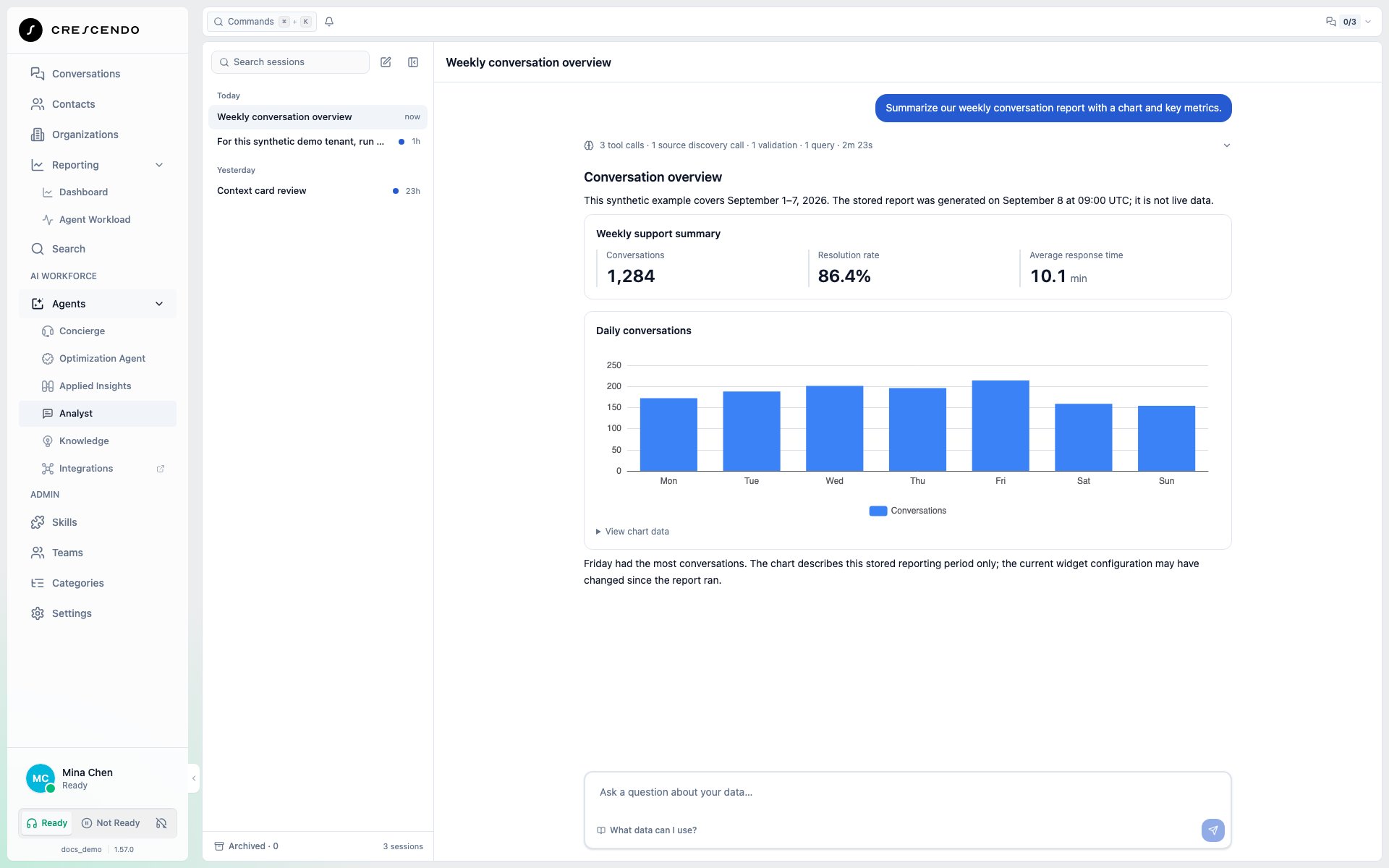
Check the scope behind an Analyst answer — Coming soon
The Context card will show the executed dates, timezone, applied filters, and sample or aggregate row counts while an answer runs. Comparisons keep periods separate. Select an earlier answer’s Context tag to revisit its saved scope. See Analyst Context for examples and limits.Continue a long Analyst or Builder chat — Coming soon
Analyst and Widget Builder will use GPT-6.1 Sol for new turns, including when you reopen an older chat. Your widget’s reporting execution settings stay separate. During a long chat, Organizing earlier context… means the assistant is preparing earlier context before continuing. Your visible transcript stays available. You can still choose Stop. Each message starts a run with up to 30 minutes to investigate and finish its answer. Long responses can keep progressing within that budget. A follow-up message gets a fresh time budget while keeping the saved chat context. If an unfinished response is replaced by a final summary, its partial text is cleared first. If an investigation reaches its run budget, the assistant will summarize what it found or save a notice asking you to continue; send a follow-up in the same chat to pick up the investigation. Only one Builder response can run for a widget at a time, including across tabs and users. If it is already being updated, wait for the response or use Stop in the tab that started it, then retry your prompt. Different widgets can be built independently. Stopping a long response records cancellation before cleaning up its partial history; cleanup can be retried if interrupted. Builder messages with images have a 900 KB combined limit; use smaller images if the message is too large.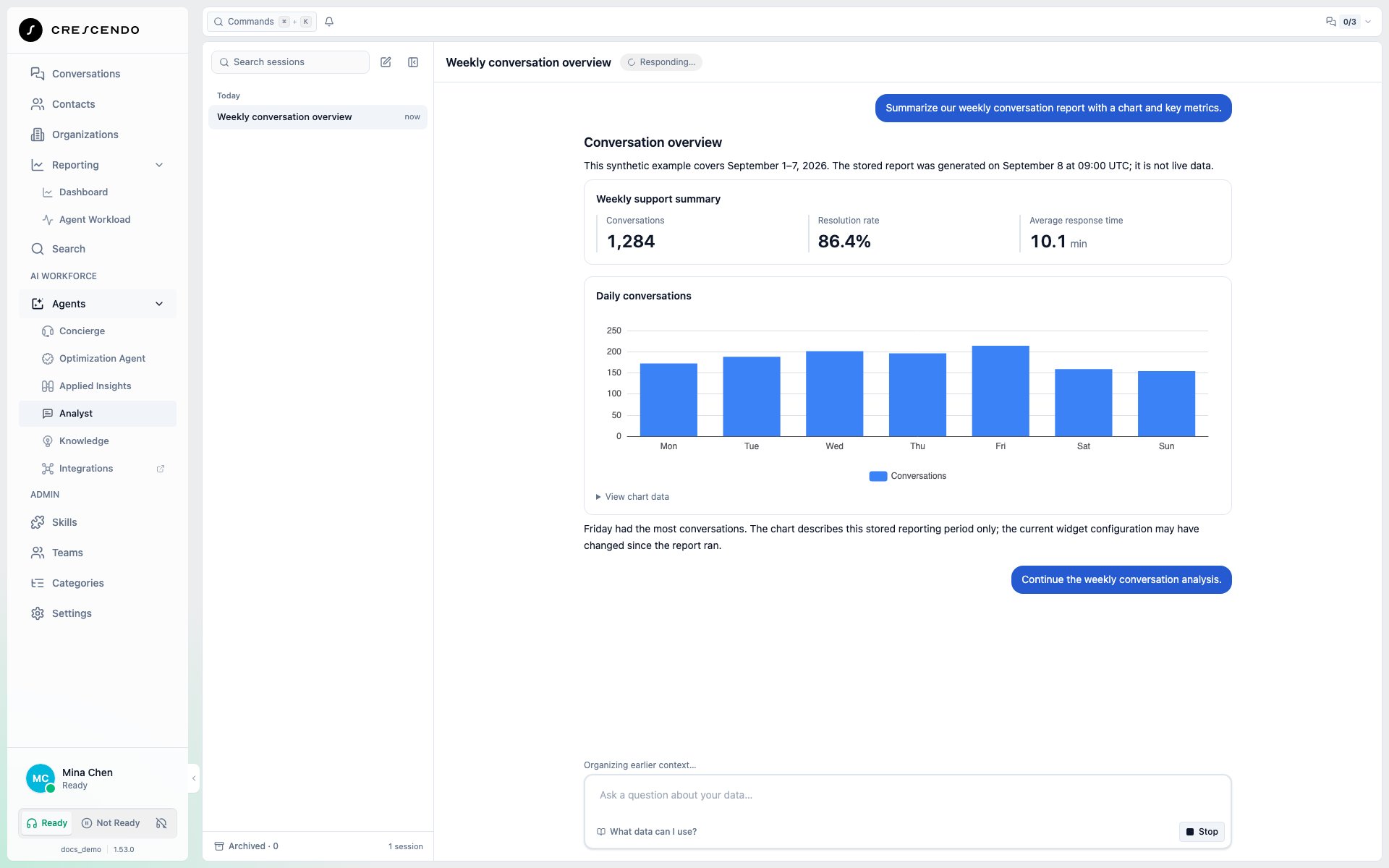
Validate a widget specification
Widget Builder validates draft specifications using placeholder conversation analysis. Validation checks the specification and processing steps; it does not verify actual analysis findings. Use a background analysis task or save and refresh the widget to run analysis against your data.Choose a Widget Builder reporting range
The selector beside Run widget controls the next execution, not the data already displayed. Ask the builder to use a range, such as “Last 7 days,” or choose it yourself. A range-only change does not run the widget; a lightweight specification update can still refresh the preview automatically. Background analysis widgets require an explicit run.Coming soon: Builder range selections will survive reloads in the same browser
tab, separately for each tenant and widget, when browser storage is available.
Previews from a different or unknown reporting range will display a notice to
run the widget again. Debug details will distinguish the next execution range
from the stored result’s range and execution time. Named ranges, such as “Last
7 days,” are resolved when the widget runs.
Analyze stored dashboard results
Ask Analyst which dashboards are available, then ask about a widget’s stored results. For example: “Summarize our Operations Overview dashboard using its stored conversation-volume result, with a chart and key metrics.” Analyst can discover the widget IDs and read one stored result at a time without refreshing the dashboard or starting a widget run. Check the execution timestamp and reporting period in the answer. A stored result may be older than the dashboard’s current settings; older results may have an unknown reporting period. Current widget configuration is not proof of how a historical result was produced. Analyst can browse retained executions and read selected exact results. Try: “Find yesterday’s and today’s runs for this widget and compare their stored values.” Include your timezone. Execution date is not reporting period: a run yesterday might contain a rolling 30-day total. Analyst reports unknown periods, unavailable exact rereads and whether it reviewed only part of the paginated history. This does not rerun the widget or guarantee that every historical execution is still retained. Missing, failed or oversized results are reported rather than treated as zero.Read inline charts and key metrics
Use Search sessions to filter your session titles. The session rail shows recent activity and an Archived count at the bottom. Hover over or focus a session to rename or archive it; rename saves with Enter or when you leave the field, and Escape cancels. Open Archived to restore a session. Collapse the session rail for more reading space. On smaller screens, use Open sessions to access the same controls in a drawer. The conversation header shows the selected session title. A starter question fills your draft without sending it. Choose What data can I use? below the composer to view the enabled data sources available to you. Analyst can present retrieved data as inline bar, line, area, pie or doughnut charts and KPI cards alongside its explanation. Select View chart data to read the underlying values in a table. These are message-level visualizations, not new saved widgets. Reopening a session renders the retained answer without querying the data again.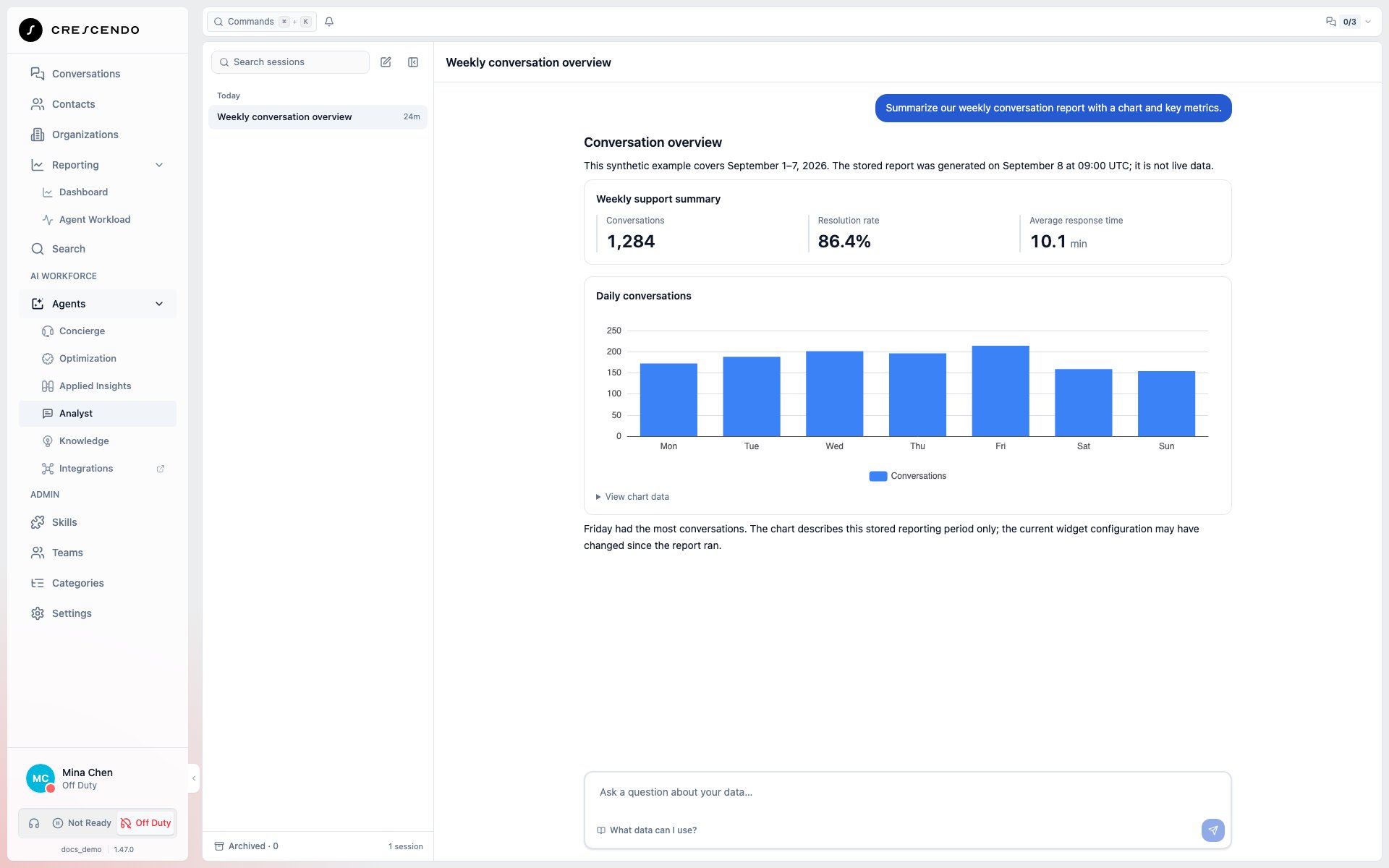
CX304, select the ID
to open that conversation in CXP and validate the supporting evidence.
References remain selectable when they appear in prose, lists, or table cells.
Only canonical CX followed by a positive number is navigable; older or
synthetic ID formats and fenced code samples remain plain text.
To scope a question to a specific Concierge, type @ followed by the start of
its name anywhere in the composer, then choose it from the menu. CXP replaces
the typed fragment with a name-only inline reference and keeps the cursor in
the same sentence. The menu and pill do not expose internal IDs. The stable
identity stays attached silently to the message even when multiple Concierges
have similar names.
When an investigation reveals a concrete AI Assistant quality problem, the
Analyst may show an Optimization Agent proposal card. Review the
finding, choose the target AI Assistant, adjust the goal if needed, and select
Start Optimization Agent, or select Not now. Nothing starts
automatically. The proposal stays above the composer while it waits for your
decision, and the Analyst response continues only after you decide. Starting
creates the new Optimization session with the approved goal and a bounded
evidence summary so the agent can verify the finding before proposing changes.
The completed proposal remains linked to its Optimization session. The
Analyst conversation shows a New Optimization Agent session created
receipt with a link to open it, and the Optimization workspace shows a link
back to the source Analyst conversation. Starting the session does not
automatically publish or apply changes to the AI Assistant.
Use dashboard data from a connected external agent
With CXP connected to ChatGPT or Codex, ask your agent to discover dashboards and explain stored widget results. This uses the same stored-result reads available to Analyst, with current organization access checked for every call. It does not start an Analyst session or run a widget. Your connection needs read permission, not write permission. Check the actual execution time and reporting period in the answer. The latest result may differ from the dashboard’s selected period; older results may have an unknown period. Current display settings are not a verified historical snapshot. Failed or missing results do not mean zero. The tools return complete results within their limits, not partial samples. Charts are optional; use the text or table if your chat host cannot render them. Retrieved data may remain in existing restricted diagnostics and external-host history after source deletion.Common workflows
Use Search and Reporting to:- Find a prior conversation before replying.
- Review unresolved or pending work.
- Identify high-priority trends.
- Compare AI-handled and human-handled work.
- Review current agent availability, directly assigned work, and routing queues.
- Investigate a customer satisfaction trend.
- Continue a private data investigation across multiple questions.
- Investigate a widget finding without treating it as a confirmed root cause.
- Continue a confirmed finding in Optimization Agent.
- Reuse a shared widget specification without sharing customer data.
Knowledge in Applied Insights — Coming soon
Analyst and Widget Builder will support Knowledge Base discovery, document reads and search. Widgets will be able to refresh selected knowledge alongside their other data sources before summarization. See Knowledge in Applied Insights for a returns-policy example and the limits of sample-based analysis.Current Not Ready reasons
Agent Workload shows current reasons below Status, a Not Ready Reasons filter, and a scrollable Not Ready by Reason chart. See Not Ready reasons for scope, counts and limits.Drilldown cell filters and custom dimensions
A count in Drilldown reports opens Search with visible, editable filters for that exact row and column. Save those filters as a View to reuse them. Separate chips on the same property are ANDed; values inside one chip are ORed. Administrators can add Custom Dimensions to the same filter menu in Search and Views.Context usage meter
Analyst and Widget Builder show a small circular meter beside their composer controls. Hover or select it to see “Used X of Y tokens (Z%)”, showing context usage against the automatic compaction threshold. Automatic compaction starts at 80% of usable model input capacity. The ring fills toward that threshold and pulses while earlier context is being organized. Image usage uses a conservative local estimate; these numbers can differ from the model’s actual token usage.Visualize movement with Sankey charts
Ask Analyst to show movement between stages when your available data records those transitions. For example: “Show how conversations moved from incoming to AI resolution or agent assistance this week, then show agent-assisted outcomes.” Link widths show the measured flow values. Expand View chart data to inspect each source, target and value.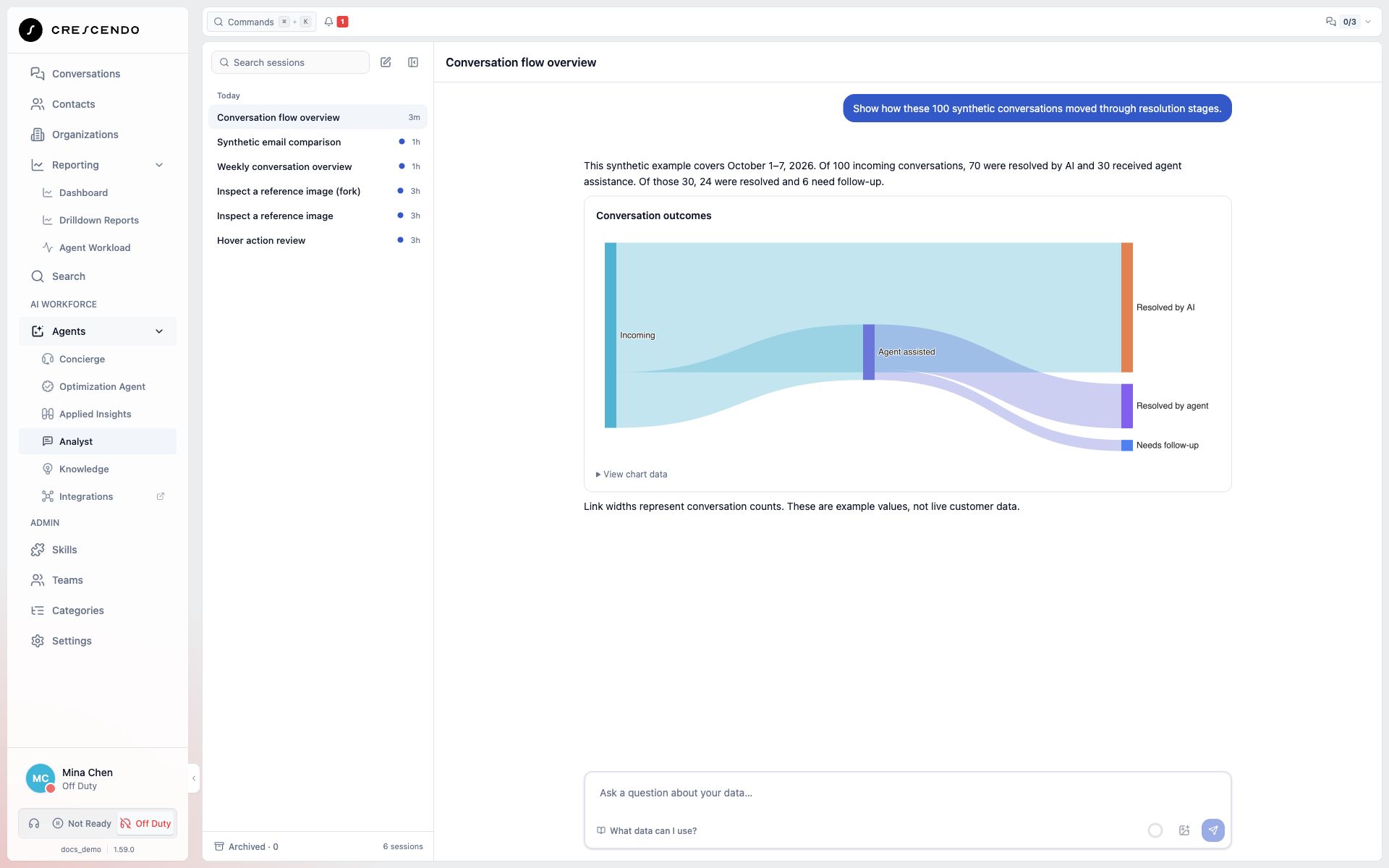
Continue a finding in Widget Builder
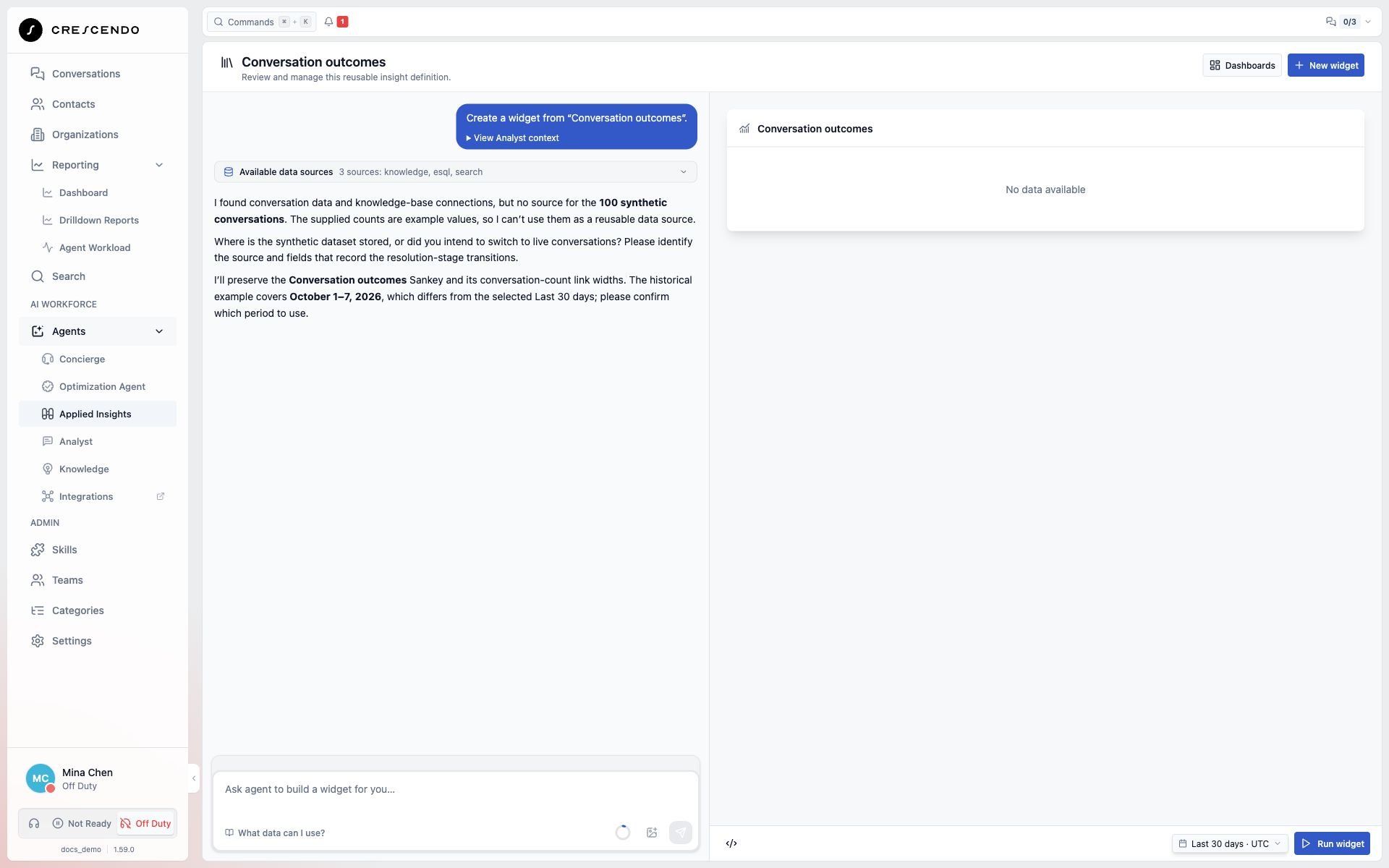
Select Create widget on a completed Analyst chart or KPI to open Widget Builder with that finding and its gathered context. Widget Builder starts its normal authoring workflow, verifies the available data and queries, and may ask for a source, filter or time range before completing the widget. Use View Analyst context to inspect the handed-over question and findings.