Chat, Social, and Slack Management
Use Settings > Chat Management to configure tenant web chat behavior. Use Settings > Slack Management to add Slack workspaces and manage bindings. Use Settings > Social to associate provisioned Facebook Pages, Instagram accounts, and WhatsApp accounts with published Concierge Agents, and enable Facebook and Instagram comments for human teams.Prerequisites
You need administrator permissions for channel management.Configure a chat channel
Chat Management lets you manage web chat entry points. A chat channel can be assigned to an AI Assistant and enabled or disabled. When a channel is enabled, customers can start or continue supported widget chat sessions. When disabled, the widget should not start new conversations for that channel. An enabled widget can connect without creating a new conversation. New conversations start with customer input, including a message, submitted form, upload, or explicit voice start. Reconnecting alone also does not create another Chat in an existing conversation after its previous Chat ended. Pending follow-up stays intact until successful customer input reopens the conversation.Assign an AI Assistant
Choose the AI Assistant that should handle incoming chat activity for the channel. The assistant should have instructions, knowledge, categories, and handoff behavior appropriate for chat.Enable or disable the channel
Use channel status to control whether the channel accepts new widget startup and connection requests. Disable a channel when:- The assistant is not ready.
- The channel is being reconfigured.
- You need to stop new customer chat entry temporarily.
Require customer sign-in
An operator can enable authentication in the published Concierge Agent’s widget configuration. Customers then sign in before connecting, including in draft previews. Coordinate the identity provider and allowed website origins before activation. See Authenticated chat widgets for login, logout and browser requirements.After-hours Chat cleanup
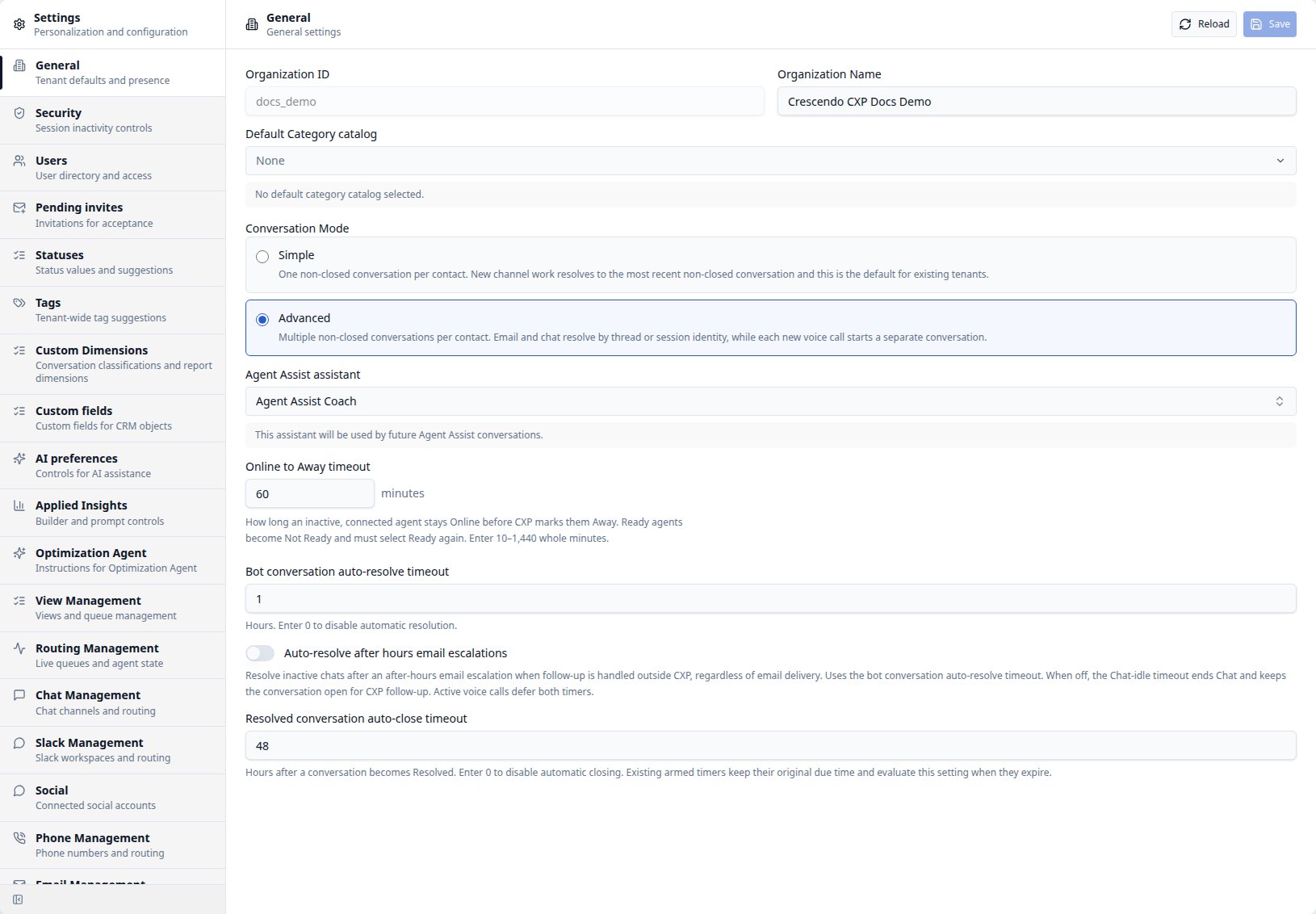
After-hours handoffs keep Chat open while awaiting follow-up. With the default configuration, the Chat-idle timeout ends an inactive widget Chat and leaves the conversation Open, with its current assignment, for your CXP team. If your after-hours email escalations are handled entirely outside CXP:- Open Settings > General.
- Turn on Auto-resolve after hours email escalations.
- Set Bot conversation auto-resolve timeout to 1–48 hours and save.
0 disables this automatic resolution; Chat-idle does not replace it.
Non-email escalations still use Chat-idle.
Test after changes
After changing chat configuration:- Confirm the channel is enabled.
- Start a test widget chat.
- Confirm the right AI Assistant responds.
- Trigger handoff if needed.
- Confirm routing reaches an eligible Ready agent.
Configure Facebook Messenger
See Support customers on Facebook Messenger for Page prerequisites and a complete direct-message test workflow. Connect the Page and choose CXP as its destination in enegel-app Integrations. The Page shares one connection and destination for direct messages and post comments. Comments have their own default-off processing control and human-team selection; disabled comments are ignored without replay. In Settings > Social > Facebook, review the Page, select a published Concierge Agent under Direct messages, and select Save. Clear removes only that direct-message association; it does not disconnect the Page or change its destination, subscriptions, or other settings. Allow up to 60 seconds for configuration changes to reach message handling.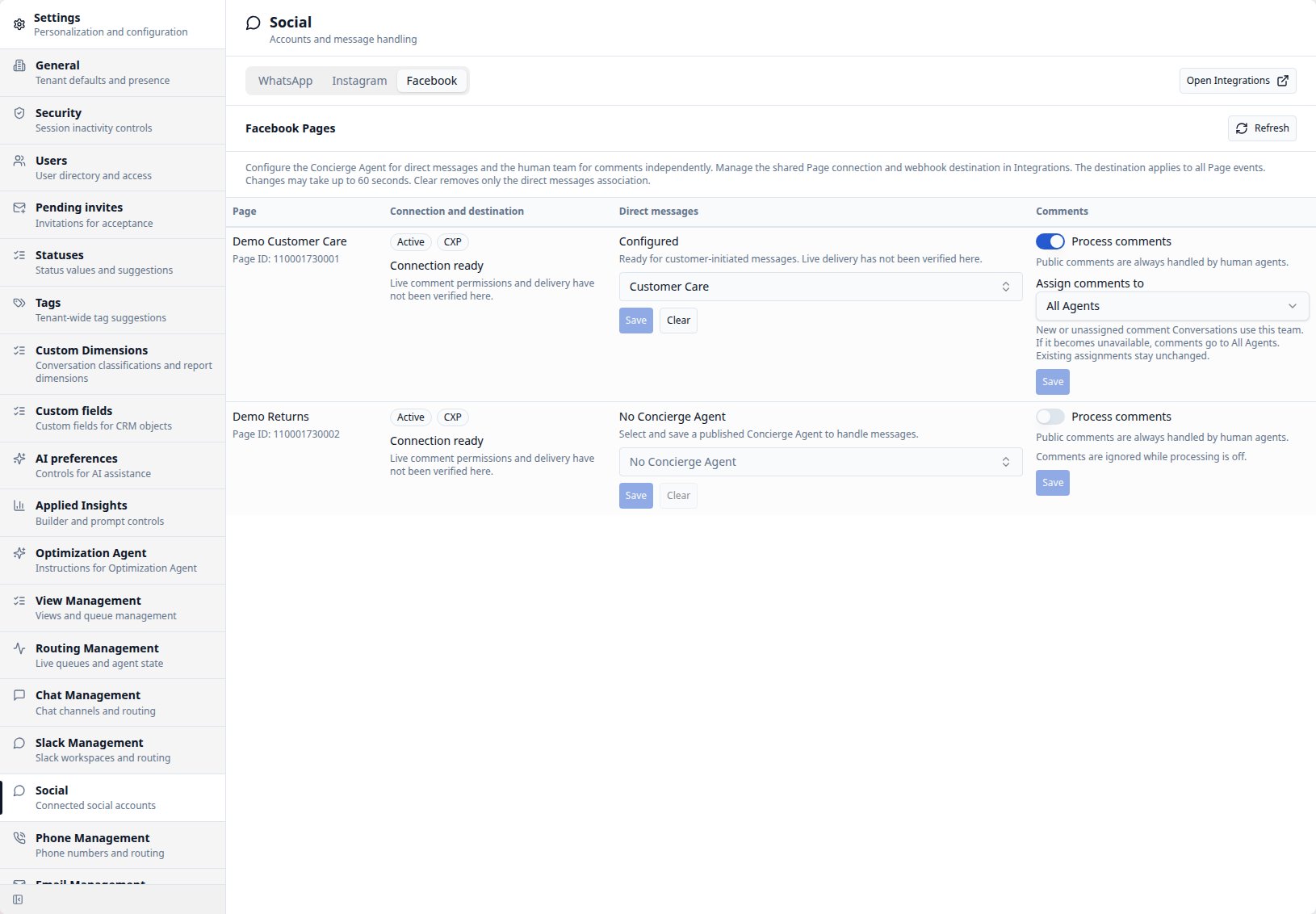
Configure Facebook comments
In Settings > Social > Facebook, enable Process comments, choose an active team or All Agents in Assign comments to, and save. No Concierge Agent is required for comments. The team selector appears only while processing is enabled and preserves its value when hidden. New and unassigned work receives that team; existing assignments stay unchanged. Allow up to 60 seconds for changes. See Reply to Facebook post comments for comment permissions, testing, stale-team recovery and public reply limits.Configure Instagram
See Support customers on Instagram for both login modes, account prerequisites, and a complete test workflow. Connect the professional account using Facebook login or Instagram login in enegel-app Integrations, and choose CXP as its destination. In Settings > Social > Instagram, review the account and login mode, select a published Concierge Agent under Direct messages, and select Save. Clear removes only that association; it does not disconnect the account or turn off comments. Allow up to 60 seconds for configuration changes to reach message handling.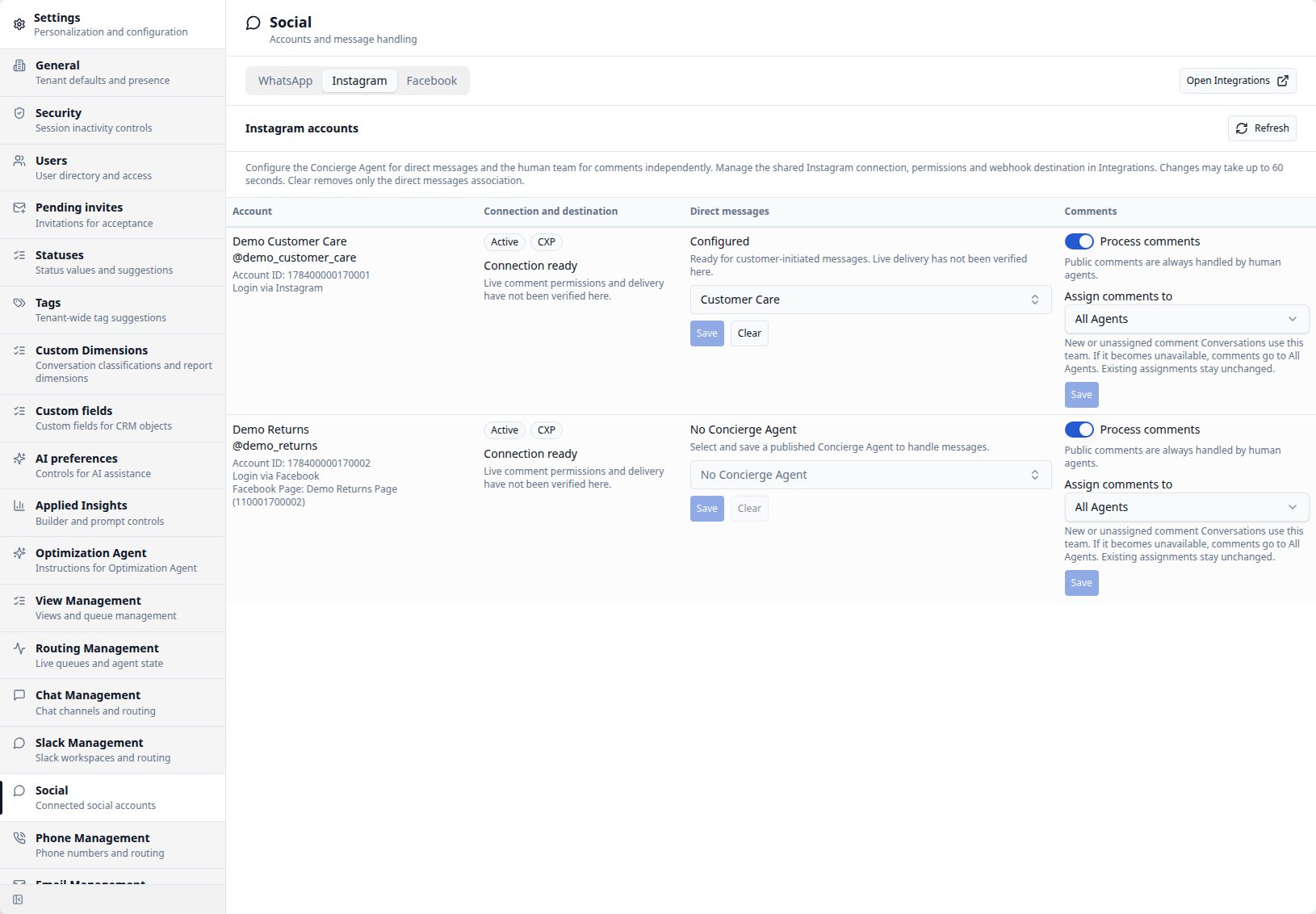
Configure Instagram comments
In Settings > Social > Instagram, enable Process comments, choose an active team or All Agents in Assign comments to, and save. The team selector is visible only while processing is enabled and preserves its choice when hidden. Comments work in either login mode and require comment permissions, without a Direct messages Concierge Agent. New or unassigned work goes directly to the chosen team; existing assignments stay unchanged. See Reply to Instagram comments for prerequisites, testing, original-post previews, reply placement and lifecycle.Configure WhatsApp
See Support customers on WhatsApp for WhatsApp account prerequisites, Social settings, and a complete test workflow. Connect or reconnect the account and choose its CXP destination in enegel-app Integrations. Social’s Save and Clear actions only change the shared Concierge Agent association; Clear does not disconnect the account. Allow up to 60 seconds for configuration changes to reach message handling.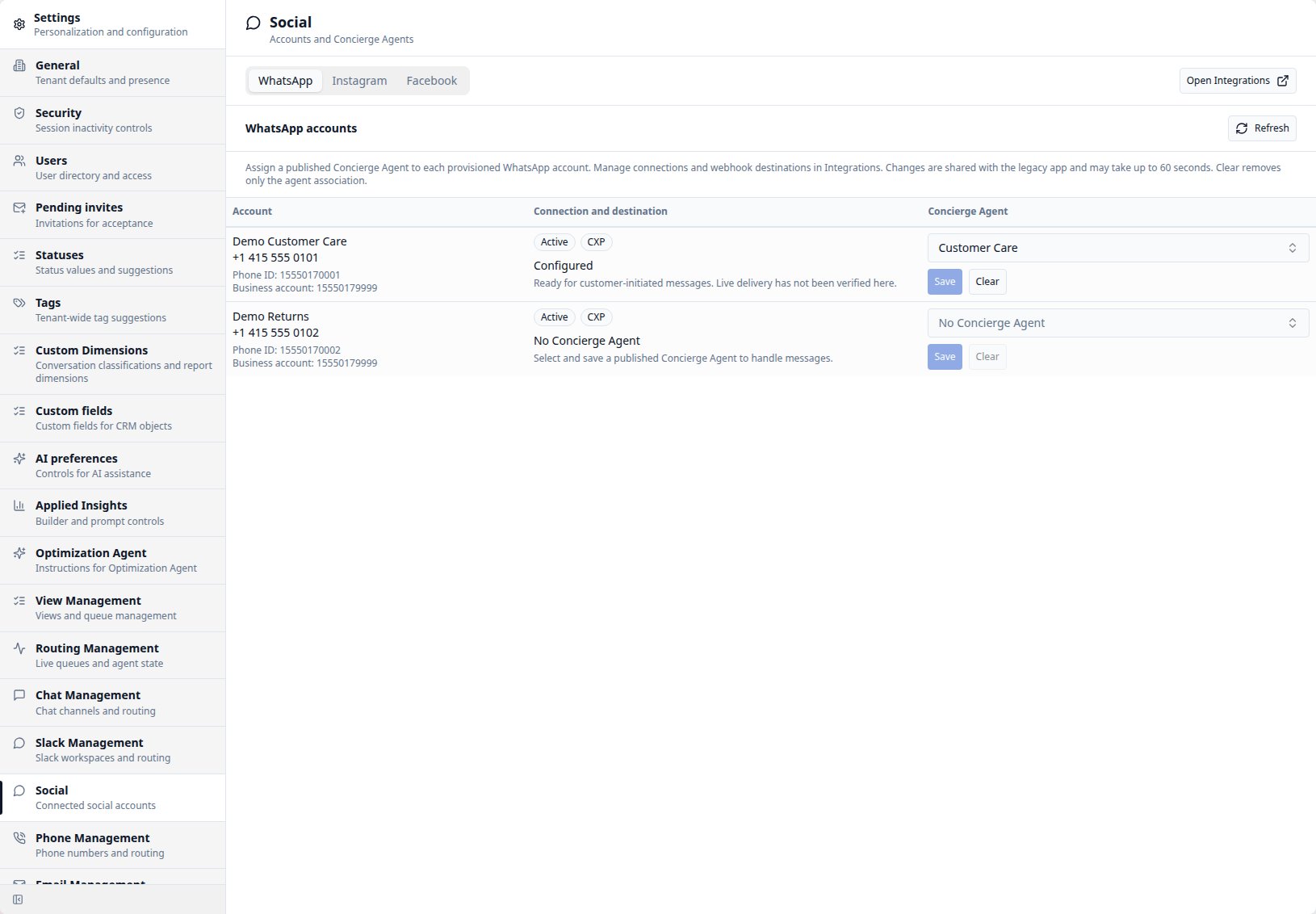
Configure Slack routing
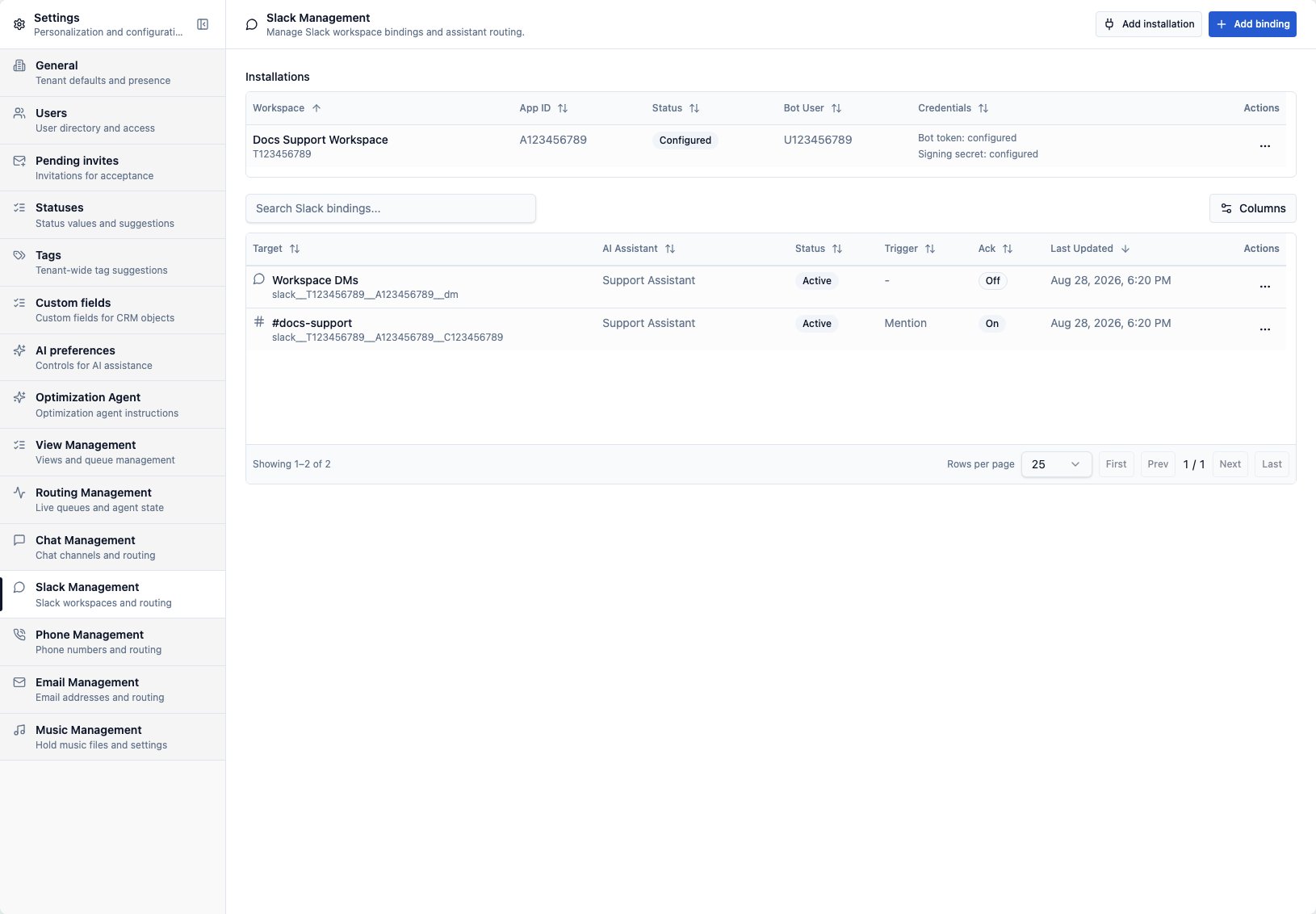
Slack Management shows Slack workspaces connected for the tenant. Use Add installation to enter the Slack app id, bot token, and signing secret. CXP discovers the Slack workspace id from the bot token, verifies that the bot belongs to the submitted app id, and then saves Slack credentials as write-only values that are not displayed after save. Setup fails without creating an installation when the token is invalid, the app id does not match, or the signing secret is missing. CXP shows the discovered workspace name and team id, Slack app id, bot user id when verified, credential presence, and verification status. Use an installation row’s actions menu to Verify again, Repair credentials without changing the workspace identity, or Delete a stale installation after its Slack channel and direct-message bindings have been removed.