

Knowledge Base management
Use Knowledge in CXP to maintain the source material that your customer experience workflows can retrieve. Each Knowledge Base has its own documents, settings, and retrieval preview. Coming soon: Both Knowledge reading and management in CXP are Owner/Admin-only. Legacy-app Knowledge permissions remain unchanged.Prerequisites
You need a role with Knowledge management access to create, edit, publish, archive, or unarchive documents.Open a Knowledge Base
- In the main navigation, open Agents > Knowledge.
- Select a Knowledge Base, or select Create New to create one.
- Enter a clear name and description so other administrators understand its purpose.
Review Knowledge metadata
Open Metadata for a read-only overview of the values currently applied to documents. The overview groups publication status, validation issues, editors, split modes, tags, and structured retrieval values such as audience, product, region, topic, language, document type, authority, and content roles. Edit an individual document when you need to change its structured retrieval values. The Metadata overview summarizes existing document data; it does not create a separate copy.Configure data sources
Open Settings to edit the Knowledge Base name, description, and available tags. Tenant-enabled connectors and the web source can also be configured there. Save Settings before selecting Load Updates for a connector. Reload All reprocesses every document from that source and can replace manual changes to source-managed content, so review its confirmation carefully. Source updates report loaded, updated, deleted, and failed document counts.Import a folder with Jobs
Use Jobs when you need to import a related folder of PDF, DOCX, Markdown, or text files as one durable batch.- Open Jobs and keep Upload Folders selected, or choose Use Existing Upload to reuse a staged folder.
- Choose a folder and wait until every file is uploaded. Fix or remove any failed file before continuing.
- Choose whether imported documents should be published, select the processing worker count, and optionally enter shared metadata defaults.
- Select Create Import Job.
- Wait for discovery to reach Ready, review the supported-file count, and select Start Processing.
Manage documents
The Documents directory shows each article’s Draft, Published, or Archived status, version, last publication, last update, and editor. Search by title, source, tag, ID, or editor, and use the status and sort controls to narrow the list.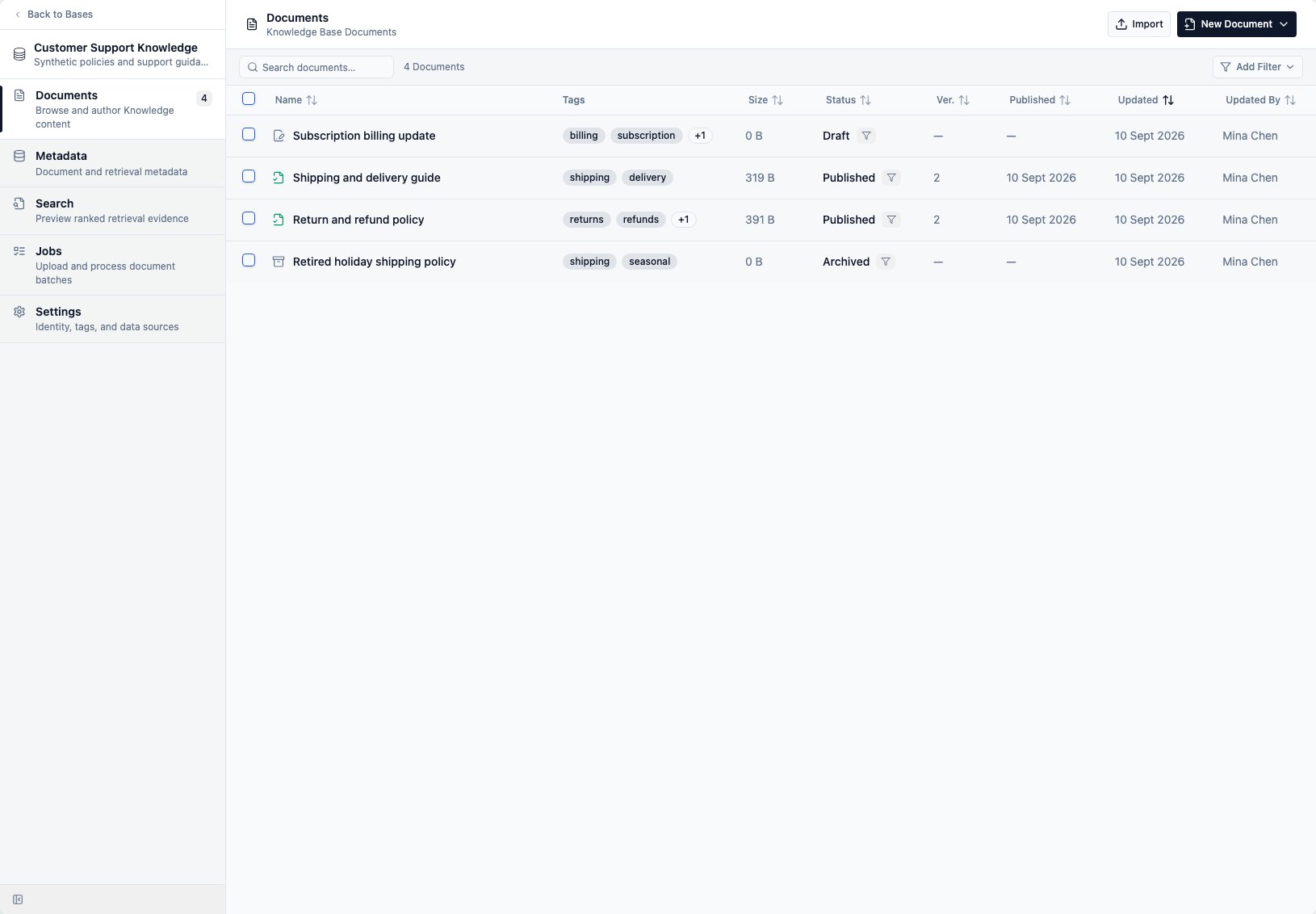
- Select New Document > Blank Markdown draft to start an article in CXP.
- Select New Document > Upload and convert to convert a supported file into a Markdown draft.
- Select Import to import a compatible Knowledge export.
Archive or unarchive documents
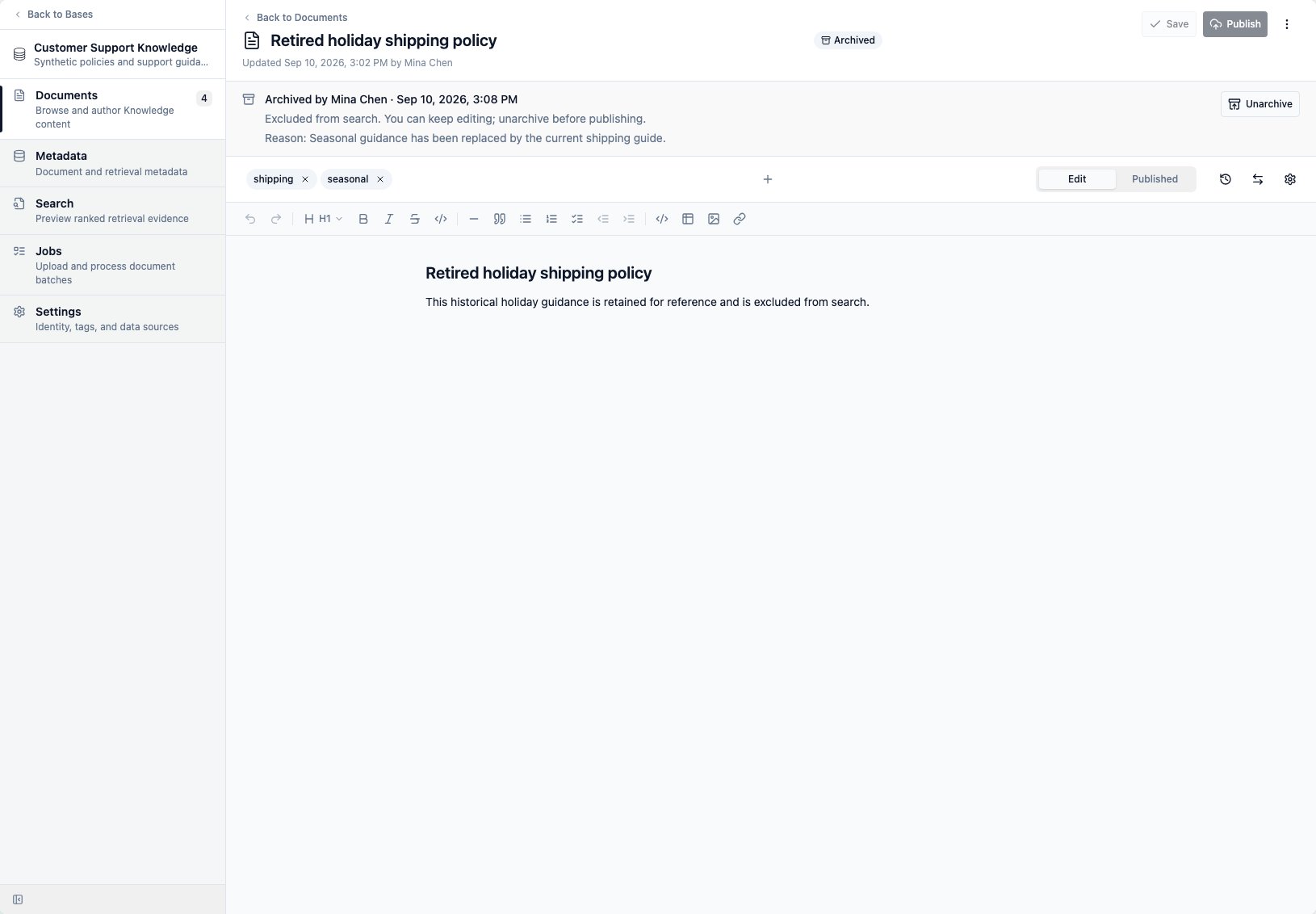
Archive content when it should stop appearing in search but you want to keep its text, metadata, and version history.- Select one or more documents in Documents, then open the selected actions menu and choose Archive selected. In an open document, use More document actions > Archive.
- Review the selected documents. You can archive up to 100 at a time.
- Optionally enter a reason of up to 1,000 characters, then confirm Archive.
Edit and save a draft
- Open a document from the directory.
- Edit the article in the visual editor. Its toolbar supports headings, emphasis, links, quotes, horizontal rules, ordered and unordered lists, task lists, indentation, code, tables, and images.
- When you need to work directly with Markdown or preserve an unsupported construct, open the document actions menu and enable Edit as Markdown. You can switch back to the visual editor without discarding supported formatting.
- Update the title and tags in the document header. Open Document settings to update split mode and structured retrieval metadata or review source metadata.
- Select Save.
Publish a document
Publishing is always a separate action from saving:- Save the current draft.
- Select Publish.
- Optionally enter a version label and release notes. You can also generate release-note suggestions and edit them before publishing.
- Confirm Publish.
Test retrieval evidence
Open Search to test what the Knowledge Base retrieves for a question. You can add tag filters, change the maximum result count, and include keyword evidence.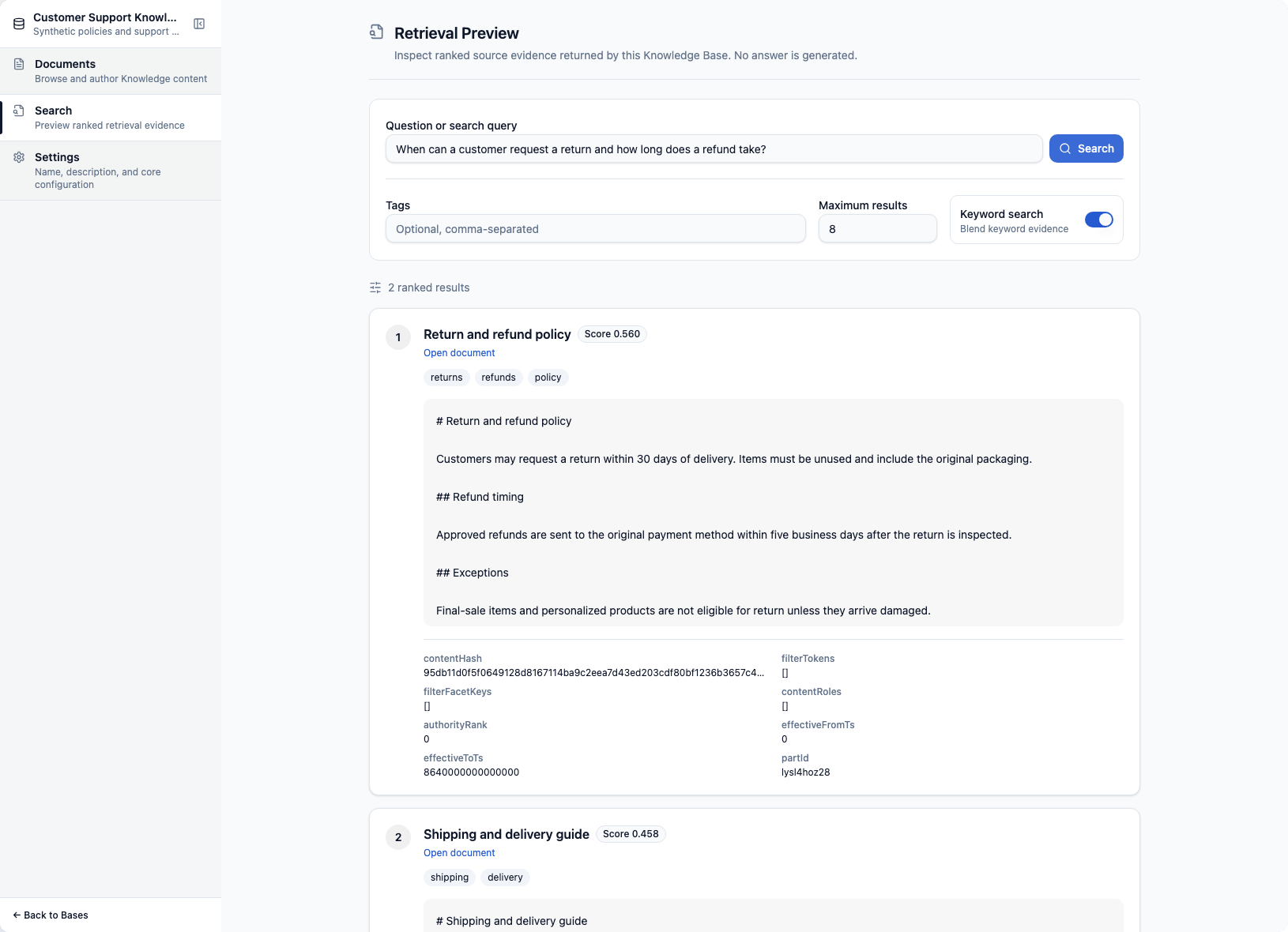
Recommended publishing checklist
Before publishing, confirm that:- The title clearly describes the customer question or policy.
- The draft is accurate, current, and safe for customer-facing use.
- Tags and structured metadata match the intended audience, product, region, topic, and language.
- The rendered preview has no broken formatting or unsafe links.
- Retrieval Preview returns the expected passage for representative questions.
- Release notes describe the meaningful change.