

Reply to email conversations
Email conversations appear in the same conversation timeline as other channels. When an email conversation is assigned to you and the tenant email channel is configured, you can reply from the conversation workspace. Mail where none of the receiving channel, tenant default, or selected-channel default is in To is handled by people: unassigned conversations go to All Agents in Unassigned, while existing owners remain. Take ownership before replying. Adding the channel to To on a later reply does not return the conversation to the Concierge Agent. See the copied-email rule.Read forwarded context
The first email in a new conversation preserves forwarded and copied context. When available, a safe formatted view appears in the timeline; use the Text / HTML toggle next to the email-header chevron to switch between its normalized text and formatted view. Simple emails whose HTML adds no useful presentation use the text view without a toggle. See forwarded email presentation and limits.View the original email
Open a received email message’s vertical three-dot menu and choose View original email. The dialog displays the original received SendGrid payload as text, including its headers and body fields. You can inspect it without taking ownership of the conversation. This is the received provider payload, not an.eml download.
Select the Copy original email icon beside the dialog title to copy the displayed text. Sent emails do not have this menu.
If no stored payload is available, including for older received emails, the
dialog shows Original email is not available.
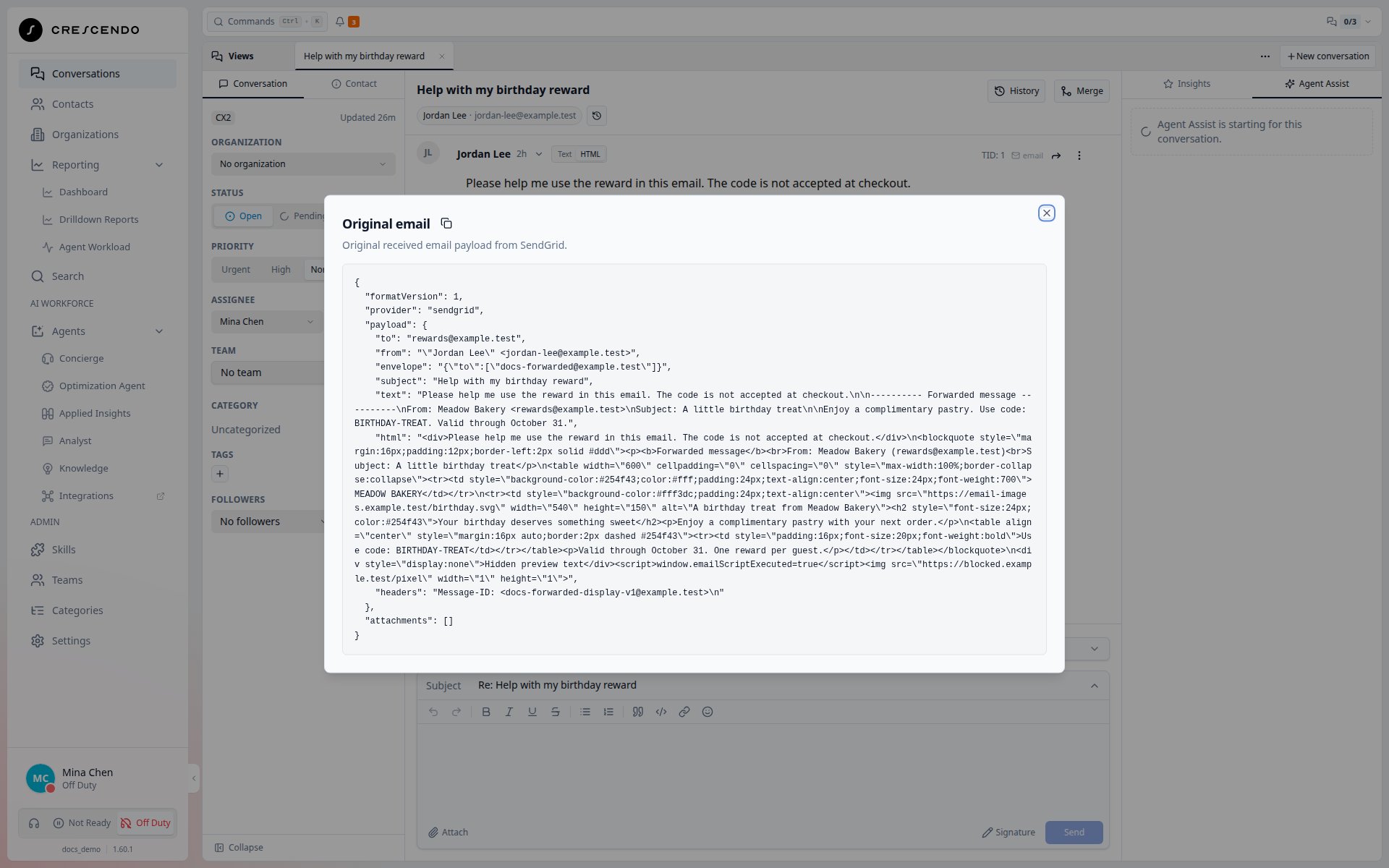
Inspect the original received email without interpreting its HTML.
Prerequisites
Before replying by email:- The conversation is Open, Pending, or Resolved.
- The contact has a primary or secondary email address.
- The conversation is assigned to an agent. If it is unassigned or assigned to a team, take it over from the Conversation controls rail first.
- The tenant has an enabled email address configured.
- The conversation has email participants or a valid reply context.
- You have permission to reply to conversations.
Open the email composer
Open the conversation, select Public reply, and select Email. Email is available whenever the associated contact has an email address; it does not depend on an existing email interaction. CXP derives the default email envelope from the conversation and channel configuration. A channel Default From Address controls newly prepared Concierge Agent replies; your available From choices remain unchanged. The composer can inherit that sender from an existing thread. When Email is available, CXP initially selects Public reply for Open, Pending, and Resolved conversations. Sending an email does not change the conversation status. A Resolved conversation can therefore close soon after a reply if its existing automatic-close schedule is already near expiry. Depending on the thread, you can review or edit:- From
- To
- CC
- BCC
- Subject
- Body
- Attachments
Understand automatic replies marked Not sent
Concierge Agent replies and automatic notifications exclude configured CXP mailboxes and their own sender from recipients. When no eligible To recipient remains, CXP suppresses the email; a retained Concierge Agent reply shows Not sent. An eligible CC or BCC address does not replace an empty To field. Review the thread’s recipients and your organization’s automatic email recipient policy. Your own Send and Forward actions keep their existing recipient validation.Avoid automatic email reply loops
CXP can withhold a Concierge Agent’s configured decline when an incoming email is recognized as an automatic response or replies to a previous Concierge Agent decline. The received email stays in the conversation, and valid clarifications can still receive a useful answer or a handoff to your team. CXP also prevents a follow-up promise in a rejected automatic response from triggering a handoff acknowledgment. Existing human assignments remain in place. Eligible decline emails carry automatic-response markers to help other email systems avoid sending another acknowledgment. Automatic-response recognition is best effort, so a first off-topic request can still receive a decline. Your manual reply and recipient choices remain available. Matching a reply to an earlier decline depends on that decline remaining in the history available for the current assistant turn. After older history has been summarized, the reference may no longer be recognized. If the incoming email is also not recognized as automatic, another decline can be sent.Write rich email content
The email composer supports rich Markdown-style content. Use it for normal customer-facing replies, summaries, instructions, and follow-up details. Intentional blank lines are retained after sending, both in the conversation timeline and in the delivered email. Add or remove blank lines in the composer to control the vertical separation between sections of your reply. Customers reading the plain-text version receive intact reference numbers, addresses, filenames and links, including underscores, hyphens and# characters.
Formatting follows Markdown: emphasis markers are omitted, while readable lists,
line breaks and image labels remain.
Before sending, review the generated content and recipients. Internal notes should use the internal note path, not a customer email reply.
Find your email signature settings
Coming soon: Open Signature > Edit my signature… in the email reply composer to open My Profile > General, scrolled to Email signature. Your unsent reply, including edited recipients, sender and subject, is saved before you leave the conversation. Use your browser’s Back button to return to the reply. Wait for sending or attachment uploads to finish before opening signature settings. The Signature menu remains available when no signatures are configured. If your organization disables personal signatures, the menu explains that you can still edit yours, but cannot apply it while personal signatures are disabled. Existing signature choices continue to add the selected signature to your draft.Resize inline images
Select or hover an inline image to reveal its right-edge resize handle. Drag the handle to set a fixed pixel width while preserving the image’s proportions. Use Reset in the image controls to return to its responsive percentage width. Review the final image size before sending because email clients can differ in their available reading-pane width.Place images side by side
Select an image and choose Add image beside to upload additional images into a grid row. Use it for banners, logos, photos, or signature images. Drag the rightmost handle to resize the whole row while keeping its column proportions. Drag a handle between images to give one cell more space and its neighbour less space. Images fit their cell widths without cropping or stretching. The row scales down to fit narrower screens. Select an image to edit its Link, move it left or right, or remove it. Split image row returns the images to separate lines. Each drag can be undone in one step; press Escape during a drag to cancel. You can also focus a resize handle and use the left/right arrow keys, with Shift for finer changes. Configure your personal signature under My Profile → General. Saved rows retain their sizes, order, and separate links when inserted into an email reply.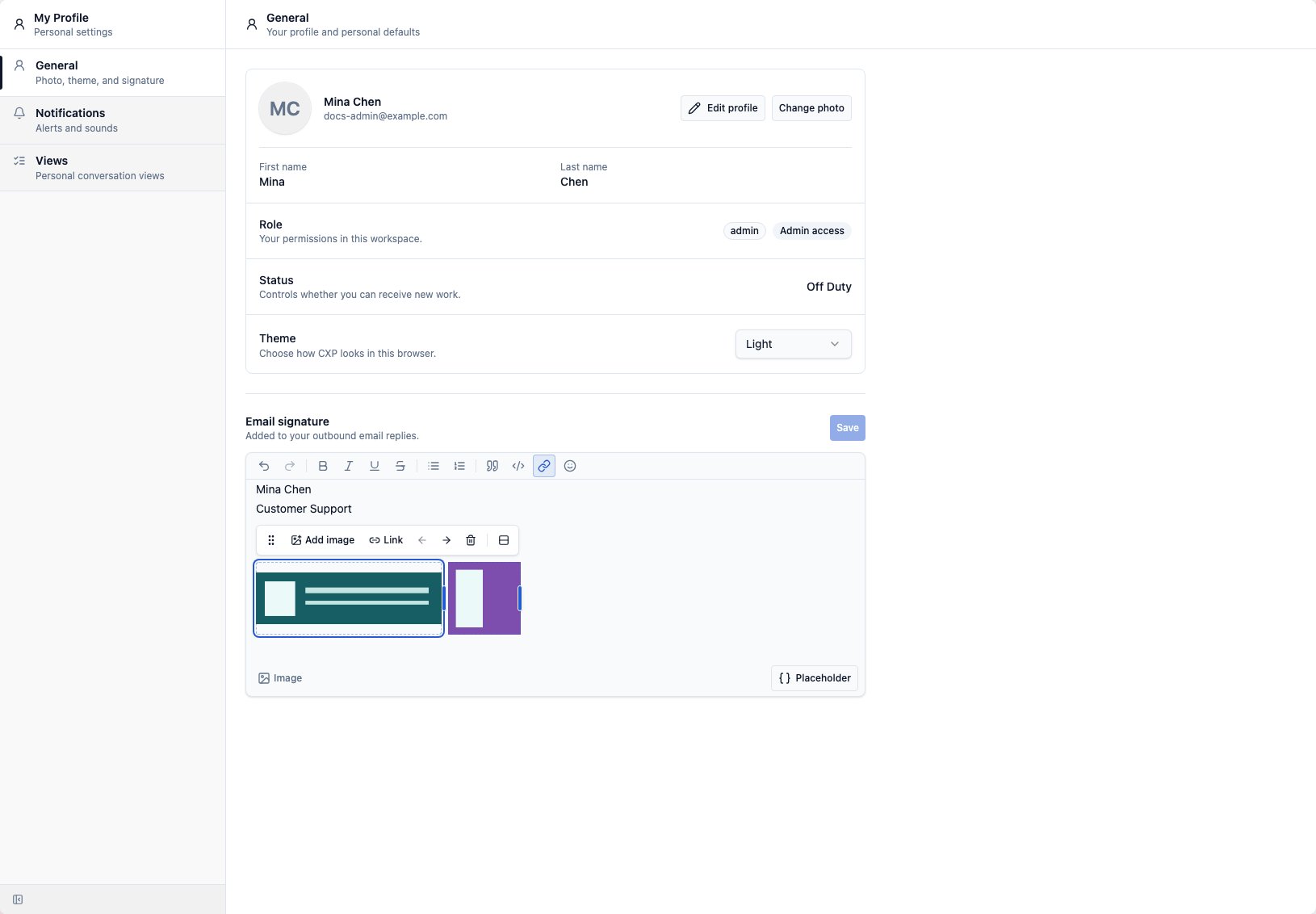
Add attachments
When attachments are enabled for the email composer, attach supported files before sending. CXP stores the file and includes it in the outbound email delivery request. Use attachments only when they are appropriate for the customer and do not include internal-only context.Send and track delivery
After you send, the outbound email remains in the timeline. CXP can show delivery states such as:
If final delivery fails, CXP can update the message status and append an internal timeline event.