

Work conversations
The Conversations workspace is where agents handle customer issues across chat, email, voice, and related follow-up. Messenger, Instagram, and WhatsApp messages use the Chat lane. See Support customers on Facebook Messenger, Support customers on Instagram, and Support customers on WhatsApp for account setup, handoff, files, and each session’s separate 24-hour reply window. Facebook post comments use a separate human workflow within Chat. Take over the session, select Public reply > Comment, choose the exact received comment and send plain text. No public attachments or automatic Concierge Agent replies are available. Internal notes stay private.Prerequisites
Before you work conversations:- You can sign in to the correct tenant.
- Your user has permission to view conversations.
- You are assigned an agent role if you need to receive routed work.
- You are Ready when you want to receive new routing offers.
Coming soon: ordinary Views will share Search’s date, keyword, filter, and sort
controls. Refine a View for your session, use Reset to restore its definition,
and save changes only when authorized. See Using Views.
Use views to find work
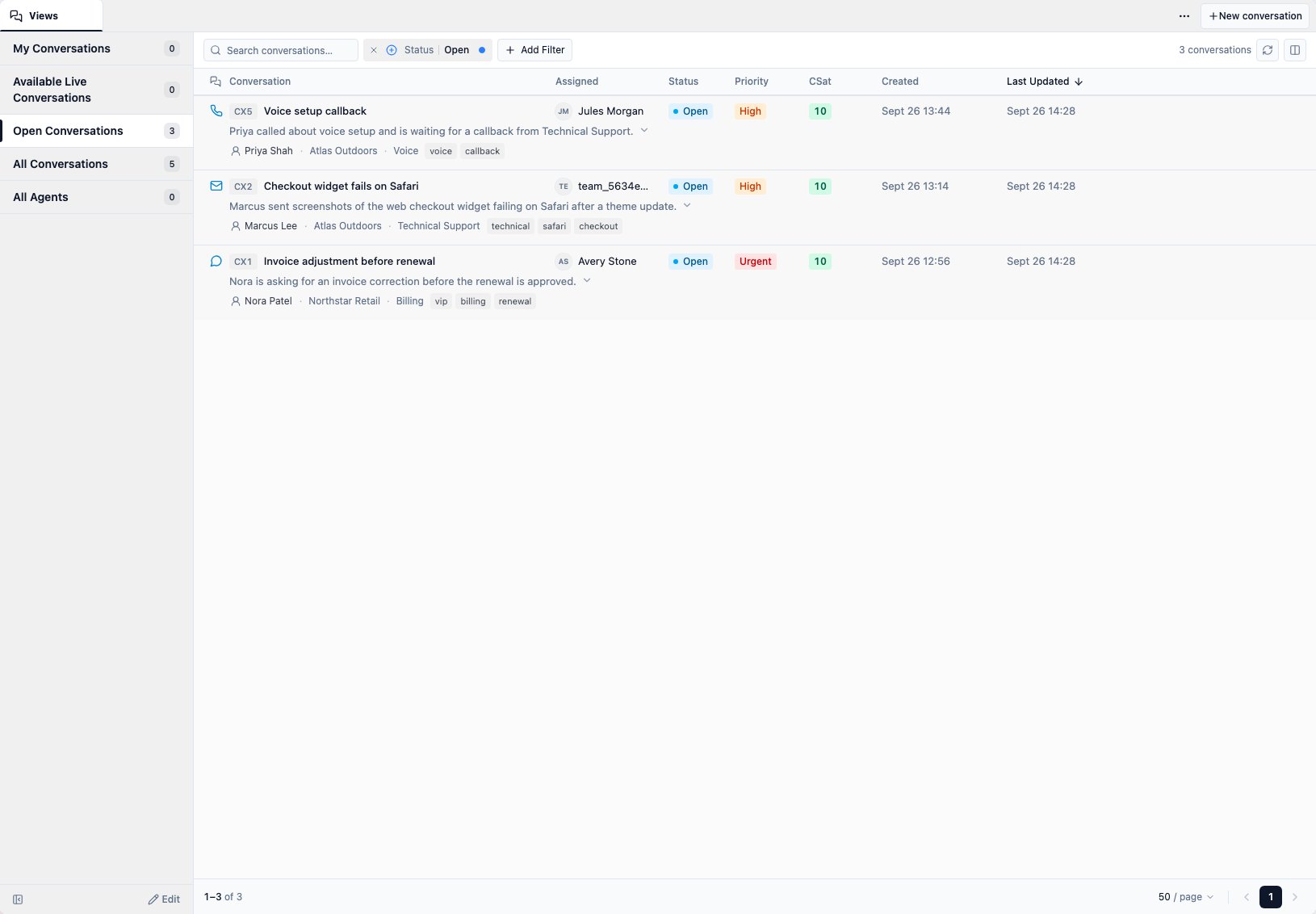
The Views tab shows conversation lists. Common views include:- My Conversations for work assigned to you.
- Available Live Conversations for shared live work that can be opened without a routing offer. It defaults to Created in the last seven days (UTC), oldest first; adjust or remove the Created filter to see older work. Team membership and language do not automatically filter this list. Stage distinguishes Concierge, Queueing and Waiting for team follow-up; Waiting has a violet row and hourglass icon. See stage meanings and membership and Owner/Admin repair.
- Open Conversations for active tenant work.
- Team views for teams you belong to.
- Shared or personal views configured by administrators.
Open a conversation
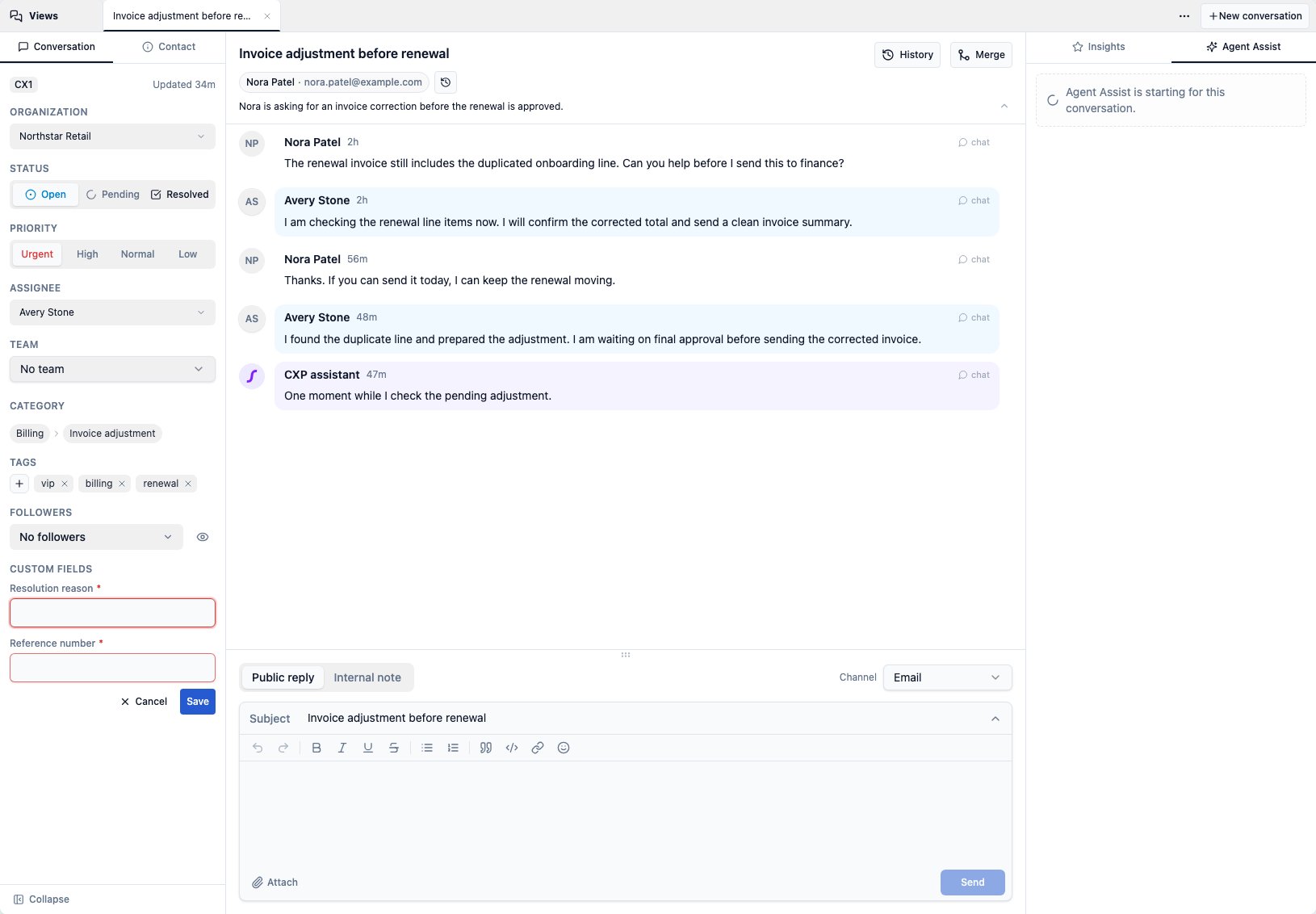
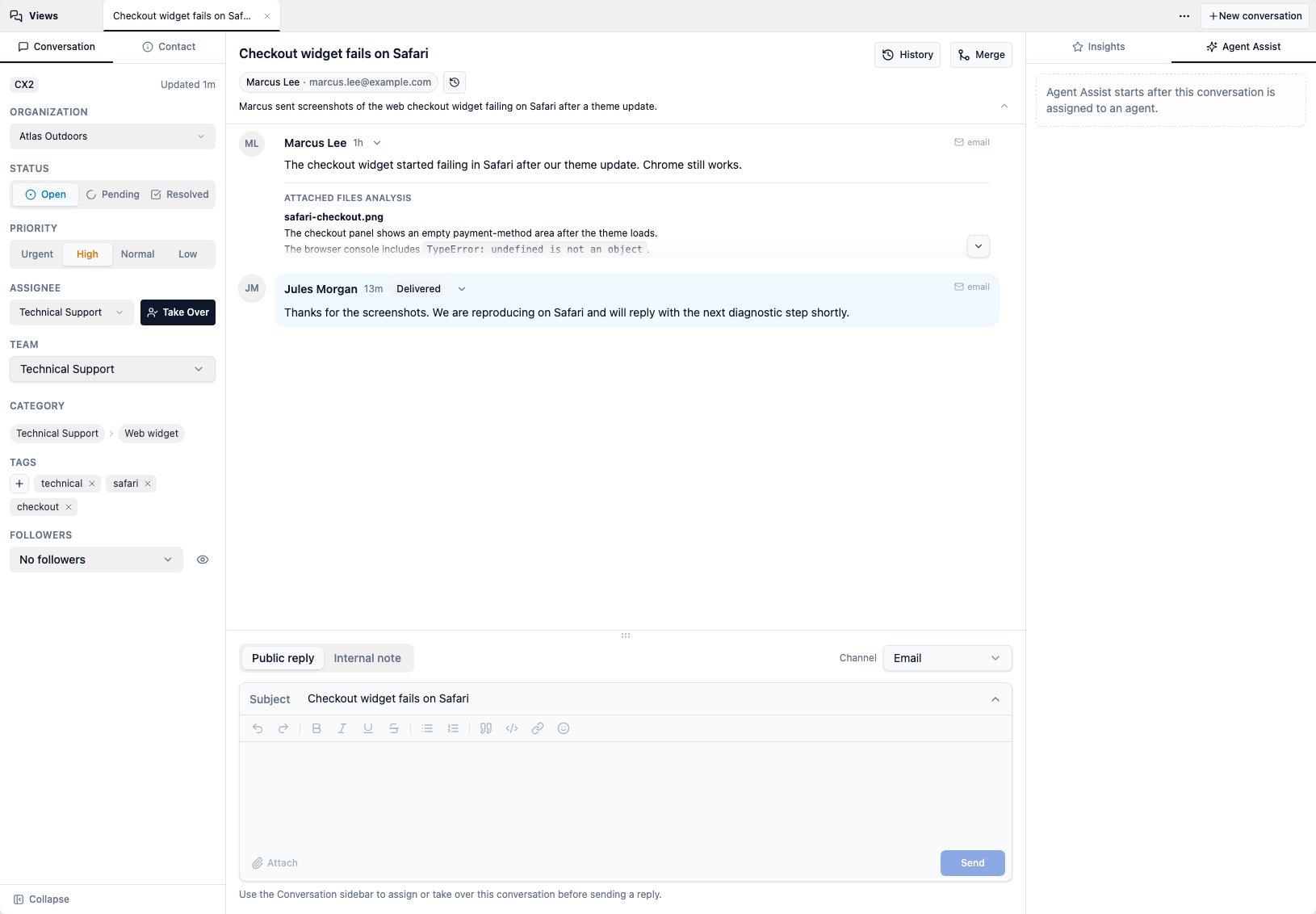
Selecting a row opens the conversation in a workspace tab. Conversation tabs stay inside the CXP app, so you can keep several conversations open without using browser tabs. For a chat conversation without a subject, CXP uses the customer’s first nonblank message as its initial subject. Later messages keep that subject. If the AI Assistant hands off the conversation, the generated summary updates the subject to describe the request. Long initial subjects are shortened, while the complete message remains in the timeline. Select the contact name or email beneath the conversation subject to open that customer’s Contact 360 record as another workspace tab. Your conversation tabs remain open and continue receiving activity while you review or edit the contact. When a new Chat connects you to a customer, CXP alerts you at the same join that announces your participation to the customer. Subsequent customer Chat messages also alert you while you are not viewing that conversation. If you closed its workspace tab or never opened it, CXP opens it in the background and marks it unread without switching away from your current work. Closing a tab does not end or mute an active Chat. The red unread marker can play a short message sound when it first appears. More activity stays silent while that conversation remains unread. Browser-tab attention stays on while any conversation tab has a red unread marker. A conversation you are viewing in the focused, visible browser stays silent; selecting it in a hidden browser or leaving it selected while visiting another page does not suppress alerts. The marker clears when you view the conversation. You can change cue, sound, and browser-tab attention settings in My Profile. These cues require a connected CXP session and follow your browser’s audio rules. The detail workspace includes:- Conversation summary and customer context
- Timeline of messages, events, and channel activity
- Status, priority, category, tags, assignment, associated team, and custom fields
- Contact context
- Realtime media handling, Agent Assist, and CSAT in the right rail
- A handling-time action beside History, with a breakdown of recorded responsibility
- Channel-specific composers or controls when available
Invite help into live work — Coming soon
Conference will let an admitted agent invite another agent into all active Chat and Voice interactions while preserving assignment. Invitations appear in a global banner, so the recipient can respond without first opening the conversation. The picker will search Online colleagues by name or team, with All online, On duty and Ready filters; Online Off Duty colleagues remain selectable. See Conference for prerequisites, Accept/Decline, and uncertain connection results.Review conversation handling
Select the clock and duration immediately before History in the conversation header to open Conversation Handling on the right. The header and panel show agent handling time according to the conversation’s status:
Active agent time can advance each second while you view the workspace. Search
and reports calculate Elapsed HT when results load. Missing elapsed handling
shows zero; missing recorded Handle Time shows a dash. See
Conversation Handle Time Reporting
for calculation rules, Pending behavior, and how to use both measures in reports.
The main duration stays visible while you scroll through the AI, Team,
Agent, and Overall breakdown and Handling history. Each history row
shows who was responsible, the state, start time and cause, and duration. When
available, the Pending label also identifies who the conversation is waiting on.
Pending intervals remain in the history but do not add to the handling totals.
Handling history starts with the newest interval. Use the sort control on its
right to switch between newest-first and oldest-first order.
In this example, AI handles 45 seconds, a team 75 seconds, and an agent two
intervals of 120 and 180 seconds. Agent Handle Time is 5m 0s and overall
handling is 7m 0s. The intervening one-minute Pending period brings the full
timeline to eight minutes without increasing either handling total.
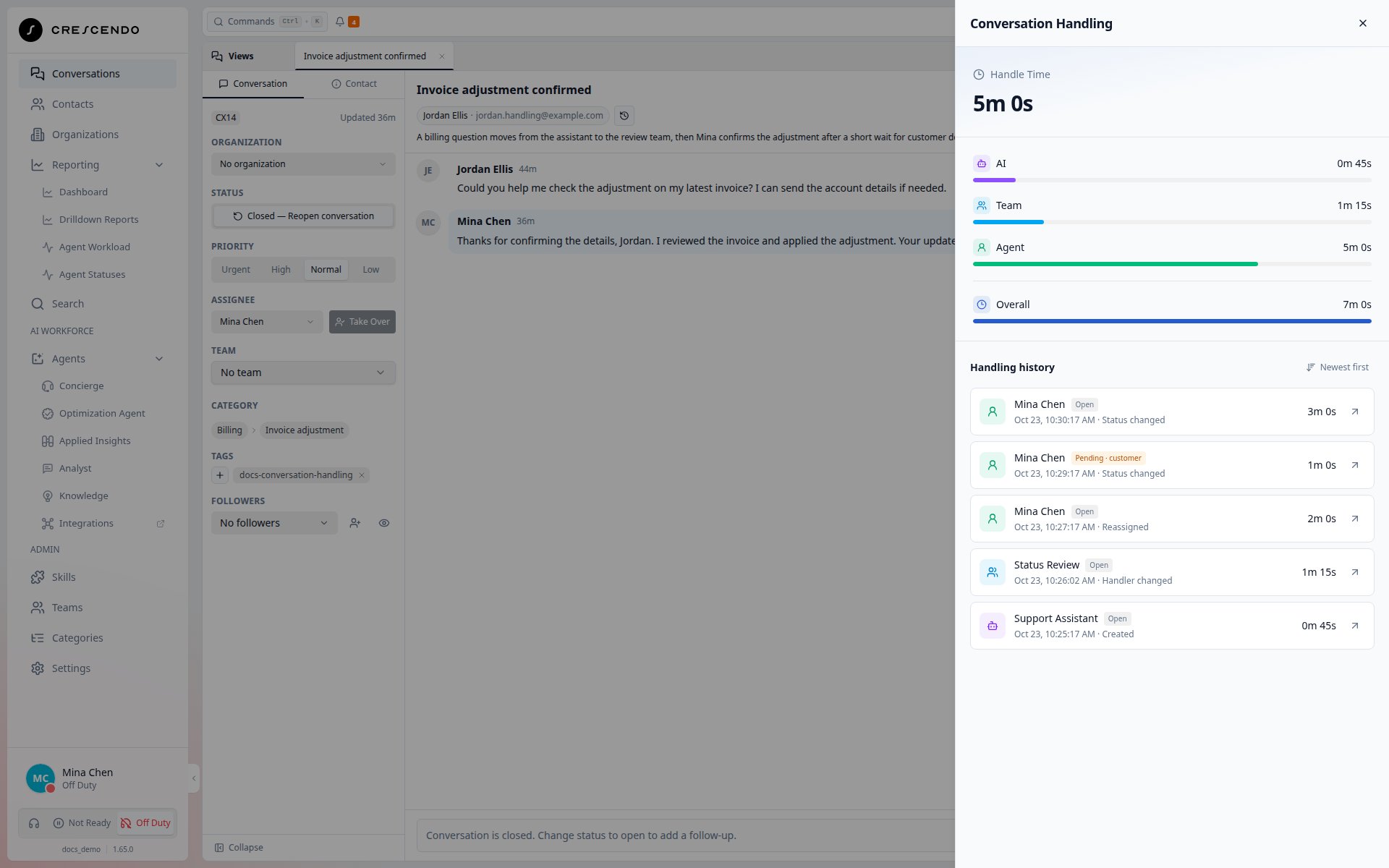
The Conversation Handling panel separates agent handling from AI and team responsibility, with Pending retained in Handling history.
Review detailed conversation history
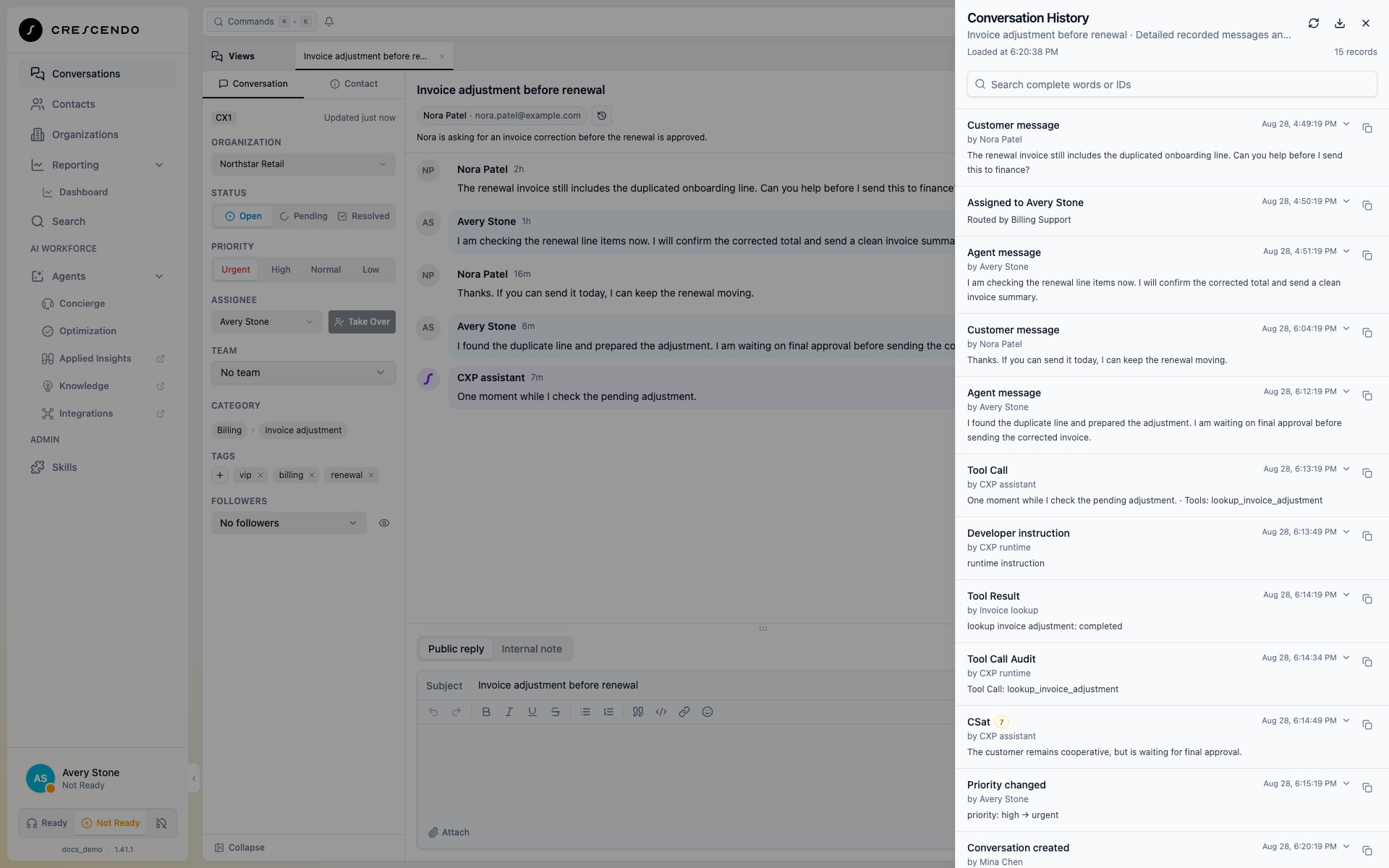
Select History in the conversation header when you need more detail than the customer-facing timeline provides. CXP opens a right-side Conversation History drawer and combines stored messages with recorded conversation events in oldest-first order. This view includes ordinary customer and agent messages as well as hidden developer, system, tool-call, and tool-result records. Compact rows show the time, actor when available, and the most useful message text, tool outcome, or conversation change. Tool Calls include their function names; Tool Results and Tool Call Audits have explicit titles. CSat rows show a red (1–4), yellow (5–7), or green (8–10) score beside the title. Select a row to expand its bounded JSON record, or use its copy action to copy that record. The drawer displays Loading History … while it automatically retrieves the available pages. After loading, use Search conversation history to filter the loaded messages and events. Search is case-insensitive but matches complete words or IDs:export matches EXPORT, while expo does not match
export. Multiple search words must all occur in the same record. Matching
rows remain in oldest-first order.
The top-right icon group lets you refresh, download, or close the drawer. Hover
or focus an icon to see its label. Refresh conversation history reloads all
pages and rebuilds Search. Download conversation history JSON saves the
complete loaded messages and events as one ordered JSON array; an active search
does not limit the file.
Automatic loading stops at 20,000 records, 50 MiB of JSON, or 100 page
requests. If more history exists, CXP says that complete Conversation History
is too large and cannot be loaded in full. The accepted portion remains
searchable and refreshable, individual records can still be expanded or copied,
and Download is unavailable because the history is incomplete. There is no
manual continuation control in this state.
For a named contact, the icon-only history action beside the contact name opens
the list of other conversations for that customer.
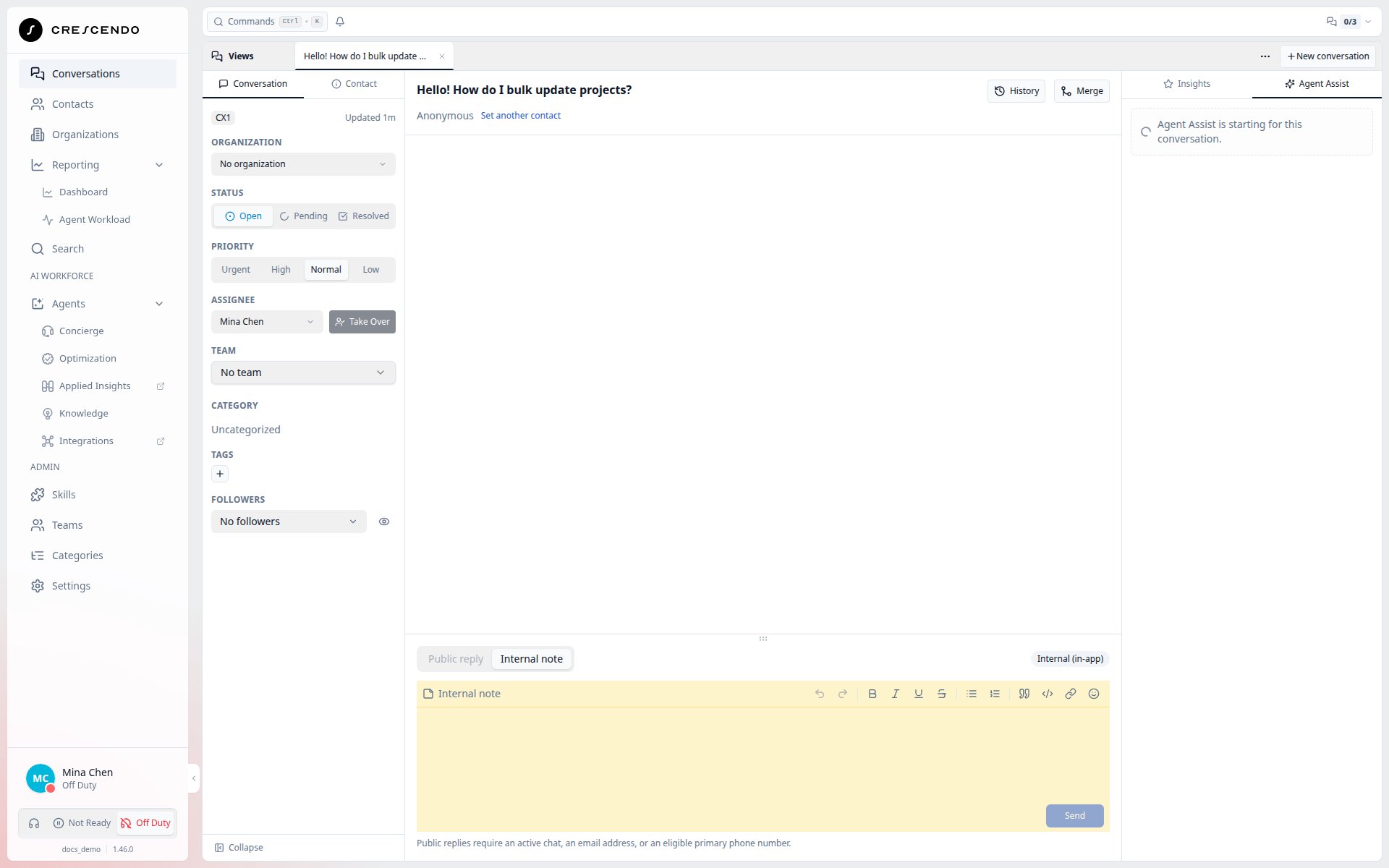
For an anonymous contact, the header shows a plain Anonymous label. Select
Set another contact to open Change contact, then choose an existing
contact or create a new one. This also works when the details panel is collapsed
and requires permission to update conversations. After you select a contact,
the header shows the contact link and customer history action.
Accept routed work
When CXP routes live work to you, an incoming offer appears in the app shell. You can:- Accept to take ownership.
- Decline to return the work to routing.
Assign a conversation
Open Assignee to choose from a team-and-agent hierarchy. All Agents contains every active agent, and each configured team contains its active members. An agent can appear in more than one team. Select either a team or an agent under a team, then select Update to apply the change; closing the dialog before Update discards the draft selection. Selecting an agent under a configured team records both the agent assignment and that team association. Selecting an agent under All Agents assigns the agent without an associated team. Selecting a team row assigns the conversation to that team. Use the separate Team control to change the association without changing the current assignee, or choose No team to clear it. Search matches both team and agent names. A matching agent remains visible under every team where that agent belongs.Follow a conversation with another agent
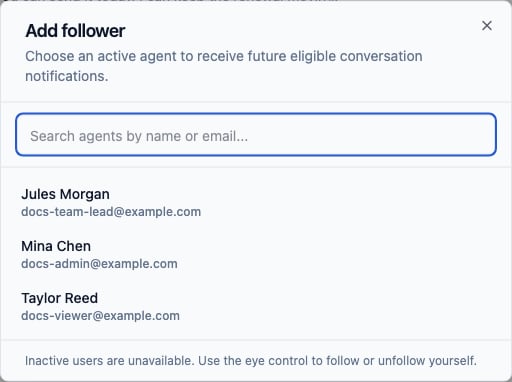
Use Followers in the Conversation controls rail to manage notification coverage without changing the conversation’s assignee.- Select the eye control to follow or unfollow the conversation yourself. You need permission to view conversations and a configured work email address.
- If you can both view and update conversations, select Add follower. Search active agents by name or email, then select an eligible agent. An agent with a Viewer role can still be added when they can view conversations and have a configured email address, but Viewers cannot add or remove followers for others.
- Open the follower list and select Remove beside a different agent to remove them. If a former user’s name is no longer available, CXP shows their stored ID so an authorized agent can still remove that follower.
Update lifecycle
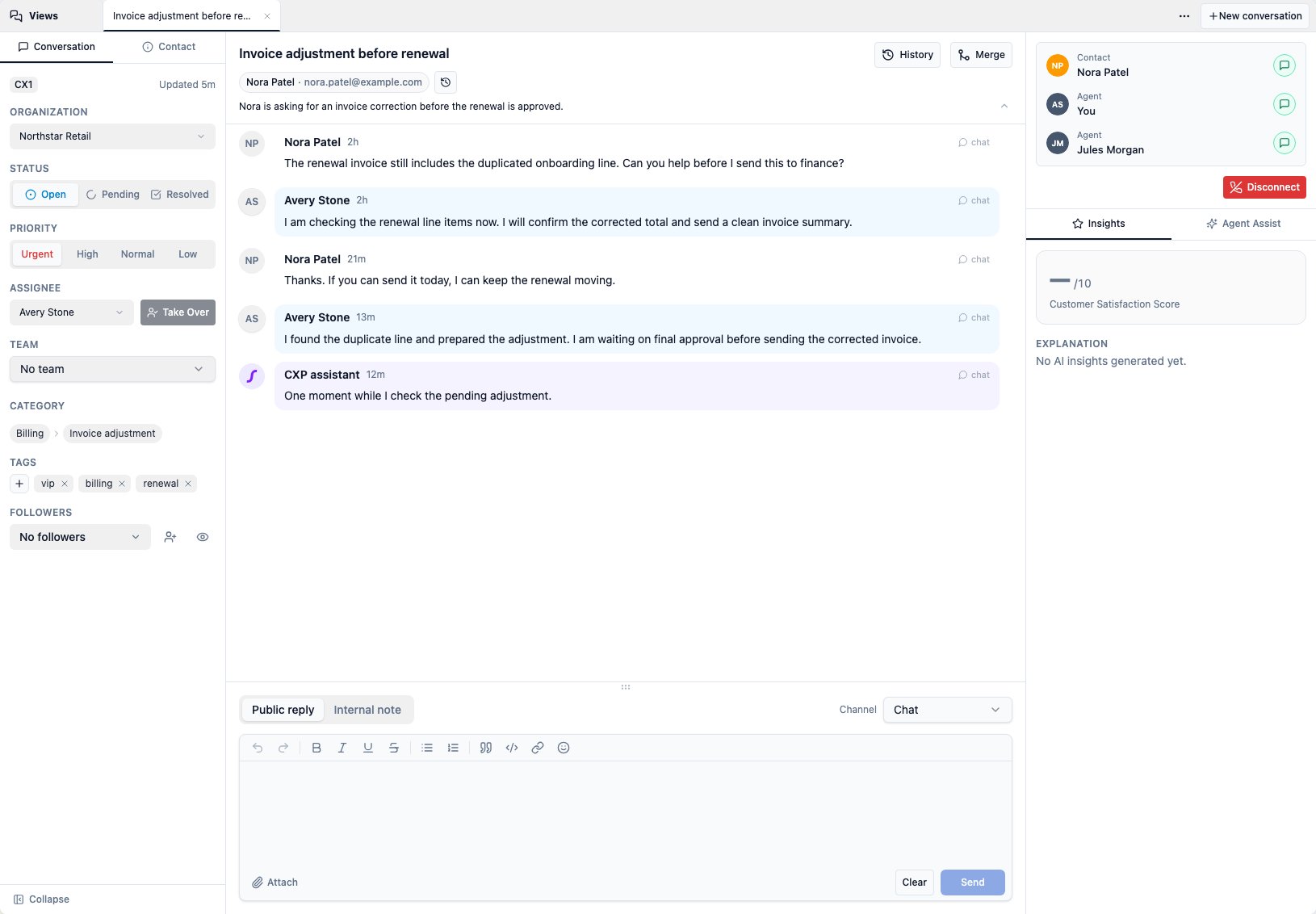
Use conversation status to reflect the current state:- Use Open for active work.
- Use Pending when waiting on the customer, another party, or a configured reason.
- Use Resolved when the issue appears solved but should remain reopenable.
- Use Closed when the conversation is finalized.
Replies during a brief reconnection
When a web-chat connection is replaced while a reply is being prepared, CXP keeps the original customer turn running and delivers its committed reply to the replacement connection. The customer does not need to send the message again. This recovery requires the same server session to remain available within its reconnection grace period; it does not recover replies after that session is lost. Reconnection alone does not create another conversation or reset chat inactivity.Failed web-chat startup
If a new web chat never receives its first customer input and the customer has not connected to Voice, CXP ends that failed chat after a startup timeout. The customer sees “This chat couldn’t be started. Please start a new chat and try again.” The widget connection closes so they can start a new chat. An empty conversation with no other active work is resolved and closed. Other active interactions, human ownership, and routing work protect the conversation. A conversation with messages, including an AI welcome, follows the ordinary automatic-resolution rules. This startup cleanup is separate from the configured chat idle timeout.Correct the conversation contact
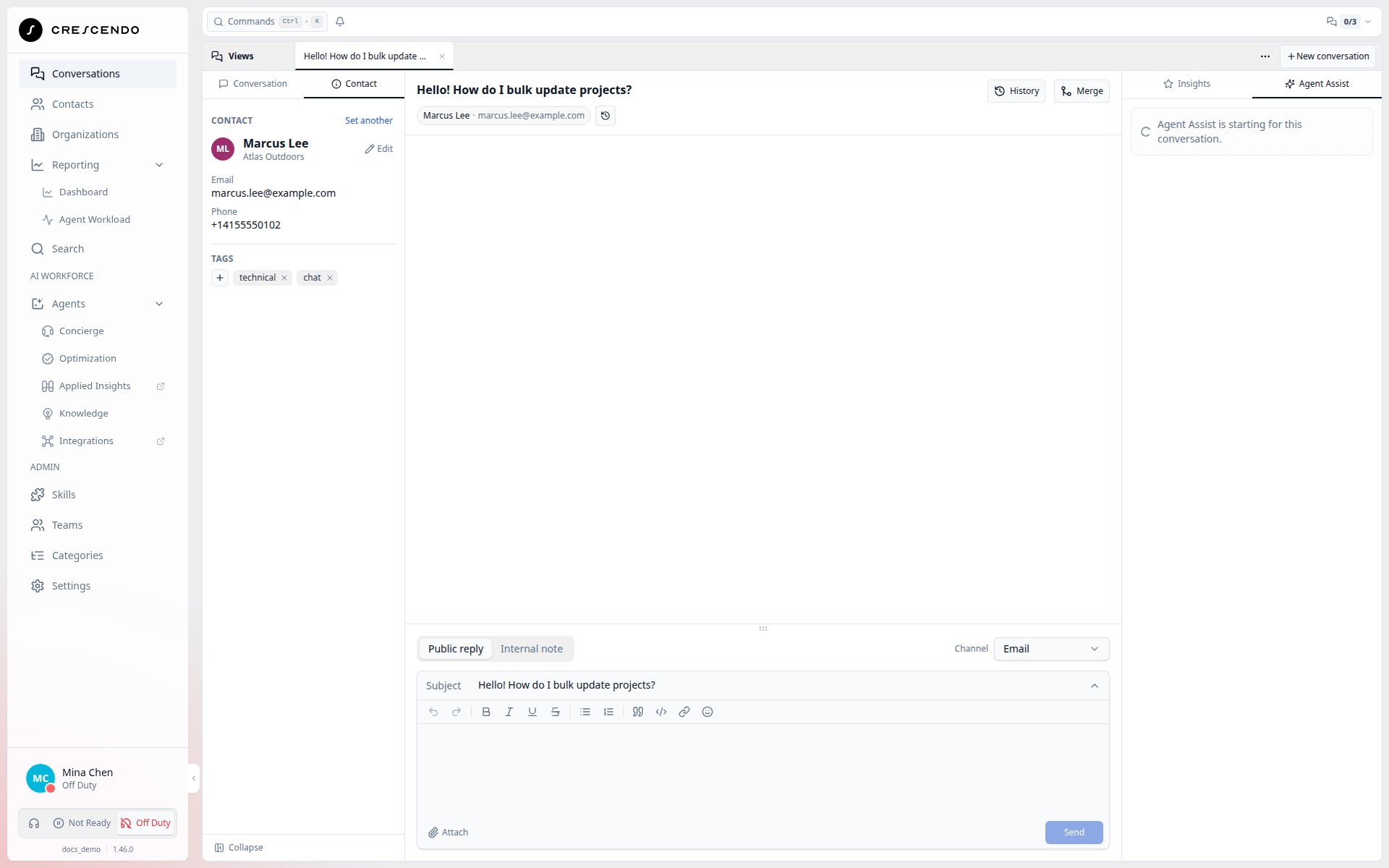
If a conversation is associated with the wrong customer, open Contact in the left controls rail and select Set another to open Change contact. CXP initially shows the ten contacts updated most recently. Search by name, email address, or phone number, choose a result, and then select Select. If the customer does not have a contact yet, use Create New; CXP assigns the new contact after it is created successfully. In Simple conversation mode, a contact can have only one non-closed conversation. If the selected contact already has one, CXP leaves the current conversation unchanged and tells you which conversation to merge into. In Advanced mode, the contact change proceeds even when the contact has another non-closed conversation. An active Messenger, Instagram, or WhatsApp session prevents changing to a different retained Contact, even after its reply window expires. If the two records represent the same person, use Contact consolidation after verifying identity. Ending a session does not redirect its original Messenger or Instagram identity or WhatsApp phone relationship to another Contact. Public-comment Contacts cannot be changed, and ordinary conversations cannot select them as replacement Contacts. They also cannot participate in a Conversation merge, even after their Chat ends. The reserved Anonymous contact is not available in the selector. When the current conversation is still anonymous, the contact card shows only anA
avatar and Anonymous until a real contact is assigned.
To edit the current contact, select the pencil action labeled Edit beside
the contact name. Anonymous contacts have no edit action.
Merge duplicate conversations
If two active conversations represent the same customer issue, agents with update permission can merge the current conversation into another conversation. Use Merge from the conversation detail header, search for the target conversation, review the warning, and confirm. Merge is not reversible. The current conversation is closed, and work continues in the selected target conversation. A source conversation with active Messenger, Instagram, or WhatsApp must share the target’s primary Contact. Consolidate genuine duplicate Contacts first if they represent the same person. A permitted merge preserves the active social session and access to its stored files in the surviving conversation. CXP adds an internal System merge note to the target, then places the source conversation’s eligible visible history after that note as one merge block. Source rows keep their original event time in the timeline. Voice call recordings and web chat uploaded files from the source are available from the target conversation after merge. The closed source conversation remains as a read-only record that points to the target. If the source has a summary, CXP carries it into the target summary; if the target has no subject, CXP uses the source subject. Merge-note conversation links open conversation tabs inside the same CXP browser tab. If the source conversation is Open and the target is Pending or Resolved, CXP reopens the target to Open as part of the merge. This also applies when a returning customer’s new web chat is automatically merged into their existing non-closed conversation.Reply and take notes
For an Open, Pending, or Resolved conversation, Public reply offers only the channels that can currently reach the contact:- Email is available when the contact has a primary or secondary email address.
- Chat is available for Open and Pending conversations only while the conversation has an active Chat you belong to and you have reply permission. You do not have to be the assignee. Each reply goes to all active Chats you belong to in this conversation, without a Chat selector. It does not go to a Chat you have not joined. Resolving ends active web-chat and direct-message sessions; Facebook and Instagram comments use the separate lifecycle described above.
- Phone call is available only when tenant outbound voice is enabled and the Open conversation, Contact phone, direct assignment, permission, and current voice state are eligible. Selecting it opens the right-rail Softphone without dialing; dialing starts only with Place call.
- Send public replies.
- Add internal notes.
- Reply to email with editable recipients.
- Include email attachments.
- Attach allowed files to an active web chat, Messenger, Instagram, or WhatsApp Chat you belong to, or paste, select, and drop allowed images.
- Use voice controls for active calls.
Use Agent Assist
When Agent Assist is available for an assigned conversation, it appears in the right rail. You can ask questions about the conversation and review suggested actions. Agent Assist does not send messages to customers. Suggested replies and notes must be reviewed and applied by an agent.Create a manual conversation
If you have conversation creation permission, use New conversation from the Conversations workspace or Contact 360. Manual conversations can capture:- Subject
- Contact
- Organization
- Status
- Priority
- Assignee
- Category
- Summary