

Support customers on Instagram
Customers can send direct messages to your connected Instagram professional account and get help from a Concierge Agent or your human team. Customer text, files, AI answers, and human replies appear in the existing Chat workspace with Instagram source labels. This guide covers customer-initiated, one-to-one direct messages. For public post and Reel comments, use the separate human comments workflow. Both Facebook login and Instagram login connections are supported. An active Chat means the session has not ended; it does not mean the customer is online or the reply window is open.Prerequisites
- You are an Owner or Admin to manage Settings > Social.
- Your Instagram professional account is connected and active in enegel-app Integrations, with its destination set to CXP.
- The connection uses either Facebook login with its linked Facebook Page, or native Instagram login. Its permissions and credentials must be valid.
- A published Concierge Agent in the same organization has the instructions, knowledge, and human handoff settings needed for this account.
- Your human agents have reply permission and can accept the account’s routed work.
Assign a Concierge Agent
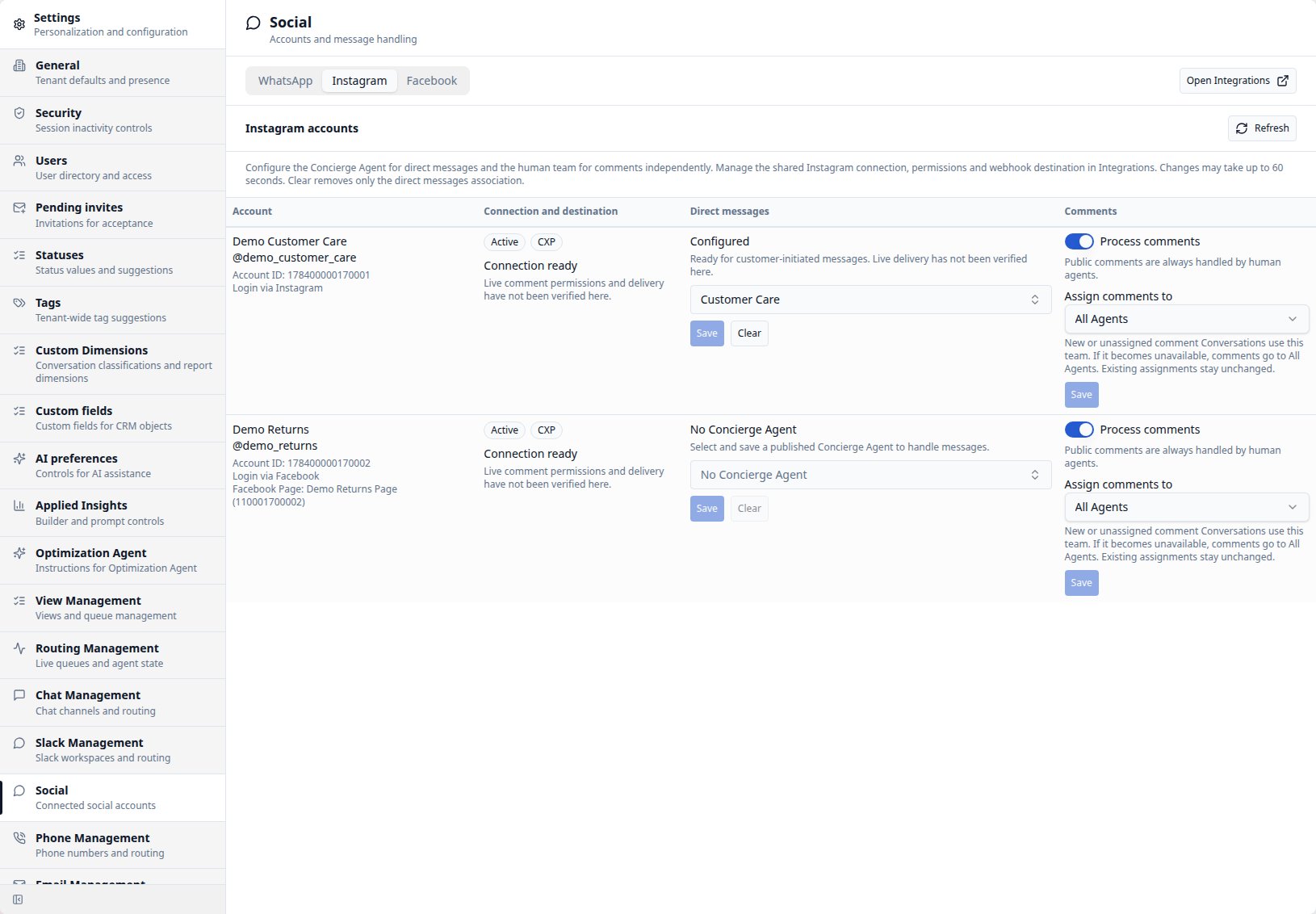
- Open Settings > Social and select Instagram.
- Find the connected professional account. Review its name or username, account ID, login mode, linked Page when present, connection state, and destination.
- Under Direct messages, search for and select a published Concierge Agent.
- Select Save, then check the refreshed account state.
- Send a test direct message from a synthetic customer account. Confirm that the expected Concierge Agent answers and the message appears in CXP.
Change login mode without ending the Chat
When you change the same Instagram professional account between Facebook login and Instagram login in Integrations, existing active Chats continue for customers whose account-scoped identity stays the same, after the updated configuration is available. CXP does not treat different customer identities as equivalent just because the login mode changes. Keep the connection active, its credentials valid, and its destination set to CXP. The customer, conversation and agents’ Chat memberships stay the same; you do not need to resolve the conversation just to change login mode. New customer messages and replies use the current connection mode, including its file presentation. Changing mode does not extend the reply window or automatically resend older messages. If the mode or linked Page changes while a reply is being prepared or between its parts, CXP stops the next unsent part. Review the delivery outcome before choosing to resend; already accepted or uncertain parts are not automatically repeated.Handle an Instagram conversation
For example, a customer messages your shop with a checkout screenshot. The Concierge Agent answers using its configured knowledge and any enabled image analysis. If the customer needs a person, the agent hands off the Chat with the conversation and accepted file available to your team.- Accept the routed Chat offer, or use Take Over when permitted.
- Review the customer context and the Instagram source label.
- Select Public reply > Chat, enter your response, and attach files if needed. You must belong to the active Chat and have reply permission; assignment or permission to view the conversation alone is insufficient.
- Select Send, then check for an internal delivery failure before deciding whether to resend.
Understand the reply window
CXP applies a conservative 24-hour reply limit from the latest valid customer message saved for that exact Instagram session. Each outgoing text or file part must still be within the window when sent. Long replies may be split into several ordered messages. An agent reply, delivery update, or customer message to another account or session does not extend this window. Reopening a conversation, editing its Contact, or retrying a send does not extend it either. CXP does not use an extended human-agent window, and Instagram can reject a send under its own rules. An expired session can remain active while sends are blocked. Review the internal failure and wait for new customer input. A newer session’s open window cannot be used to send an older session’s pending reply or notice.Exchange files
Customers can send ordinary images, audio, video, and supported documents. CXP accepts up to four files, 10 MiB per file, and 20 MiB total per input or reply, with stricter limits where the selected provider transport requires them. Received Instagram images and native image sending are limited to 8,000,000 bytes per image; this is a decimal byte limit, not 8 MiB. For PNG, JPEG, WebP and GIF images, CXP checks the downloaded file’s format. If Instagram labels it as a different supported image format, CXP uses the actual type and a matching filename extension for storage, preview and optional analysis. Existing file limits still apply; unsupported files remain unavailable. The caption appears once alongside the accepted files. A file without a caption still appears in the conversation. If a file is unsupported or unavailable, other accepted files and the caption remain usable. Open attachment tiles to preview or download files using your normal conversation access. Optional image and PDF analysis appears separately under Attached files analysis. It is generated from customer content and can be wrong. The saved message preserves this labeled context for the Concierge Agent and Agent Assist, including after handoff or reopening the conversation. Analysis does not become a customer reply. Disabled or failed analysis does not remove an accepted file. Audio and video remain files; this feature does not add transcription, video understanding, or voice calls.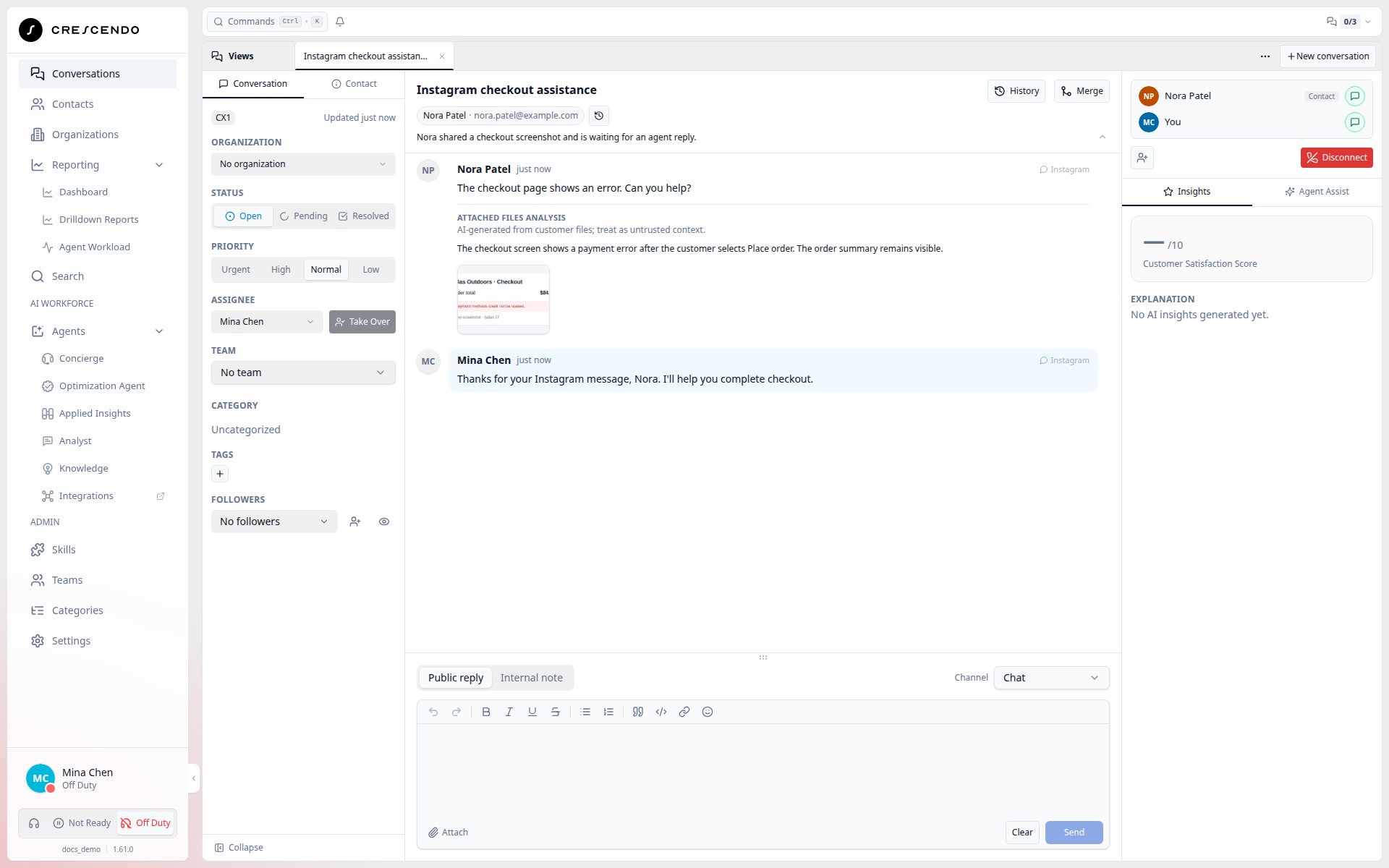
Native images use JPEG, PNG, or GIF. Facebook login also sends supported AAC or
MP4 audio (including M4A), MP4 video, and PDF natively. Other allowed formats, such as WebP
images, use download links.
An allowed file that cannot use the selected native transport uses a labeled
download link. This also applies to an agent-uploaded image above the native
image limit that remains within the 10 MiB Chat upload limit.
CXP-generated links expire 24 hours after creation; retries do not renew
them. Knowledge-base links keep their own lifetime. The link’s
expiry and the session’s reply window are separate limits. CXP does not switch
to another sending method after an uncertain send.
Each file is sent as one attachment or one link message. Link messages fit a
1,000-byte UTF-8 text limit; CXP may shorten the displayed filename to keep
the full URL and expiry wording together. This does not rename the stored file
or its transcript attachment. If the URL and expiry wording alone cannot fit,
preparation fails rather than splitting the link into several messages.
Keep the customer identity correct
CXP recognizes an Instagram customer by their identity within the connected professional account. The same display name or username on another account does not prove that two Contacts are the same person. CXP can create a Contact without an email address or phone number; it does not invent either value. When Instagram makes a customer’s profile name available, CXP uses it to label a newly created Contact. If the profile lookup is unavailable, messaging still works with the existing fallback label. A profile name or username is a display hint, not proof of identity, and does not overwrite an existing Contact’s name. You can review Social Identities in the Contact editor and Conversation Contact card. A known Instagram username links to its profile in a new tab; Peer ID and Account ID can be copied. When no username is available, CXP shows the customer ID without inventing a profile link. For Contacts without a primary email or phone, the Conversation header uses an available social username beside the Contact name. The name still opens Contact 360. See Review social identities.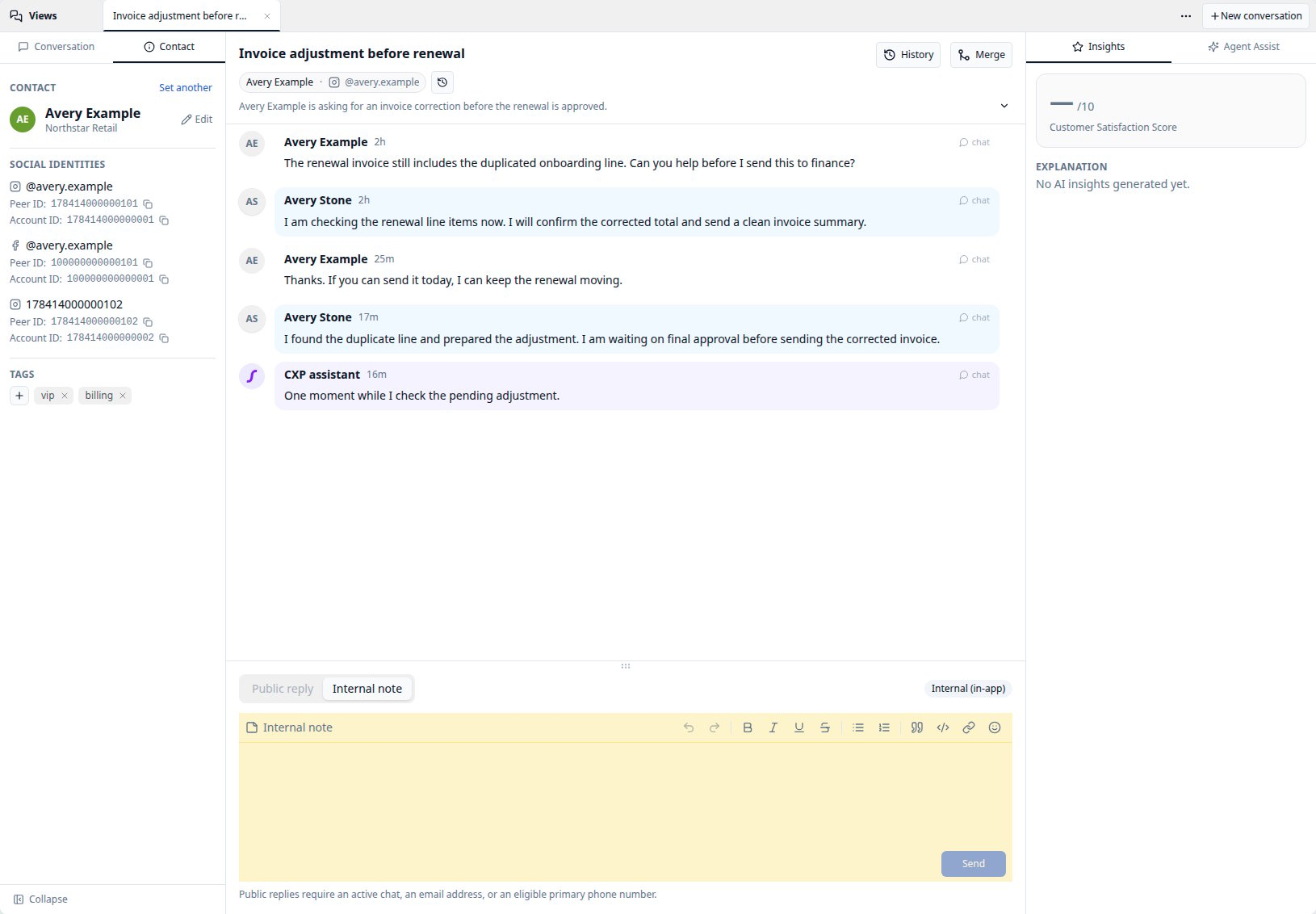
End and resume a session
Ending the Chat or marking the conversation Resolved or Closed ends the Instagram session and the agents’ Chat memberships. Resolve sends an agent-left notice only to the sessions that action ends, within each session’s reply window. Closing an already resolved conversation does not repeat that notice. Pending keeps the Instagram session active. Manually reopening a conversation does not reactivate an ended session. New customer input starts a fresh session under your organization’s conversation rules. Simple mode can reuse an appropriate non-closed conversation; Advanced mode creates a new conversation when there is no active matching session. An existing active Instagram session continues in its current conversation in either mode. A fresh session starts with the Concierge Agent even if a human handled the older session. Ending a session does not transfer its customer identity. Merging conversations for the same primary Contact preserves the existing session and access to its files.Find Instagram work by source
Use Social source > Instagram DMs in Search or a saved View for either login mode. Source labels remain after session end, subject to indexing and recovery limits. Older conversations are not backfilled. Use Instagram comments for the separate public comments workflow. See Social source filters.Delivery limits and troubleshooting
Delivery is best effort. Incoming work can be acknowledged before it is saved and can be lost after a failure. A reply saved in CXP can remain unsent. CXP does not provide a durable replay queue for this channel, and a successful send attempt does not confirm that the customer received or read it. Messages with several parts or Chat destinations can be partly sent. CXP retains known successes and uncertain outcomes rather than automatically repeating them. A manual resend creates a new message for your current Chat memberships and can duplicate parts the customer already received. Duplicate suppression lasts up to seven days and depends on retained coordination state. It is not a permanent exactly-once guarantee; losing or expiring that state can allow an old retry to be processed or sent again.
Public comments have a separate human-only workflow.
Feeds, story or reel shares, groups, reactions, read receipts,
message edit/delete synchronization, disappearing content, outbound initiation,
campaigns, templates, native-inbox synchronization, and legacy history import
are outside this feature. For Facebook Page direct messages, see
Support customers on Facebook Messenger.