

Understand Analyst Context

Coming soon. This preview has been verified locally; production availability has not been confirmed. The Context card will show what data Analyst used while an answer runs. You can check the applied dates, filters, and returned data before deciding how broadly to interpret an answer.

Prerequisites

Your organization needs access to Applied Insights and your role needs permission to use Analyst. The card follows your existing access to data and private chats; there is no separate Context setting to configure.

Check an answer’s scope

  1. Open Analyst and ask a question, such as “Compare email conversations in September with August.”
  2. Read Context beside the conversation. On smaller screens, use the Context control in the header to open the card.
  3. Check each period, its timezone, the applied filters, and the data description.
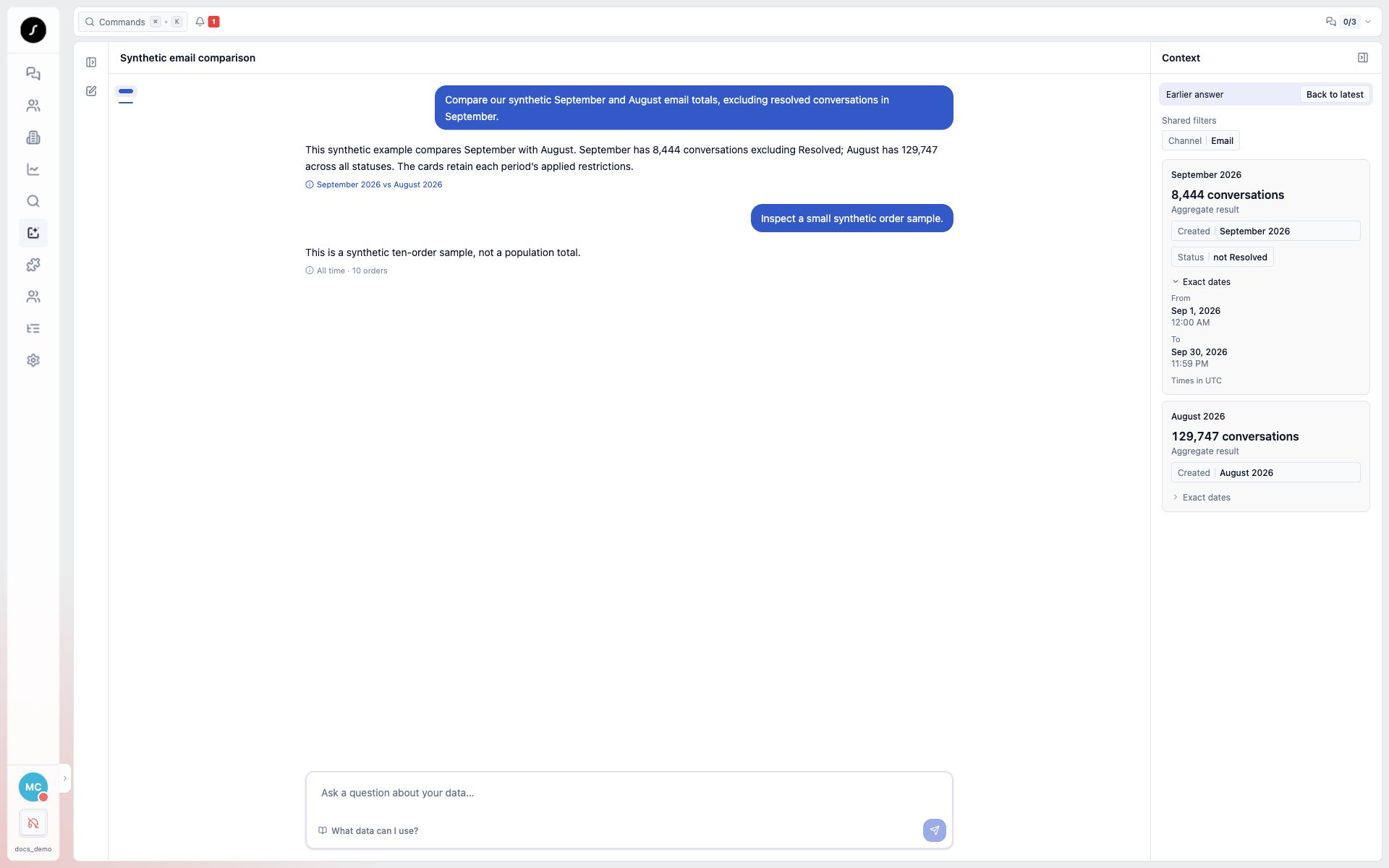
Every scope uses the same card: a short title, a meaningful metric, applied filter pills, and expandable Exact dates. Pills use the same field/value style as conversation filters, for example Created | March 2026, Channel | Email, or Status | not Resolved. They describe applied restrictions and are read-only; they do not change the analysis. Shared restrictions appear above comparison cards under Shared filters, while each card keeps its own dates and any scope-specific restrictions. No additional filters means no non-date restrictions were reported. Rolling windows such as Last 30 days retain resolved date/time bounds under Exact dates. Full months show month and year. All time means no date restriction; it does not mean every conversation was individually inspected. Missing dates are shown as unavailable or not reported, rather than implying an all-time query. The date-field name is shown when known; otherwise the pill says Date. CXP Analyst Context comparing September and August with structured filter pills and meaningful conversation totals

Interpret the data count

Sample (up to 3) or Sample (up to 10) describes a bounded inspection. Analyst reports meaningful values from the results it reads: for example, 8,444 records from a count query, or an order count or revenue metric from an external source. Aggregate result distinguishes these metrics from inspected samples. These values do not establish that every record was individually analyzed. Analyst fills the card as it works and submits the final scope with its answer. Dates, filters and metrics are reported by the agent, rather than independently checked against executed queries. Unknown facts should remain unavailable. If Analyst omits the form, the card says Context was not reported for this answer. Updating Context does not require another data query.

Revisit earlier context

Select the Context tag below an earlier answer or optimization recommendation to show its saved card. Earlier answer stays visible until you choose Back to latest or send another prompt. On wide screens, the prompt history markers help you navigate the chat. They highlight visible prompts and the answer section you are reading as you scroll; scrolling keeps a selected Context card pinned. A solid blue pill on a pale blue background identifies the prompt whose Context card is selected. Reloading the chat restores saved cards alongside their answers. Using previous results means Analyst reused saved query evidence; expand Execution details to see when it was retrieved. Updating the Context card does not add a tool row to the transcript.

Limits and recovery

Context describes the analysis; it does not apply filters or change data access. Analyst can summarize existing results from conversations, Shopify or other connected sources without tool-call references. It can also report earlier results already in the chat. Stopped or failed runs retain the last reported form, accessible through their transcript Context tag even on smaller screens. Saved older cards use the same card layout while retaining their original values, including technical row counts; they are not automatically recalculated. Older answers without Context metadata remain readable, but may not have a card. The preview does not guarantee full-population coverage or factual correctness of agent-reported values.