

Before you start
- You need access to the relevant conversation or reporting page. Your role determines which conversations, reports, and configuration actions you can use.
- Handling is tracked automatically as conversation status and responsibility change. There is no separate stopwatch to start.
- Handle Time and Elapsed HT are built in. You do not need to configure a Custom Dimension to display or filter them, or to group by Elapsed HT.
- Creating personal Views requires personal-view management permission; configuring shared Views requires the corresponding administrator permission. See Roles and permissions.
Understand the measures
Handle Time
Handle Time adds the time a conversation was Open and assigned to an individual human agent, across its completed periods of work. AI handling, team assignment, and Pending time are excluded. The value is recorded when the conversation is resolved or otherwise ended. If the conversation is reopened, its existing Handle Time stays unchanged until the new work ends. An active conversation can therefore show an earlier completed total, or a dash if no usable completed total is available.Elapsed HT
Elapsed HT includes eligible agent responsibility already completed, including work since the latest reopening, plus the current interval when the conversation is Open and assigned to an individual agent. It does not need to wait for the conversation to be resolved. In Search, Views, and Drilldown, each result uses one fixed calculation cutoff. Paging and sorting retain that cutoff; values do not tick while you watch the table. Select Refresh for a new calculation. Opening a saved View or report evaluates it again; saving the configuration does not freeze its elapsed values permanently. The cutoff fixes the time used for active handling; it does not preserve a permanent copy of the conversation. Later updates or corrections can change the information returned for that same cutoff. In the conversation workspace, the header and Conversation Handling panel use the current time for Open or Pending conversations. Eligible active agent time can advance every second there. This is why a workspace value can be larger than an earlier Search result.Average Handle Time (AHT)
AHT adds the recorded Handle Time values in the selected population and divides by the number of conversations with a usable value. A recorded zero is included; missing values are excluded from both the sum and the denominator. Each conversation contributes once to the average for its report row. A parent or overall average is calculated from its conversations, not by averaging the averages of smaller groups. An Open or Pending conversation can contribute its earlier completed Handle Time.What counts as handling time
The Conversation Handling panel separates responsibility into four totals:Pending time
Pending pauses all four handling totals. This applies whether the conversation is waiting on a customer, a third party, or another recorded waiting party. The waiting reason explains the interval but does not change the calculation. The Pending interval still appears in Handling history, with its duration and waiting party when available. Its duration can increase while the conversation remains Pending, even though agent handling stays unchanged. Returning the conversation to Open resumes the appropriate responsibility counter. As a result, the time from the beginning to the end of a conversation can exceed Overall handling. Time spent Pending, Resolved, or Closed does not add handling.Resolving, closing, and reopening
- While work is active, Elapsed HT includes eligible work so far. Handle Time retains the last completed value.
- Resolving the conversation records the completed agent total.
- Closing an already Resolved conversation adds no handling time.
- Reopening retains that recorded total. New eligible work increases Elapsed HT immediately, while Handle Time waits until the new work ends.
- When the reopened work is resolved or otherwise ended, Handle Time includes the earlier and newly completed agent time.
Recorded zero and missing information
Example: one conversation, different totals
This synthetic conversation is handled in the following order:Inspect Conversation Handling
- Open a conversation and select the clock and duration immediately before History in its header.
- Read the headline. Open/Pending conversations show Elapsed Handle Time; Resolved/Closed conversations show recorded Handle Time.
- Compare the AI, Team, Agent, and Overall breakdown.
- Scroll through Handling history. The headline remains visible above the scrolling breakdown and history.
- Use Newest first on the right to switch to oldest-first order when you want to follow events from the beginning.
- Select a row’s details button to inspect the responsible party, duration, exact times, and other recorded facts. Close the popup to return to history.
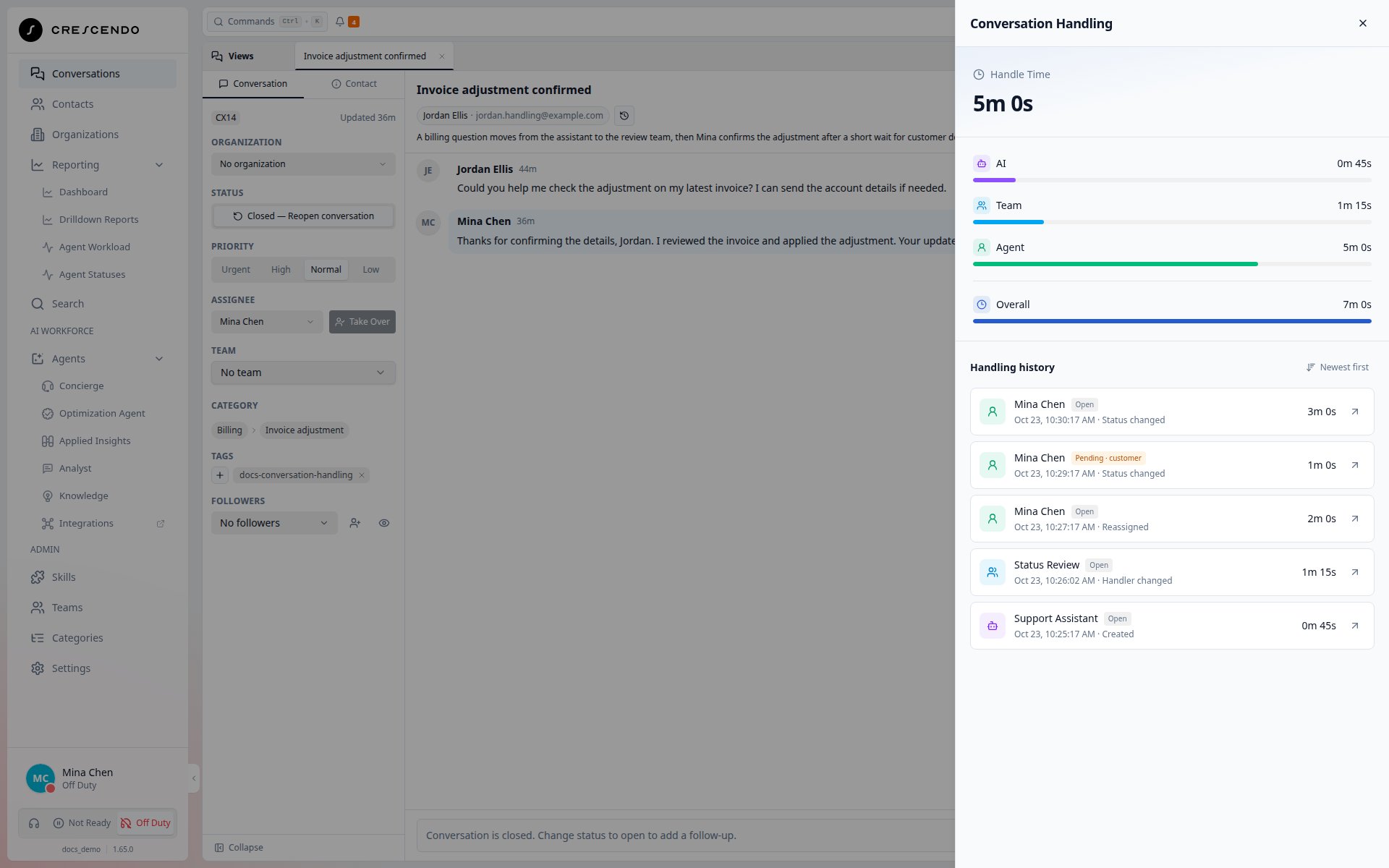
The completed example has five minutes of agent handling and seven minutes overall. Its Pending minute remains visible in Handling history.
Use handling time in Search
Show and compare the columns
Search shows Handle Time after CSat by default. Elapsed HT is optional and starts hidden.- Open Search and choose the conversations you want to review.
- Select Columns & sort. Enable Handle Time if it is hidden, and enable Elapsed HT, which is hidden by default.
- Compare completed and elapsed agent handling side by side. Select either column heading to sort numerically; select it again to reverse the order.
- Hover over or focus a duration to see its exact value in seconds.
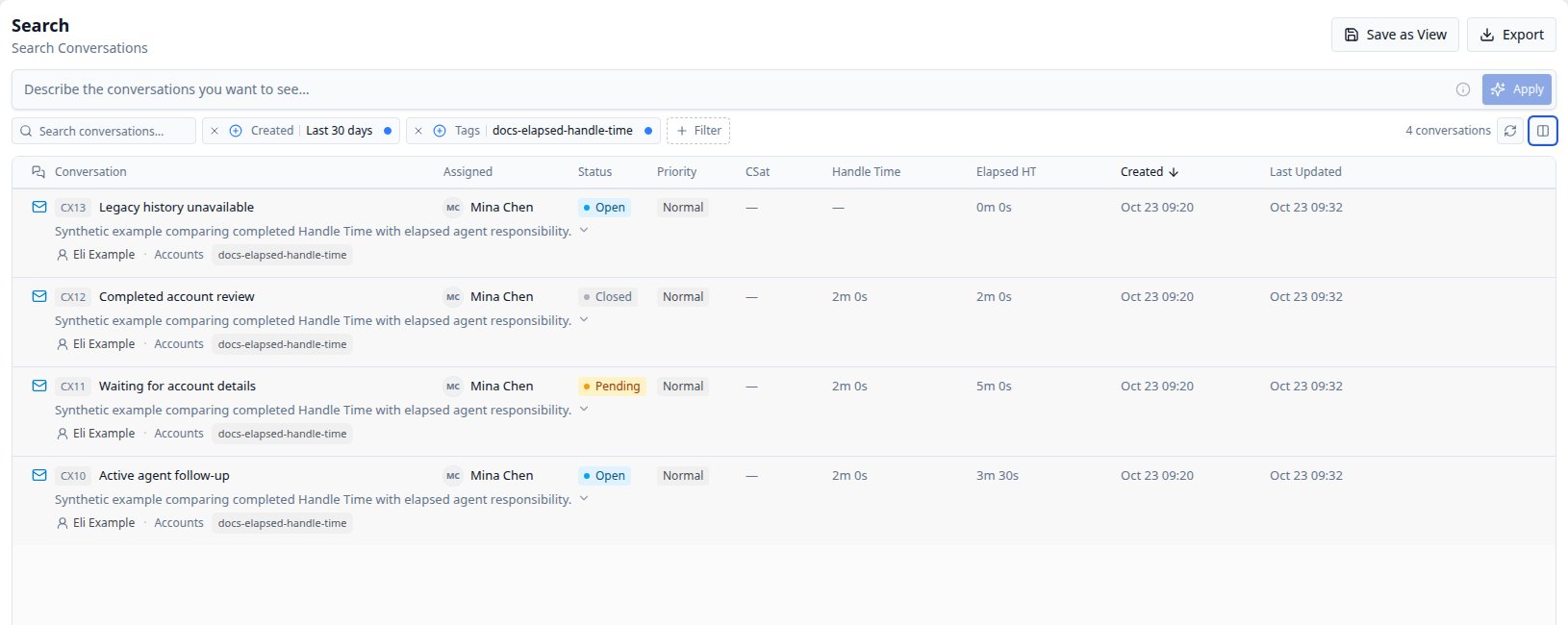
At this Search cutoff, active agent work has 3m 30s elapsed, Pending work has 5m 0s, and closed work has 2m 0s. Each retains a completed Handle Time of 2m 0s. The fourth conversation has no recorded Handle Time and an elapsed fallback of zero.
Filter with seconds
Add Handle Time or Elapsed HT using the filter controls, choose a comparison, enter seconds, and select Apply. The same numeric controls work in Search, Views, and Drilldown.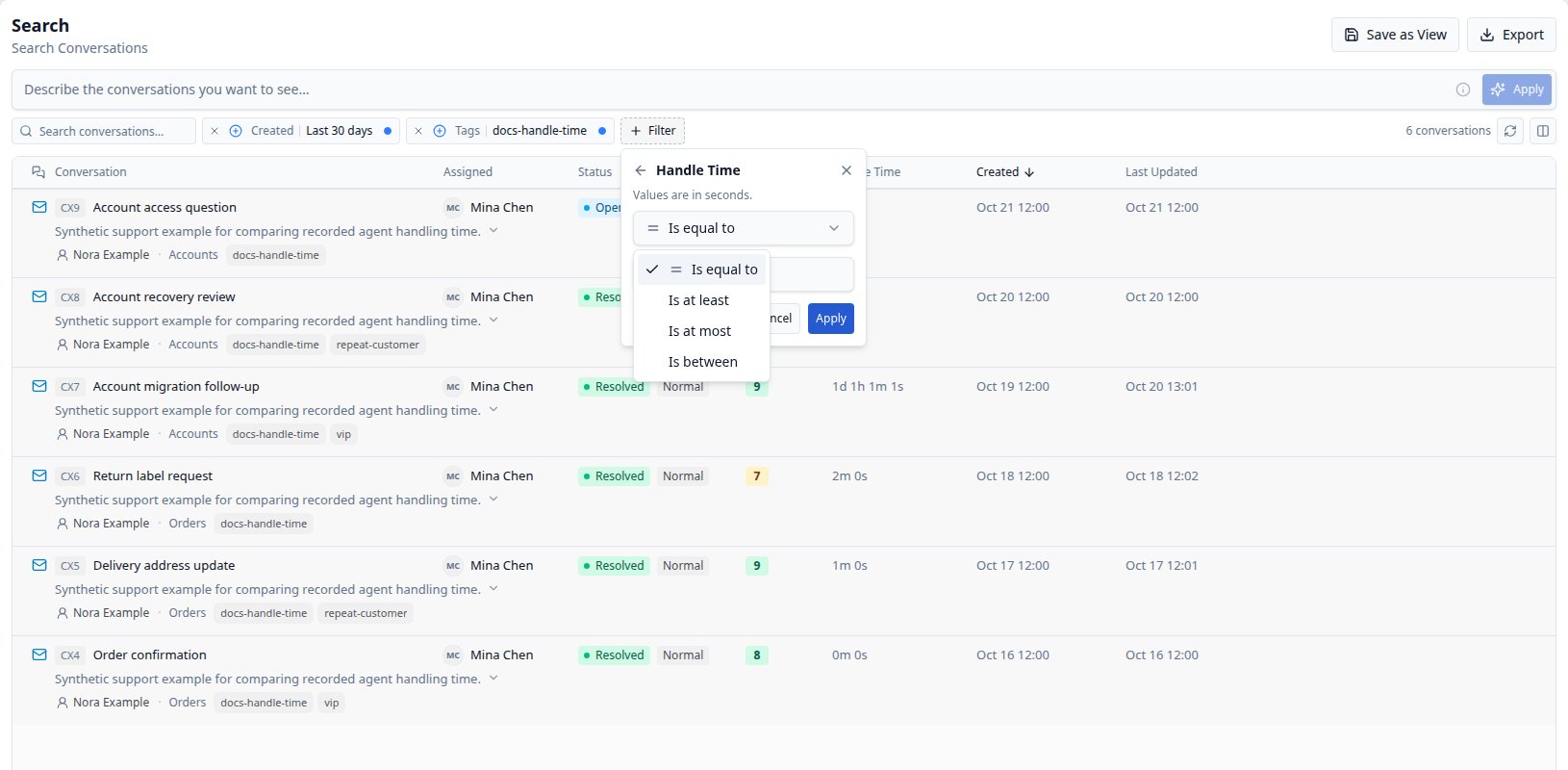
Handling-time comparisons use seconds, with inclusive minimum, maximum, and range boundaries.
Export a search
Select Export to download up to 500 matching conversations as CSV. Its standard columns include Handle Time and Elapsed HT in numeric seconds, regardless of which columns are visible. Elapsed values use the result’s cutoff; refresh first when you need a new calculation. For the rest of the Search controls, see Searching conversations.Save a handling-time View
- In Search, configure the handling-time threshold and any Status, Assignment, or date filters needed for your queue.
- Show Handle Time and Elapsed HT if you want both in the saved table.
- Select Save as View, enter a name, and save the personal View.
- Open it from Conversations. Its saved criteria and presentation are reused; its results use the current calculation cutoff.
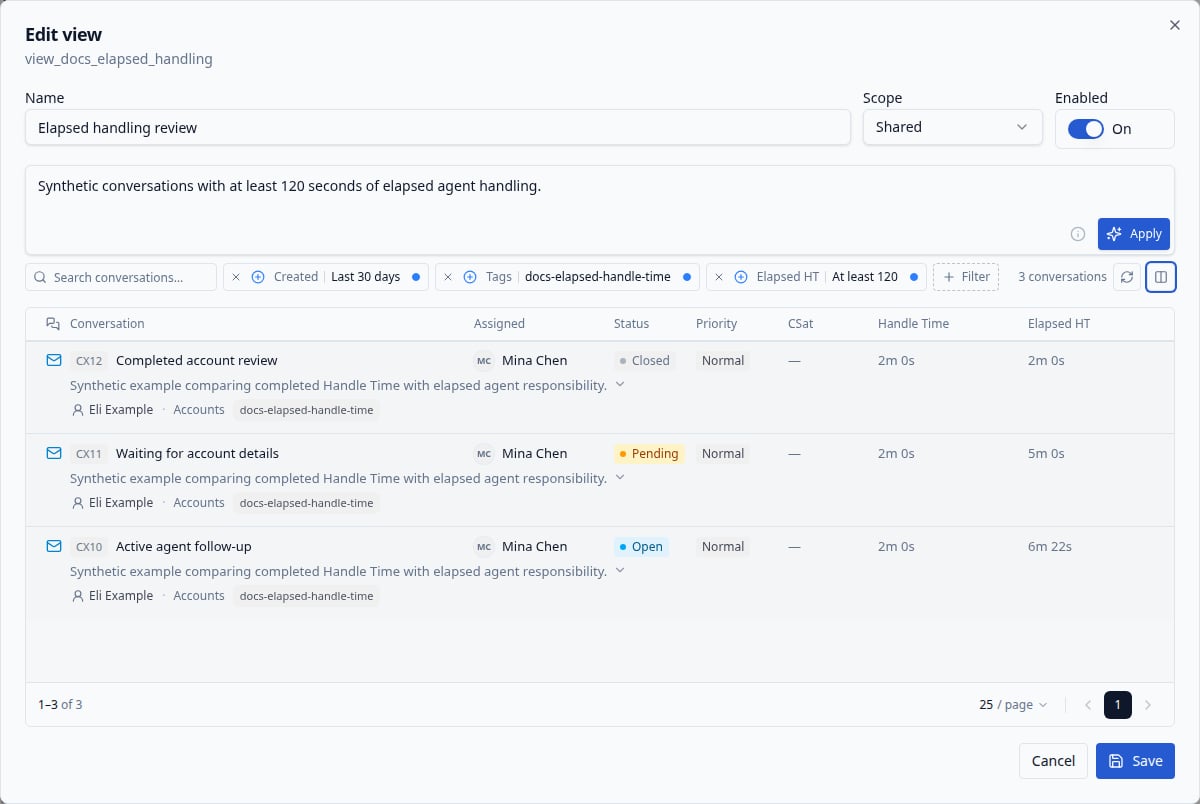
A saved handling-time View keeps its threshold and optional duration columns while recalculating results when opened.
Compare handling in Drilldown reports
Compare recorded AHT
Open Reporting > Drilldown Reports, set your conversation filters, and choose Group By and Split By properties. AHT appears after Avg TTA and describes recorded agent Handle Time for each row’s conversations. For example, one category has recorded values of0, 60, and 120 seconds:
its AHT is 60 seconds. Another has one value of 90,061 seconds and two
missing values: its AHT is 90,061 seconds. Across all six conversations,
the four usable values average 22,560.25 seconds. Averaging the two category
averages would produce the wrong answer.
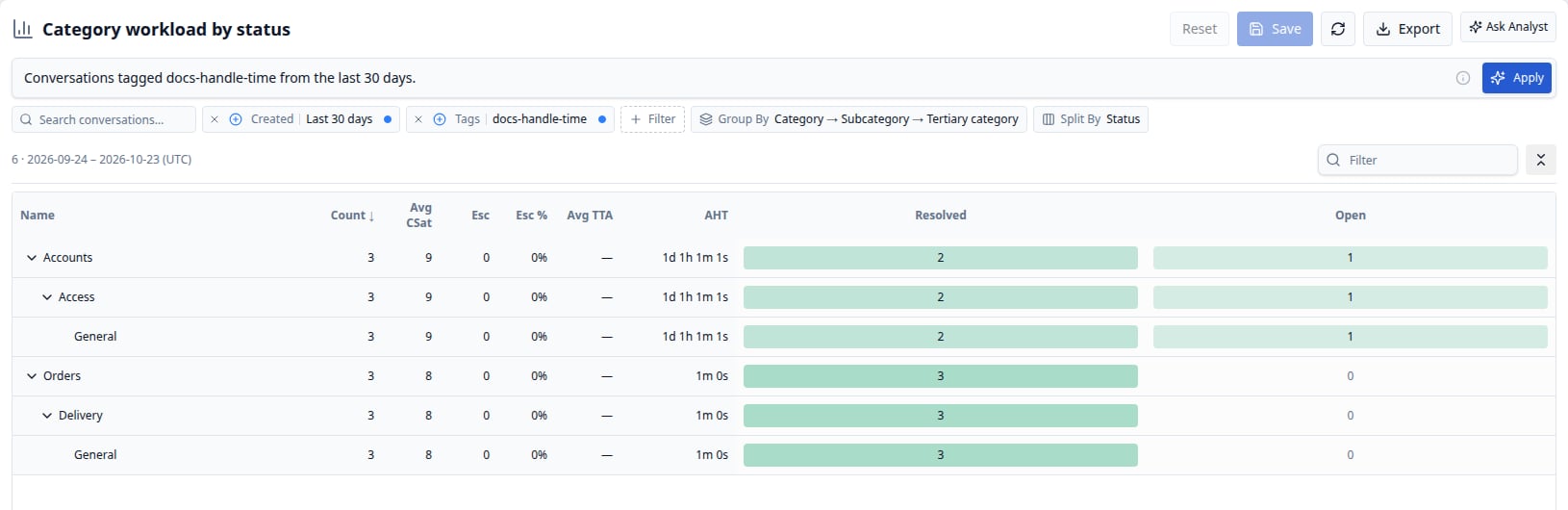
AHT reflects the conversations in each category. Missing Handle Time values remain outside the average, while recorded zeroes count.
Group by Elapsed HT
Choose Elapsed HT in Group By or Split By to compare current elapsed values at the report’s fixed cutoff. It groups exact whole-second values; it does not automatically create minute bands. Apply numeric filters when you want to focus on a duration range. The zero group can include unavailable calculations as well as measured zeroes. Selecting a count opens Search with that row or cell’s conditions and the same calculation cutoff. This lets you inspect the conversations behind a result.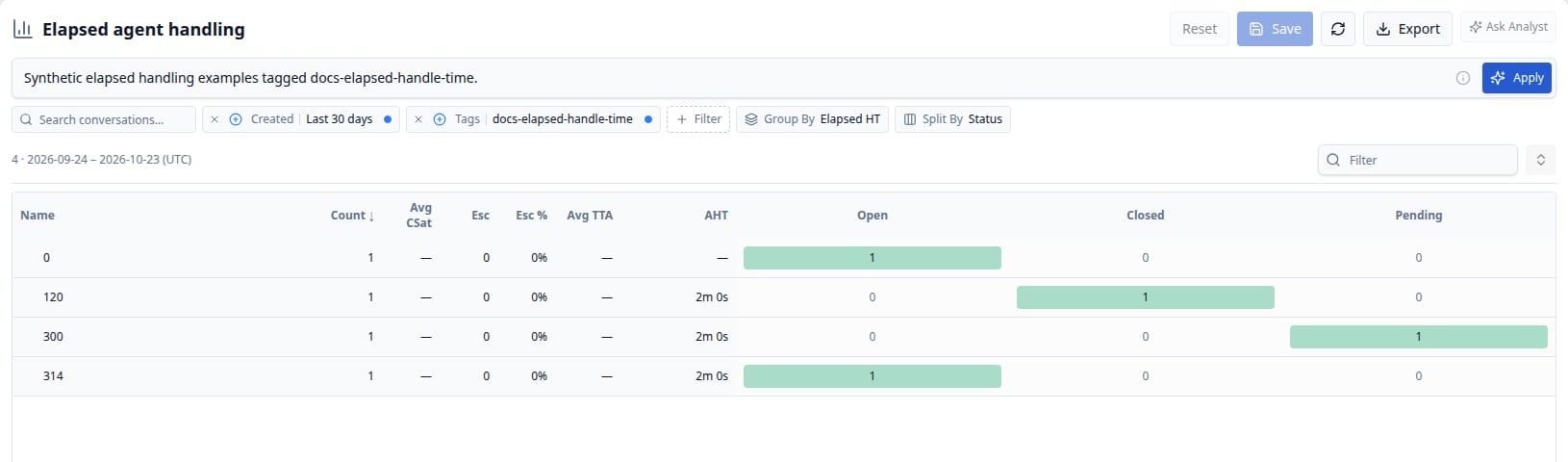
Elapsed HT can be used directly for numeric grouping, without Custom Dimension setup.
Export and investigate
Export > Excel includes all returned rows, hierarchy levels, metrics, and split counts. AHT remains numeric seconds; rounding is only for its duration display. Collapsed rows and the local row-label filter do not remove data from the workbook. Ask Analyst is unavailable when a report uses Elapsed HT in an enabled filter, grouping, or split. Numeric keywords can also make the action unavailable. Recorded AHT alone does not prevent using Analyst, and report exports remain available. See Drilldown reports for the complete workflow.Read Dashboard handling metrics
Open Reporting > Dashboard and choose your conversation population. The Agent Handle Time card shows AHT, Minimum HT, and Maximum HT for that population. Minimum and maximum refer to the shortest and longest individual conversation values, not to daily or weekly averages. The AHT over time chart follows CSat over time. Its Overall AHT badge summarizes the selected population. Each AHT point averages recorded Handle Time for conversations created in that time bucket. A bucket without usable values has no measured AHT; recorded zeroes are included.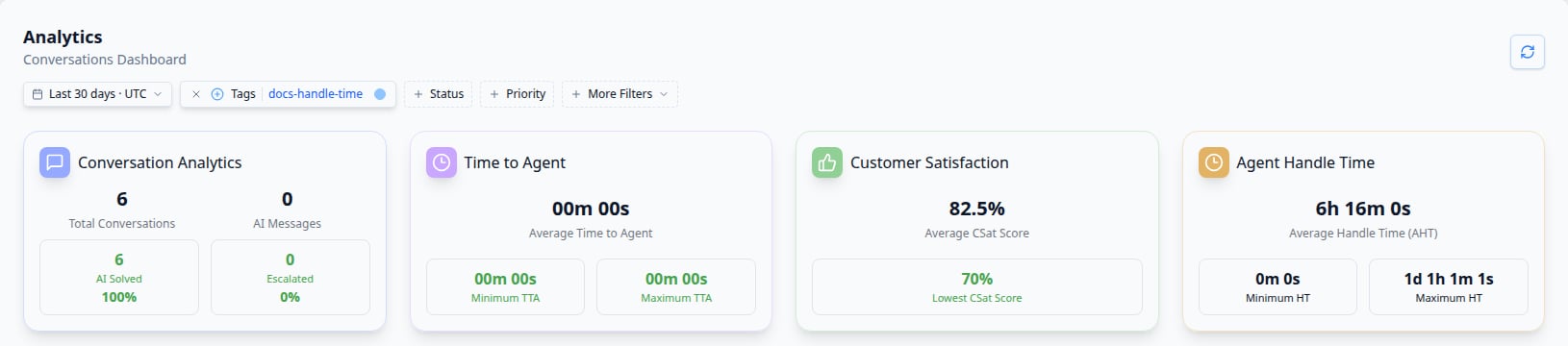
Dashboard shows recorded AHT and the shortest and longest conversation values for the selected population.
Choose dates and interpret results
Date filters select which conversations enter a result. They do not limit each conversation’s handling total to work performed during those dates. Search, Views, and Drilldown use their configured Created or Updated criteria. Dashboard selects and groups conversations by creation date. For example, a conversation created on Monday and handled again on Tuesday still belongs to Monday’s Dashboard bucket, with its cumulative recorded Handle Time. Review the date range and timezone before comparing reports. A saved View made from a Drilldown count retains that cell’s resolved date range; change it to a relative range when you want a rolling review queue. Search updates can lag recent conversation changes, and separately refreshed pages can use different cutoffs. Refresh before comparing active work.Guidance for administrators
- Agree when your team uses Pending and which waiting party and reason to record. Those choices explain pauses in the history; Pending time is excluded regardless of the selected reason.
- Set shared View thresholds in seconds and include the relevant conversation status. For example, an elapsed threshold without Open status also finds Pending or completed conversations.
- Compare AHT for similar conversation populations, with the same date rules and filters. Inspect the underlying conversations when a category changes.
- Keep missing values distinct from measured zero. Older or incomplete history can affect the number of conversations contributing to an average.
- Use Agent Statuses Reporting for availability and Agent Workload for current work. Conversation handling measures answer a different question: how long responsibility remained with AI, a team, or an individual agent.