

Before you begin
You need the Owner, Admin, or Team Lead role to open the report and export its results. An Owner or Admin can configure Not Ready Reasons in Settings > Statuses. Use short, distinct names that agents recognize. See Not Ready reasons for configuration and selection steps. Every configured reason has a report column, even when no agent used it during the selected period.How status changes are recorded
CXP records changes between Ready, Not Ready, and Off Duty, including changes made by agents and automatic availability changes. Each recorded change starts a new period of time in that status. A subsequent recorded change ends the previous period. Changing a Not Ready reason is also recorded. For example, changing from Not Ready · Break to Not Ready · Lunch keeps the agent Not Ready while starting time under Lunch. Selecting the same status and reason again does not restart the period. Selecting Ready or Off Duty clears the Not Ready reason.
Recording starts from captured changes. CXP does not fill earlier, unrecorded
time from an agent’s current status. Missing history is not counted as Off Duty.
Choose your period and team
- Open Reporting > Agent Statuses. The initial report shows This Week in your browser’s timezone, with All Agents selected.
- Open Report dates. Choose a calendar range, or enter From Date and To Date, and select the timezone. Select Apply inside the date picker to update the report.
- In Team, keep All Agents or select a named team. The report updates as soon as you choose a team.
Return to a report selection
The page address keeps your exact date range, timezone, team, and selected agent. A named preset such as Today or This Week also keeps its label; custom dates show the date range instead. Copy or bookmark that address to return to the same selection, or use your browser’s Back and Forward buttons to move between selections. Someone opening the link needs their own reporting access. Reloading the page or selecting Refresh retrieves fresh results while keeping the selected agent’s daily view. The dates in the address stay fixed; reopening a saved Today or This Week selection does not move it to a later day or week. Choose the preset again when you want the current period. An open day’s history panel closes when the report refreshes or its selection changes. Select the day again to review the updated history. The panel itself is not saved in the link. If the selected agent no longer belongs to the chosen roster, the report returns to the agent summary.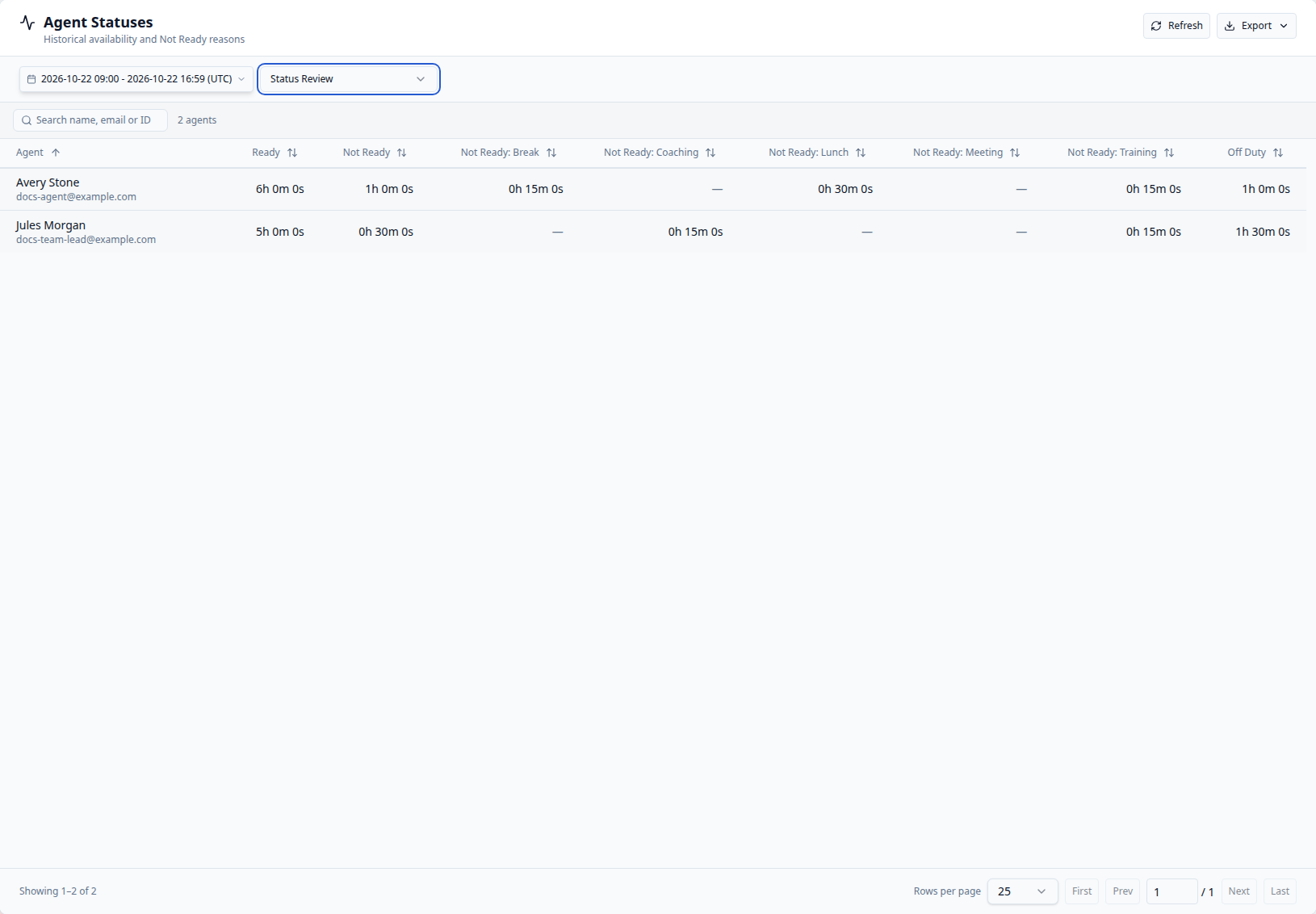
Which agents appear
All Agents includes current active users with an Agent, Team Lead, Admin, or Owner role. Selecting a team includes its current active members from that same roster. Agents remain visible even when they have no recorded time in the selected period. The report uses current membership when you run it. It does not reconstruct who belonged to a team on a past date. Moving an agent between teams can therefore change who appears when you run an older period again. Inactive or deleted agents are not added back just because they have older history.Dates and timezones
The selected timezone determines calendar-day boundaries. A daylight-saving change can make a day 23 or 25 hours long. Custom ending times include the entire ending minute. For an exact 09:00–17:00 period, choose 09:00 as the start and 16:59 as the end. Choosing 17:00 includes time through 17:00:59.999. If your period extends into the future, the report counts only through the time fixed for that calculation. Refresh when you want to include more recent time.How durations are calculated
For each recorded period in a status or reason, CXP counts only the part that falls inside your selected dates:- Counting starts at the later of the recorded start and the report’s start.
- Counting stops at the earliest of the recorded end, the report’s end, and the report’s fixed calculation time.
- If a status has no recorded end yet, its contribution stops at the report’s end or the report’s calculation time, whichever comes first.
- The counted durations are added for each agent, status, and reason.
Status totals and Not Ready reasons
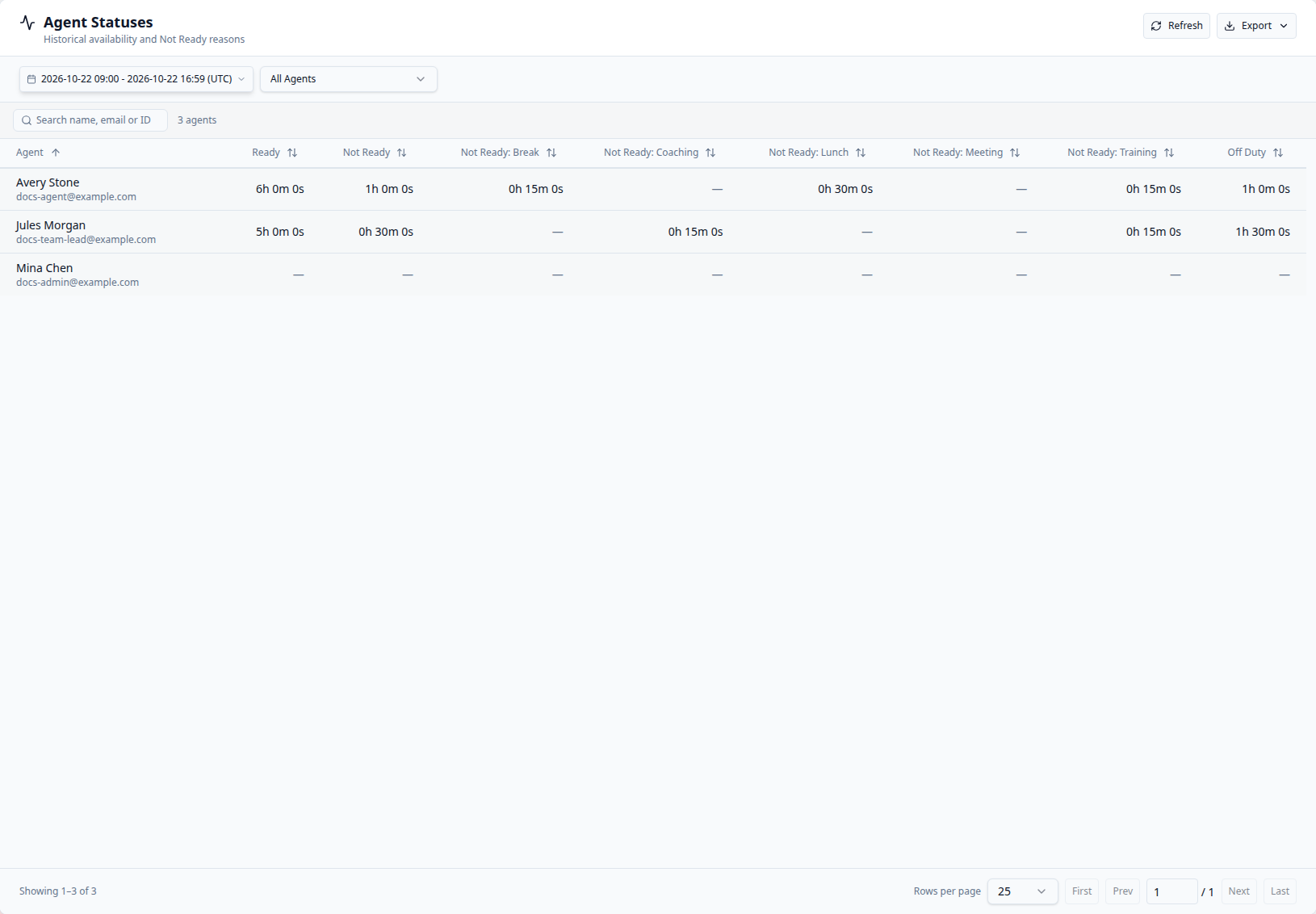
The table always shows Agent, Ready, Not Ready, all available reason columns, then Off Duty. All reason columns remain visible; scroll horizontally when there are more columns than fit on your screen.
Reason durations are already included in Not Ready. Add Ready, Not Ready,
and Off Duty when reviewing the status total; do not add the reason columns
again. Not Ready time without a selected reason contributes to Not Ready but
has no separate No reason column.
For a fully recorded eight-hour example:
Ready, Not Ready, and Off Duty total 8 hours. Break, Lunch, and Training
explain the 1 hour already included in Not Ready. Meeting remains visible
because it is configured, although this agent has no recorded Meeting time in
the period.
Dashes, zeroes, and reason names
A dash (—) means no recorded time was found for that agent and column in the selected period. It does not mean zero time. A displayed zero means a recorded period contributed zero whole seconds. Durations can exceed 24 hours without restarting at zero. Configured reasons keep their identity when renamed: earlier time appears under the current configured name. Deleted reasons can still appear when the selected agents used them during the report period. Reasons with identical names remain separate, with identifying text added to their headings when needed. Older records that identify a reason only by its label appear with legacy in the heading and do not automatically combine with a configured reason.Find and compare agents
Use the search box to filter by name, email, or agent ID. Select a duration heading to sort by the amount of time, and use the controls below the table to change pages or page size. Search, sorting, and pagination work with the report you already loaded. They do not retrieve a newer result or change its reporting period. Clear the search to restore the full selected roster.Inspect one agent by day
Select an agent’s name to replace the team summary with that agent’s daily totals. The selected name appears in bold above the table. Each row represents a calendar date in the report’s selected timezone, with the same Ready, Not Ready, reason, and Off Duty columns. Every date intersecting the applied period appears, including dates without recorded activity. A date without observations has dashes. The first and last dates count only the part inside your selected period; a daylight-saving day can contain 23 or 25 hours. Daily totals use the loaded report’s calculation time, so opening a day does not add time to an ongoing status. Dates appear newest first. Use Search dates to find a day, or select the Date or duration headings to change the sort order. Search, sorting, and pagination apply to this agent’s daily rows.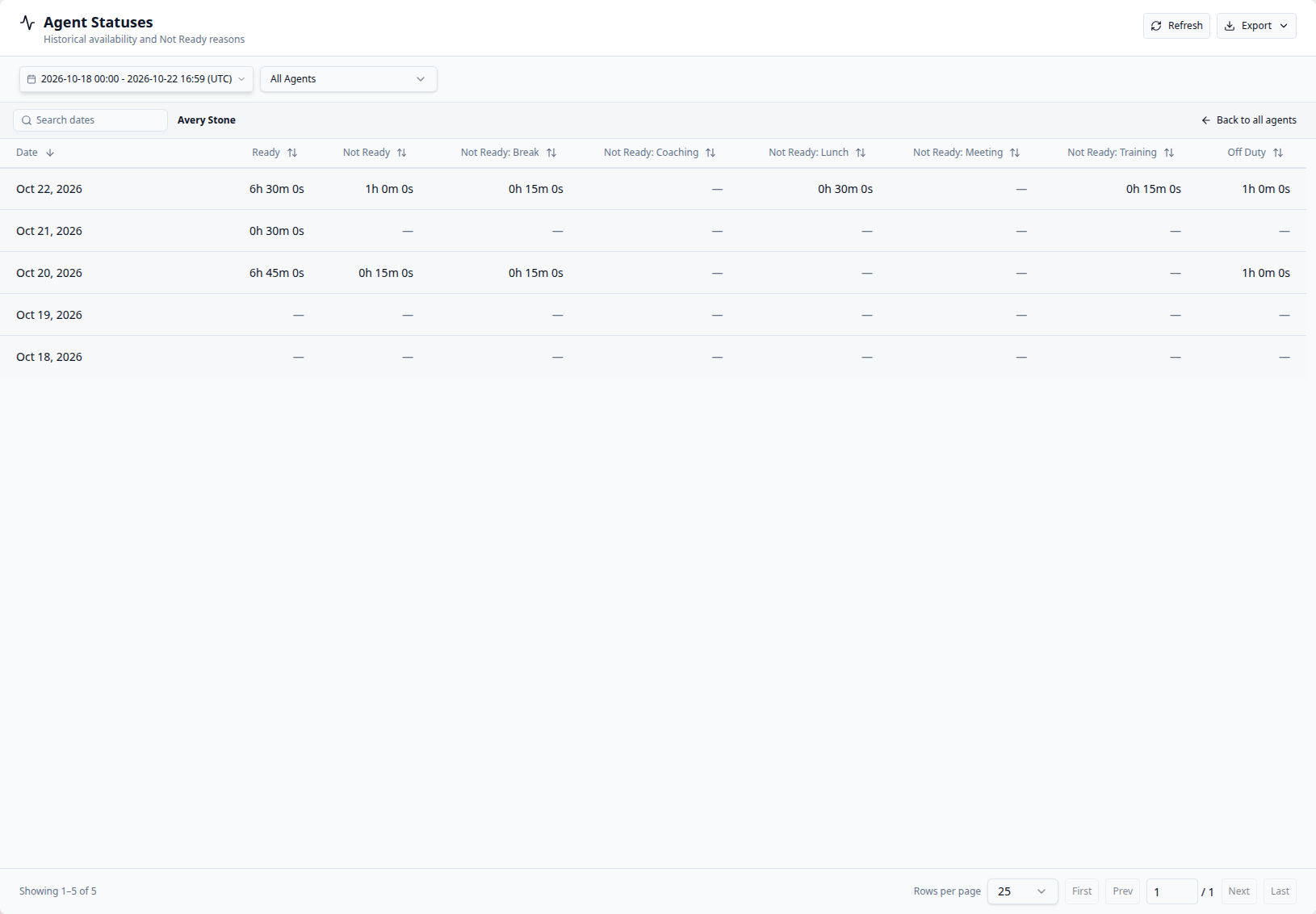
Review a day’s Status History
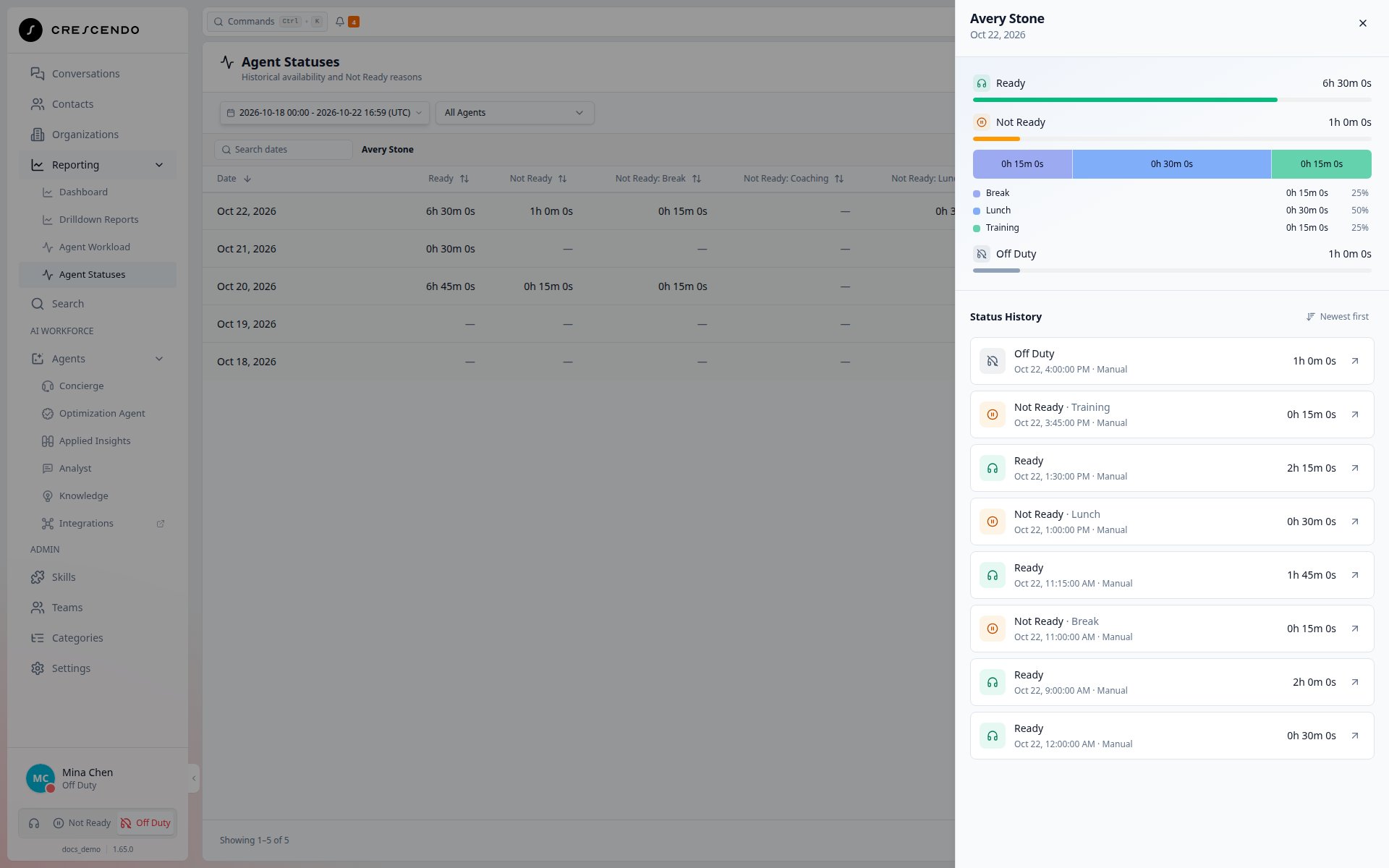
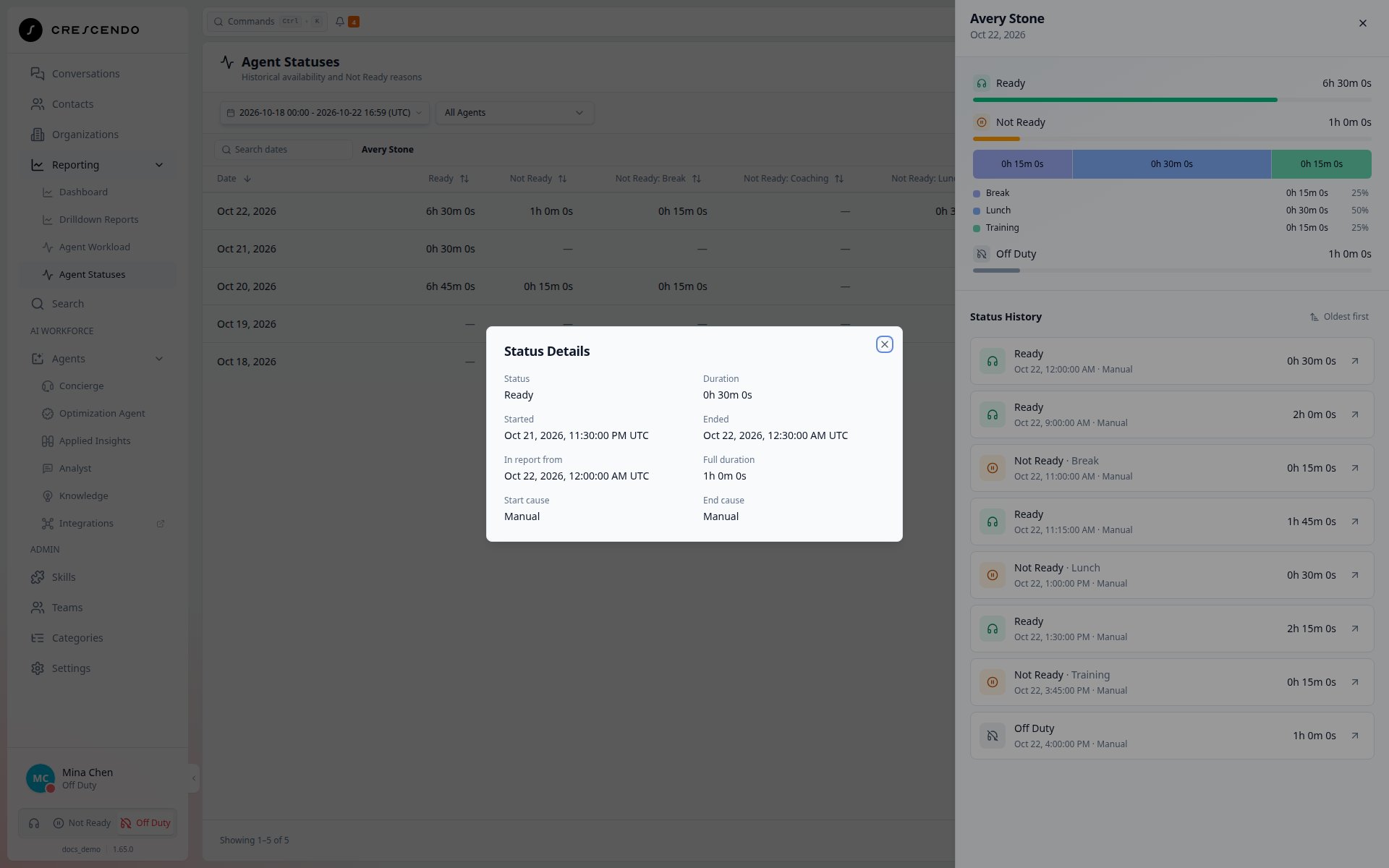
Select a date in the daily table to open a panel titled with the agent’s name and day. The panel loads that day’s recorded changes when you open it.- Review the status totals and bars to compare Ready, Not Ready, and Off Duty. Under Not Ready, one stacked bar shows how that time divides between observed reasons. Read durations inside the bar or in its legend, which lists each reason, its duration, and its percentage of total Not Ready time. No Reason appears when time was recorded without a selected reason. Reasons without recorded periods are omitted. These durations are already included in the Not Ready total; do not add them again.
- Scroll through Status History to see individual status periods, their reasons, start times, start causes, and counted durations. The status totals remain visible while you scroll the history. Entries start newest first; use Newest first or Oldest first to change their order.
- Select an entry’s details icon to inspect its original start and end alongside the part counted for this day.
Export the displayed report
Open Export and choose Export Report to download an Excel workbook for the table you are viewing: the agent summary or one agent’s daily totals. The export includes every filtered row across all pages in the current sort order. Clear the search first to include all loaded rows.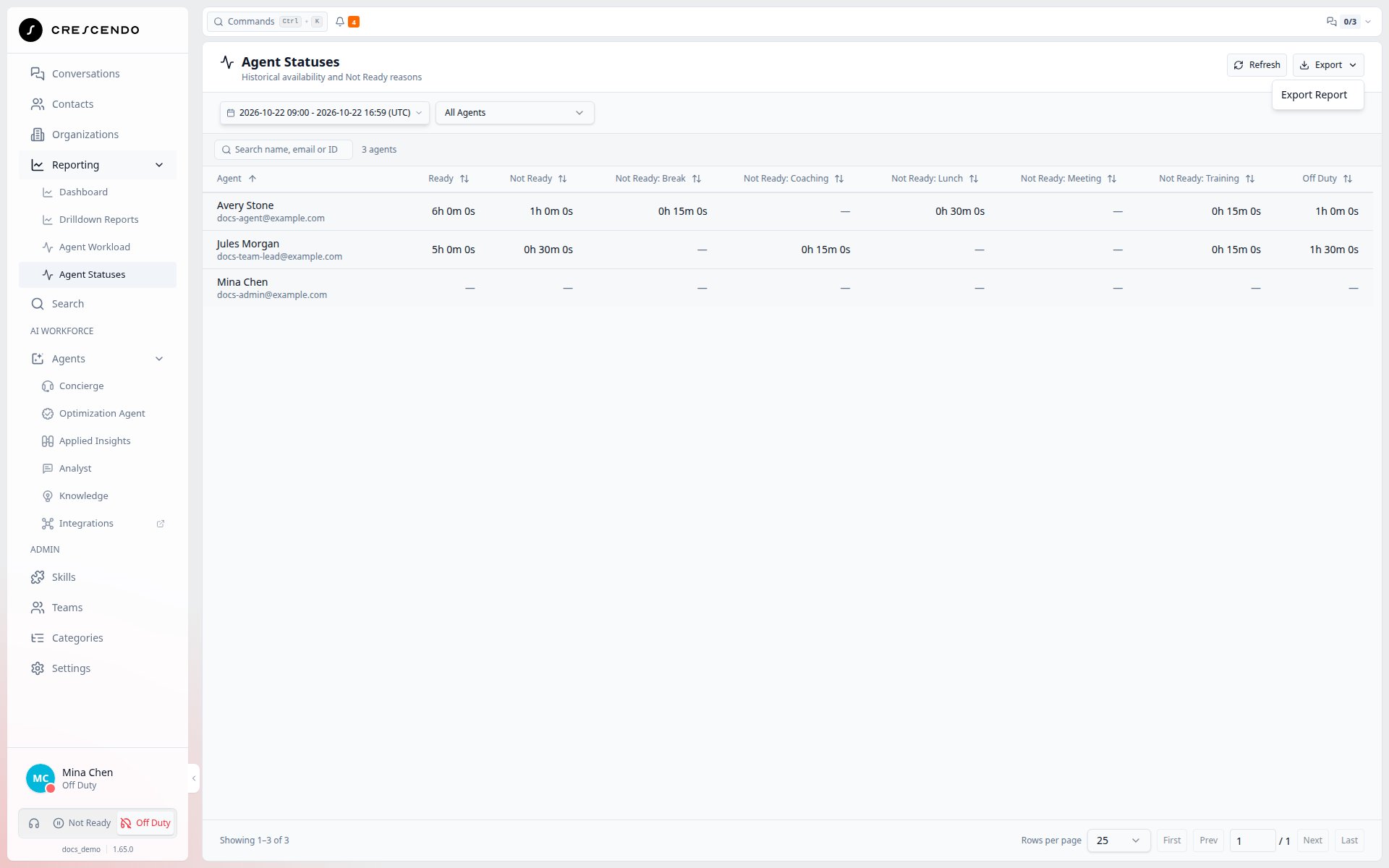
[h]:mm:ss, so you can
sum them and work with totals above 24 hours. Missing values are blank; recorded
zero values remain numeric zero. The workbook uses the loaded result without
retrieving it again. Export is unavailable while results load or no rows remain.