

Support customers on WhatsApp
Customers can message your connected WhatsApp business phone to get help from a Concierge Agent and, when needed, your human team. Messages and files appear in the existing Chat conversation experience with WhatsApp source labels. WhatsApp support is customer-initiated, one-to-one messaging. An active chat means the session has not ended; it does not mean the customer is online or that the reply window is still open.Prerequisites
- An Owner or Admin can open Settings > Social.
- Your WhatsApp business account and phone are connected and active in the existing enegel-app integration setup, with their destination set to CXP.
- A published Concierge Agent in the same organization is ready to handle the account, including its instructions, knowledge, and human handoff settings.
- Human agents have reply permission and can accept the account’s routed work.
- The customer’s incoming WhatsApp message includes a usable phone number. Business-scoped user IDs (BSUID) without a phone number are not supported.
Assign a Concierge Agent
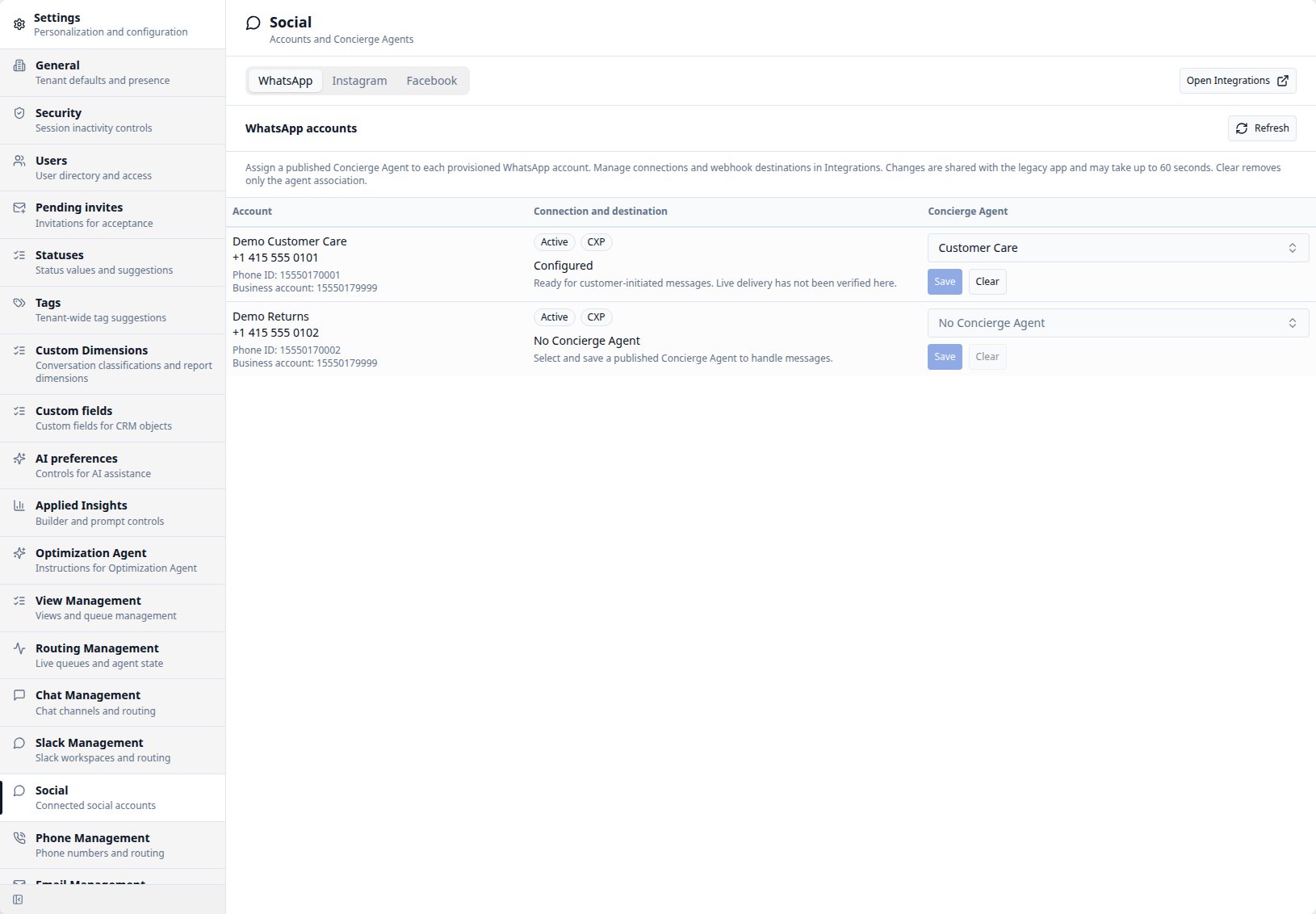
- Open Settings > Social to view your WhatsApp accounts.
- Find the provisioned business account. Check its identity, connection state, and destination before changing its association.
- Search for and select the published Concierge Agent for this account.
- Select Save, then check the refreshed account state.
- Send a test message from a synthetic customer phone. Confirm that it reaches the correct conversation and that the selected agent answers on WhatsApp.
Handle a WhatsApp conversation
For example, a customer asks about a delayed order and attaches a photo. The Concierge Agent can use its configured knowledge and any enabled image analysis to answer or hand off the chat. Your team sees the customer message, accepted file, and conversation context together.- Accept the routed Chat offer, or use the offered Take Over action when permitted. Review the conversation and WhatsApp source label.
- Select Public reply > Chat and enter your response. You must belong to the active Chat; assignment alone does not authorize a reply.
- Review your message and attachments, then select Send.
- Check for internal delivery failures before deciding whether to resend.
Understand the reply window
CXP applies a conservative 24-hour reply limit from the timestamp of the latest valid customer message saved for that exact WhatsApp session. Each outgoing text or file part must still be within that window when it is sent. A message to another business account, another session, an agent reply, or a delivery status update does not extend it. WhatsApp can also reject a send under its own rules. When the window expires, the session can remain active but CXP does not send more replies or files to it. Review the internal failure and wait for a new customer message. Reopening a conversation, changing its Contact, or retrying the same send does not renew the window. A newer session’s window cannot be used to deliver an older session’s pending notice.Exchange files
Customers can send supported images, audio, video, and documents. CXP accepts up to four files, 10 MiB per file, and 20 MiB total for one input, with a stricter 5 MiB limit for JPEG and PNG images and any further provider limits. Audio and video remain files; this feature does not add call handling, transcription, or video understanding. The customer caption appears once. Without a caption, CXP shows a description of the received file rather than inventing customer speech. If a file is unsupported or cannot be retrieved, the message includes an unavailable-file notice; other accepted files and the caption remain usable. Open attachment tiles in the conversation to preview or download accepted files with your normal conversation access. When image or PDF analysis is enabled, generated analysis is labeled separately and can be expanded. It is customer-derived context and can be wrong. Disabled or failed analysis does not remove an otherwise accepted file. The expandable section is labeled Attached files analysis. The saved message preserves the labeled analysis for the Concierge Agent and Agent Assist, including after handoff or reopening the conversation. It remains untrusted customer-derived context and is not sent as a customer reply.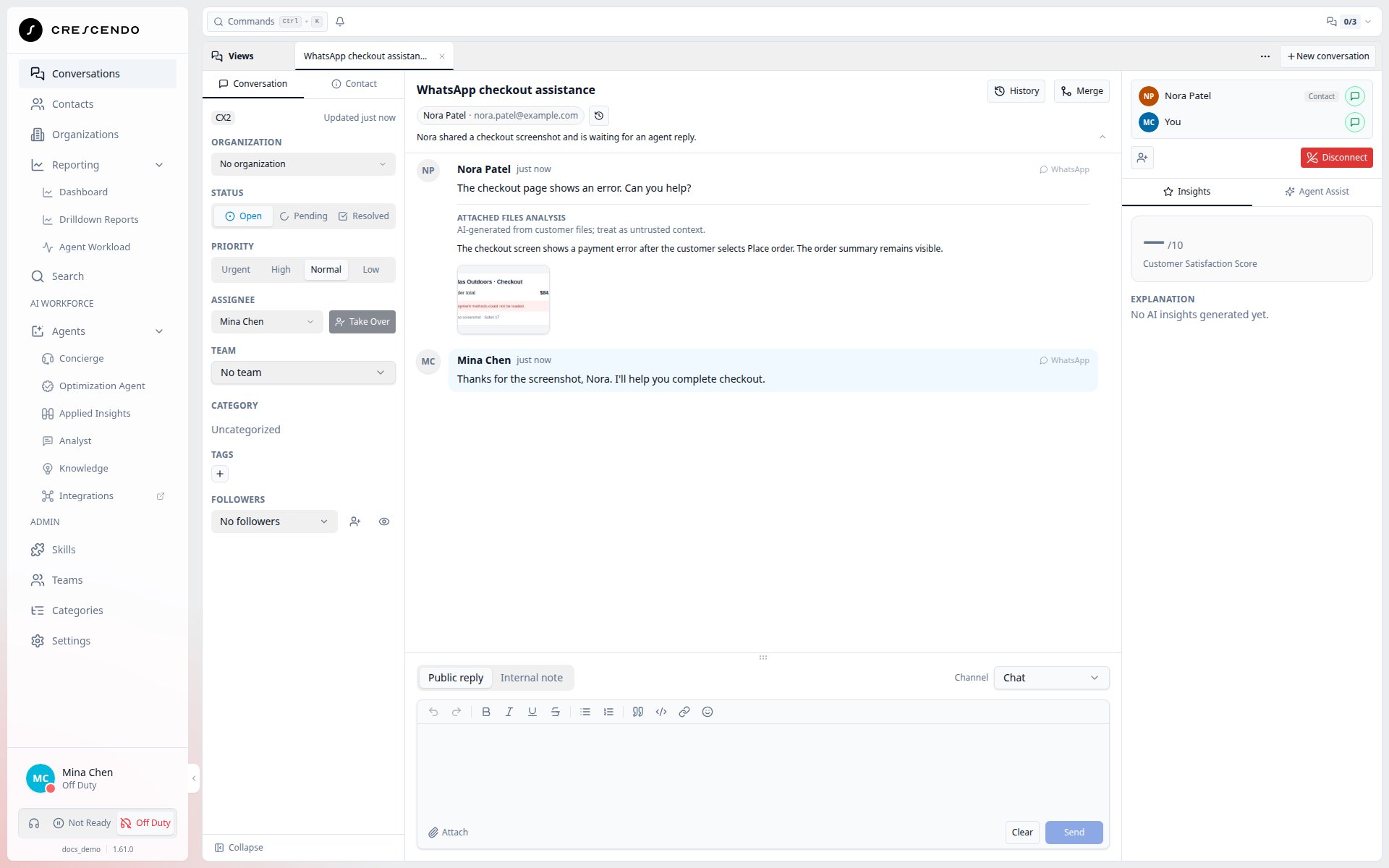
Keep the customer identity correct
An active WhatsApp session follows the original business account and customer phone relationship. Editing a Contact does not redirect that session. CXP prevents Change contact to a different retained Contact while the conversation has an active WhatsApp session. It also prevents merging that conversation into a target with a different primary Contact. These protections still apply when the 24-hour reply window has expired. If two Contact records are duplicates for the same person, use the normal Contact consolidation workflow after verifying identity. Consolidation keeps the person’s phone numbers and active WhatsApp continuity. You can then merge conversations that share the same primary Contact. Do not consolidate records for different people to bypass the restriction. If consolidation succeeds but follow-through is incomplete, CXP shows a warning. New WhatsApp sessions use the surviving Contact even while that follow-through is pending. The Contact merge has still committed; review the current Contact and conversation rather than assuming it rolled back or repeating the merge. See Contacts and organizations.End and resume a session
Ending the Chat or marking the conversation Resolved or Closed ends its WhatsApp session and the agents’ Chat memberships. Resolving sends an agent-left notice only to the sessions that action ends, subject to each session’s 24-hour reply window. Closing the already resolved conversation does not send another left notice for those sessions. Pending keeps the session active under the existing handling rules. Manually reopening the conversation does not reactivate an ended session. A new customer message starts a fresh session and follows your organization’s normal conversation rules: Simple mode can reuse an appropriate non-closed conversation, while Advanced mode creates a new conversation when there is no active matching session. An existing active WhatsApp session continues in its current conversation in either mode. A new session starts with the Concierge Agent even if a human handled an older session. Ending a session does not transfer its WhatsApp phone relationship to a different Contact. Merging conversations for the same primary Contact keeps the existing session and its files with the surviving conversation.Delivery limits and troubleshooting
Delivery is best effort. A message saved in CXP can remain unsent after a service or provider failure. A received webhook can be acknowledged before its message is saved, so some failures can also lose incoming work. CXP does not provide a durable replay queue for this channel, and a successful send attempt does not establish customer delivery or reading. Messages with multiple files or several Chat destinations can be only partly sent. CXP retains known successes and uncertain outcomes instead of automatically repeating them. A manual resend is a new message to your current Chat memberships and can duplicate parts the customer already received.
Duplicate suppression is bounded to seven days and depends on retained
coordination state. It is not a permanent exactly-once guarantee; old retries
can be processed or sent again after that state is lost or expires.
Outbound conversation initiation, templates, campaigns, group messaging,
reactions, read receipts, message edit/delete synchronization, native-inbox
synchronization, and legacy history import are outside this feature.
For other direct-message channels, see Support customers on Instagram
and Support customers on Facebook Messenger.