

Invite someone into a conversation
Coming soon. This guide describes the forthcoming Conference workflow.
Production availability has not yet been verified.
Before you invite
- You need permission to read and reply to the conversation.
- You must participate in every active Chat and be connected to its Voice call, when present. You do not need to be the assigned agent.
- The conversation must be Open or Pending. The invited agent must be an active user with the required conversation access, and cannot already participate in the selected conversation or another Voice call.
- Conference includes all active Chat and Voice interactions. You do not choose individual media or invite several people in one request.
- Translated calls that use separate rooms are not supported by Conference.
Invite an agent
- Open the conversation. Beside its media controls in the right rail, select Invite to conference (the person-with-plus icon). Hover or focus the icon to see its label or why it is unavailable.
- Search by agent name or team, such as Billing. Use All online (the default), On duty (Ready and Not Ready), or Ready to narrow the results.
- Select one agent, then select Send invitation. The familiar avatar dot and status word show their availability; the subtitle shows their teams.
- Wait for their response. You can select Cancel while it is still waiting for a reply.
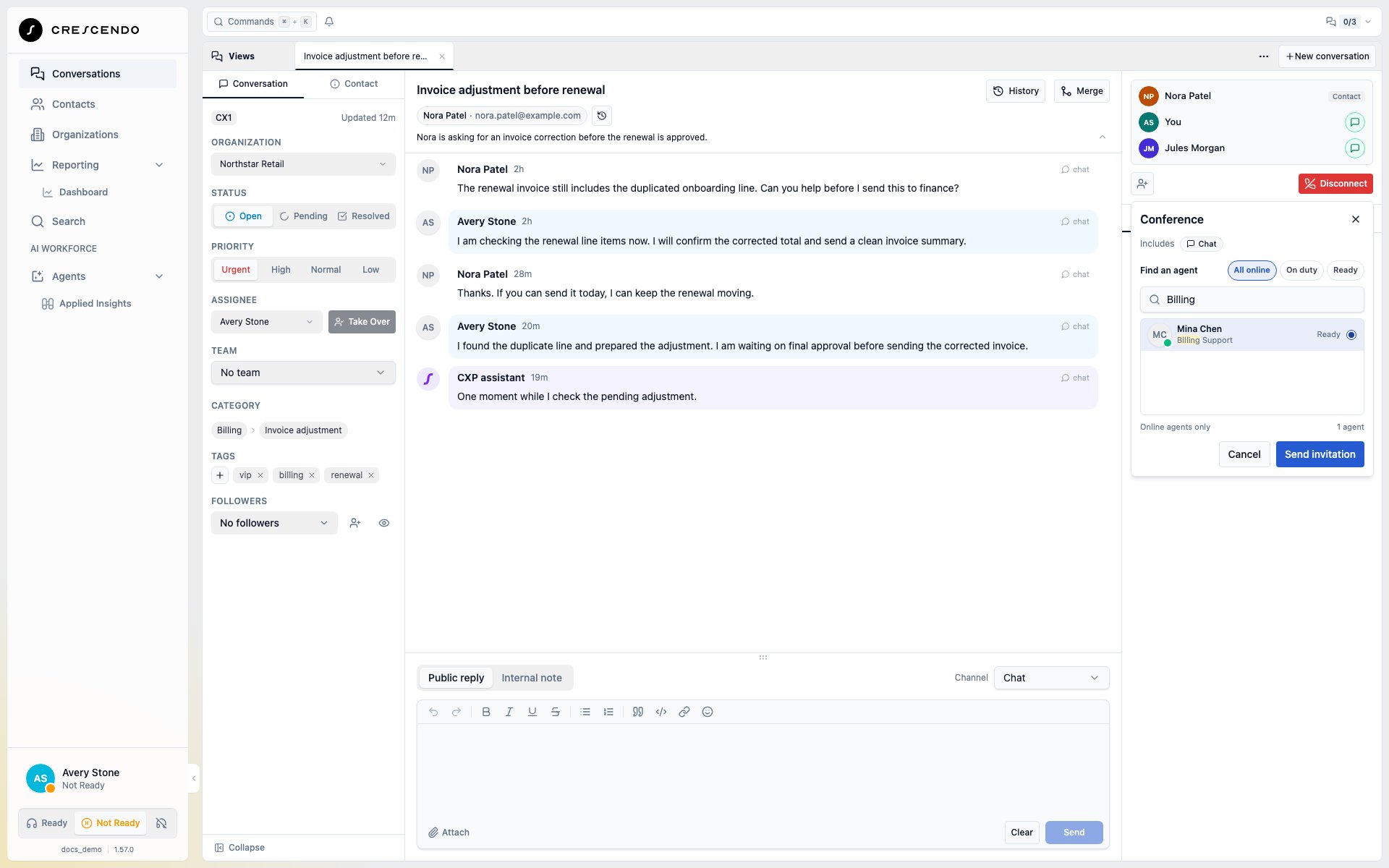
Find an Online colleague by name or team, then send one invitation. The included Chat and Voice scope stays visible.
Respond to an invitation
The global invitation banner shows who invited you, the conversation, its media and the response deadline. Select View waiting requests when more than one invitation needs attention.- Select Accept to join. The conversation opens in your workspace.
- Select Decline to leave your current work unchanged.
When the customer adds Voice after Chat
After a Chat-only Conference completes, the customer can add Voice to that Widget conversation. Each eligible Chat agent gets access to the call, regardless of who is assigned. Each agent selects Join Call to connect their own microphone; adding Voice does not connect agent audio automatically. An agent already handling another call keeps Chat access and can try Join Call after leaving that call. If one agent leaves, the remaining agent can continue. The customer can stop and restart Voice without changing the assignment or asking for another Conference invitation. Call access counts toward your Voice workload before you connect audio. If you select Disconnect before joining, CXP cancels your unused call access as well as your Chat participation. Other participants remain. Read any partial-failure message and retry the unfinished disconnection.Add an external endpoint
External calling requires an Open conversation with Voice only, a supported call configuration, and an enabled calling identity. Your administrator must have configured outbound calling and at least one outbound caller ID.- Select Invite to conference, then Contact or Phone number.
- Under Contact, search by name, email, or phone and select an existing contact. Choose the saved number to call; contacts without a callable international number are disabled. Under Phone number, enter the full number with its country code.
- Review Caller ID, the number used to call the external participant. A single configured caller ID is selected and shown with its optional name. If several are configured, choose one from the highlighted field. Calling is unavailable until a caller ID is selected.
- Review the destination number on the Call button, then select it to place one call.
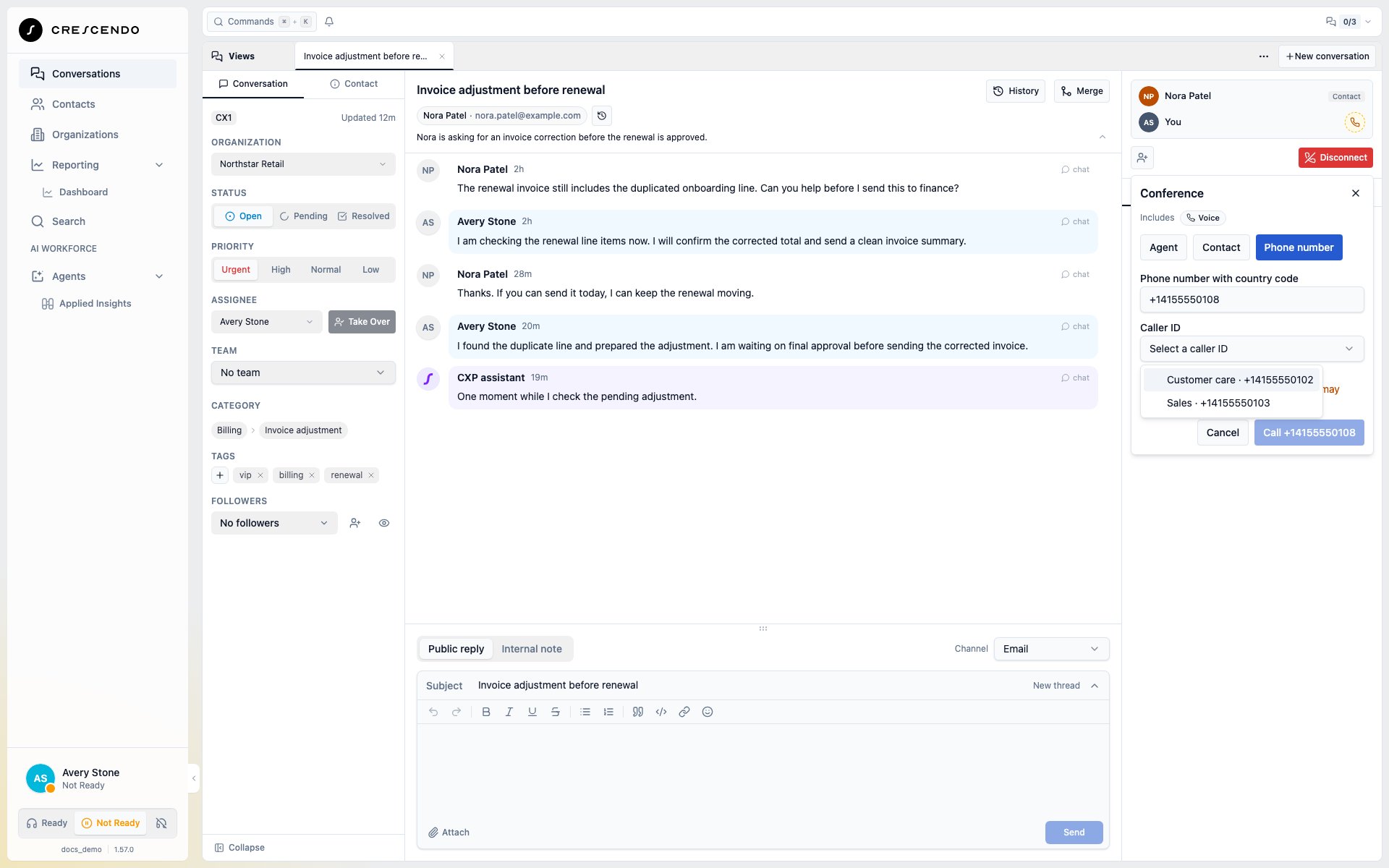
Choose a configured caller ID when more than one is available.
Cancel an external attempt
Select Cancel beside Calling… if you selected the wrong destination or no longer want to wait. This cancels the added external endpoint and keeps your original customer call connected during normal disconnection. The status changes to Cancelling… while disconnection is confirmed, then Conference cancelled. If the external party joins first, CXP preserves that completed Conference and tells you it already joined. Closing a dialog or dismissing a result does not cancel a call. If you leave before the external party joins, or the original call ends, CXP stops the unfinished attempt automatically. Once the Conference has completed, leaving preserves the remaining joined participants.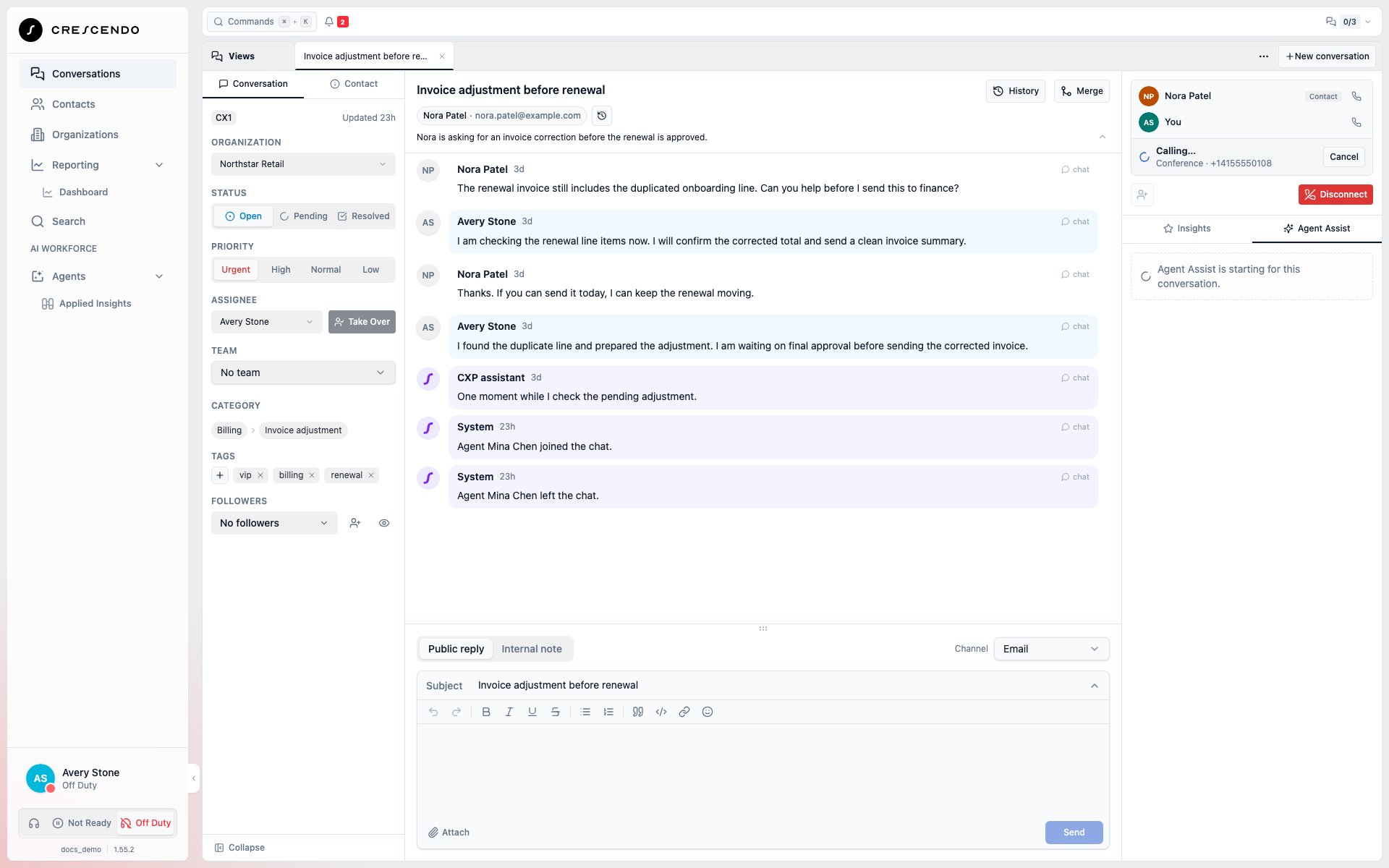
Cancel the external attempt while keeping the original customer call.
Understand the result
The status appears below the participants, with the result first and its context
underneath. A confirmed success clears after about eight seconds; hovering or
focusing it pauses that timer. Participant membership remains visible.
A missing Conference result does not mean anyone left. If current participation
cannot be refreshed, the roster is labelled Last known participants.
Brief disconnection checks run quietly. If disconnection takes longer than
expected or cannot be confirmed, a warning appears and clears automatically
when current participation is confirmed.
If external disconnection cannot be confirmed, the existing safety process may
end the affected call. CXP keeps the connection warning until cleanup is confirmed.
If a bottom-right notice says Confirming disconnection, it remains visible when you
navigate away. The person may still be connected. Refreshing status reads the
latest information; it does not place another call or repeat acceptance.
CXP does not automatically retry an uncertain external call. Avoid creating
another attempt until you have checked the current participants and resolved
any connection warning.
Leave without removing everyone
Use the existing Disconnect action to leave your Chat participation and the Voice connection in that browser. Assignment stays unchanged. An ordinary phone conference continues while at least two people or phone endpoints remain; when only one remains, the call ends. A Widget customer’s Voice call can remain after an agent leaves. The contact row remains available for context. Its Chat and Voice icons show the customer’s current participation, independently of other people still in the call.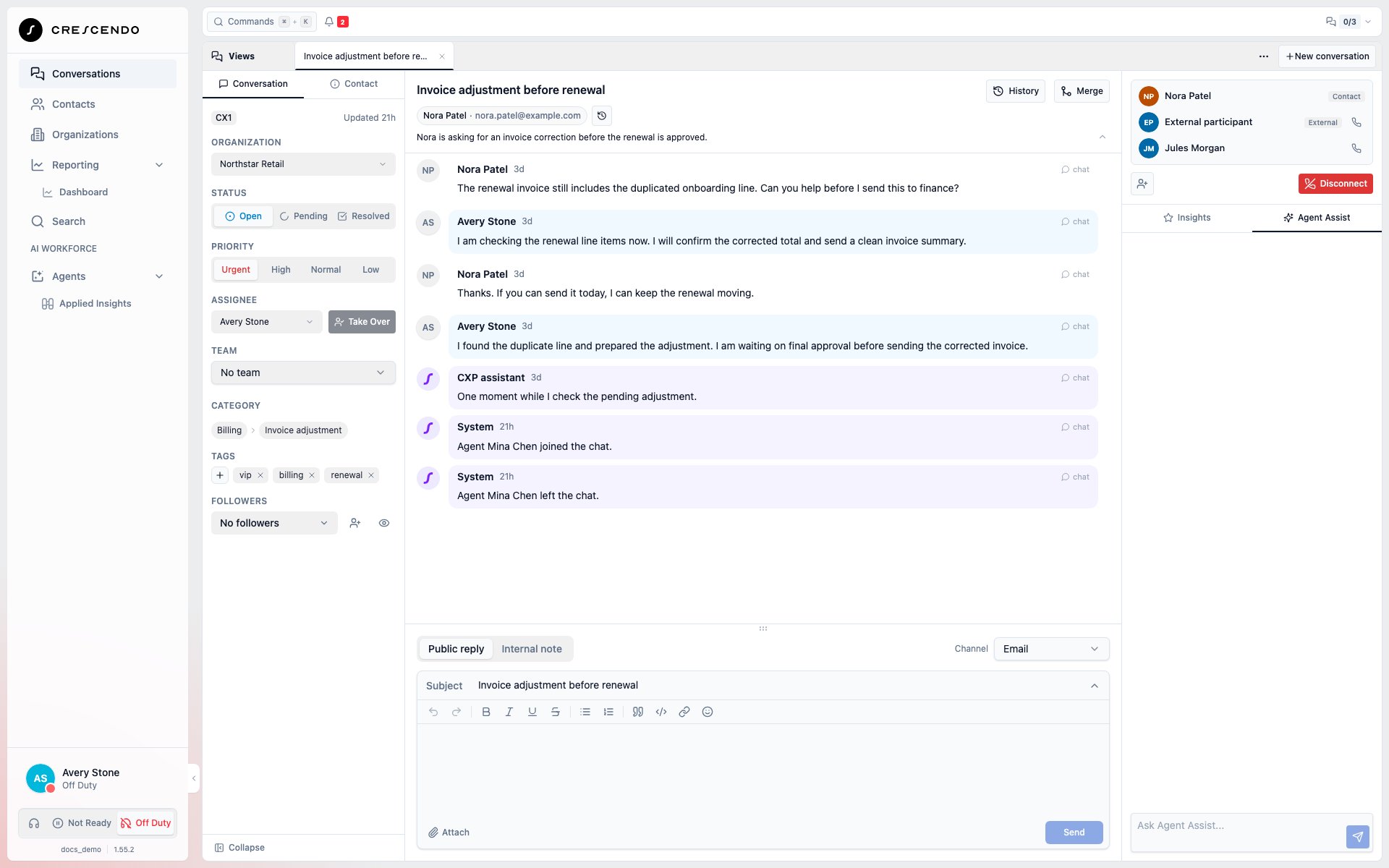
The customer has left Voice; the agent and external participant can continue.