

Reply to Facebook post comments
Bring comments on your connected Facebook Page’s posts into CXP for your human team. Each commenter has a separate history for each post. Agents take over the Chat, select a received comment, and post one plain-text public reply. Comments are always handled by human agents. A Concierge Agent does not answer publicly. Internal notes and private Agent Assist suggestions stay inside CXP until an agent deliberately sends a public reply.Before you start
- You are an Owner or Admin to manage Settings > Social.
- Your Facebook Page is connected and active in enegel-app Integrations, with its destination set to CXP and credentials and permissions for comments.
- Your agents can read and reply to conversations and take over Chat work.
Enable comments and choose a team
- Open Settings > Social > Facebook and find the connected Page.
- Under Comments, enable Process comments.
- In Assign comments to, choose All Agents or an active team in your organization. The selector appears while the toggle is on, before you save.
- Select Save. Allow up to 60 seconds for configuration caches to refresh.
- Use an authorized test comment on the connected Page to verify that a new conversation appears in the selected team’s work.
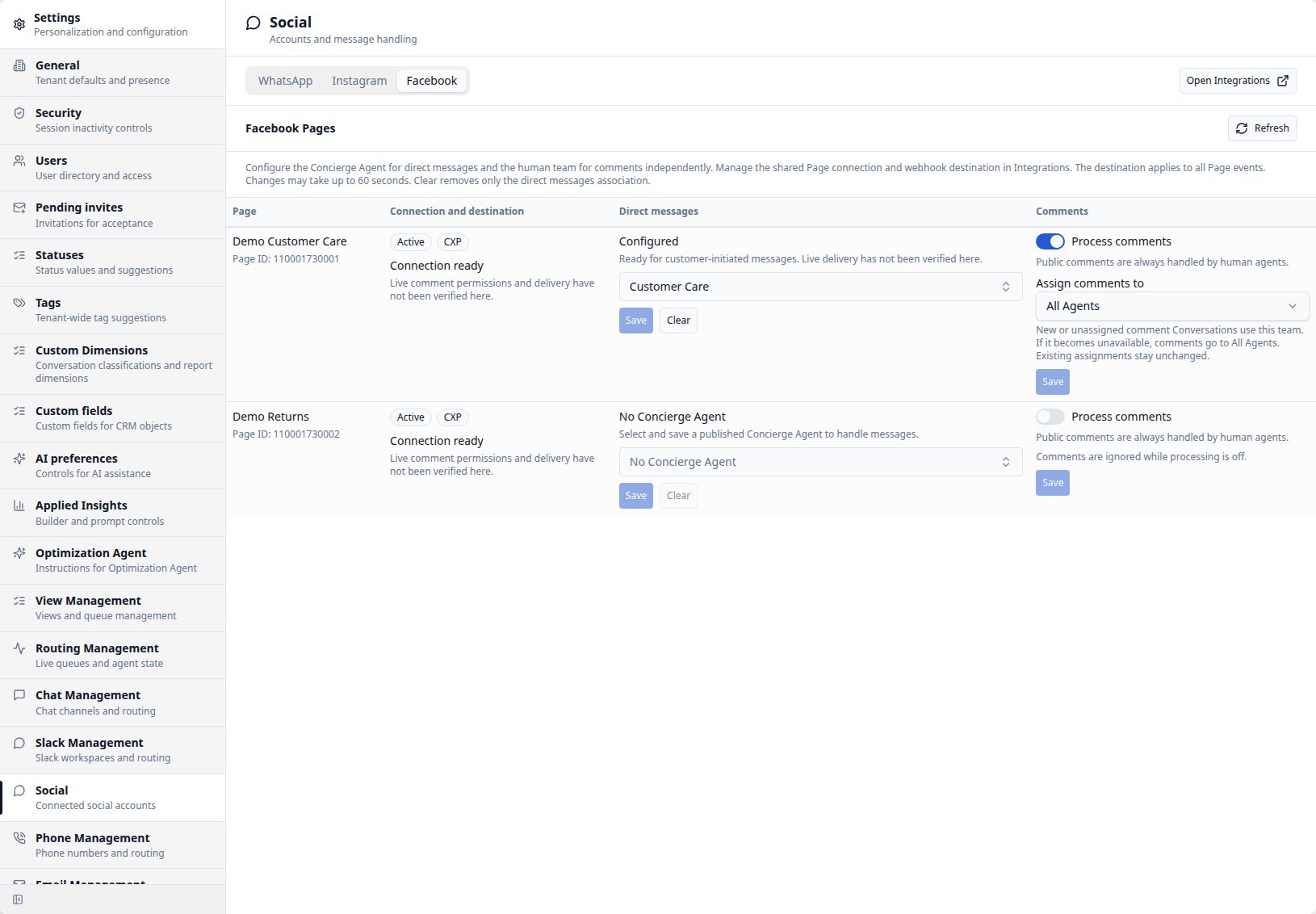
Enable comments independently of direct messages and choose the team for new or unassigned work.
Take over and reply to one comment
For example, Nora asks about returns on your shop’s product post. Another person comments on the same post, while Nora adds a second question. Nora’s two comments appear together; the other person’s comments appear in a separate conversation. New conversations use the start of the first customer’s comment as their subject, shortened to 80 characters with an ellipsis when needed. An empty comment uses Facebook post comment. Later comments and existing conversations keep their subjects.- Open the conversation from the team’s View and select Take Over. Assignment alone does not give you permission to send; you must belong to the active Chat.
- Review the original post above the session’s first comment, followed by the flat, chronological comment history.
- Select Public reply. Comment is the only public channel.
- In Reply to comment, review the selected comment. A fresh reply defaults to the latest eligible customer comment. With several comments, use the dropdown to choose another; with one, the selector is disabled. An empty-text comment appears as Comment at 10:30 AM.
- Enter plain text, up to 2,000 Unicode characters. Use Emoji at the bottom left to insert an emoji at your cursor or replace selected text. Select Post reply at the bottom right of the reply input.
- Reply submitted means CXP accepted the reply. Check for any later internal delivery failure; it does not confirm that Facebook posted the reply.
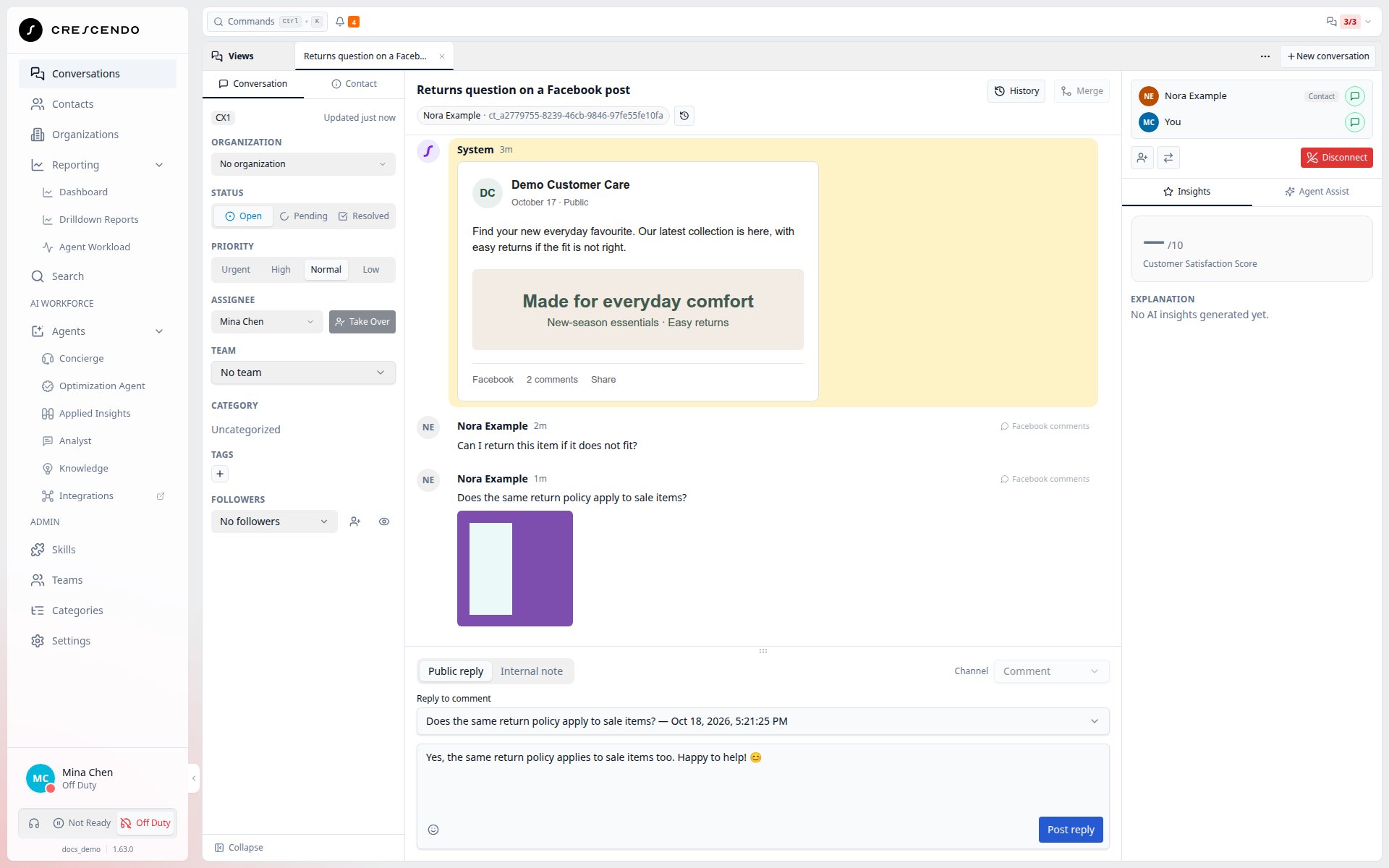
Review the received image and latest comment selected for your reply, then add an emoji if helpful.
View images in received comments
When a new Facebook comment includes a supported image link, CXP displays the image beneath the comment text. Comments containing only an image are also shown and can be selected for a text reply. Select the image to open it in a new tab. Images load directly from Facebook. They are not copied into CXP and may expire, be removed or become unavailable later, including when reviewing closed work. If loading fails, the message shows Image unavailable. The comment text and reply controls remain available. Images in earlier comments are not backfilled, and agents’ public replies remain text-only.Review the original post
An internal post preview appears before the first received comment in each Chat session. It loads automatically from Facebook when the conversation opens, so you can review the post alongside the customer’s question. It also loads when opening from a View or switching conversation tabs; no page refresh is needed. The preview adjusts to the post’s content height. Its Facebook, comments and Share links open a separate tab or window, keeping your CXP conversation open. The original post remains available when reviewing Resolved or Closed conversations; you do not need to reopen them to view it. A deleted, restricted or unavailable post, or a blocked browser preview, does not prevent comment intake or replying. If the preview is unavailable, CXP shows a fallback. Choose Retry preview to try loading it again, or View on Facebook to open the post directly. These options appear when a safe post link is available. A new Chat session gets a new preview, including when it reuses a conversation. CXP does not reconstruct Facebook’s threaded layout or synchronize remote edits and deletions.Understand the public Contact
CXP creates a protected Contact for each Page, post and commenter combination. The same person on two posts intentionally has two Contacts, possibly with the same name. These records do not establish unique-person counts or identify the person’s Messenger account. The initial display name comes from the received comment when available; missing names do not prevent intake. CXP does not fetch a profile, add email or phone, refresh that name, or combine this record with private customer history. Public Contacts are read-only. You cannot edit their profile or custom fields, merge them, change the conversation’s Contact, merge their conversations, or start private email or ordinary manual conversations from them. These protections remain after Chat ends and after comments are disabled. Assignee, takeover, status and internal-note controls retain their normal permissions. See Contacts.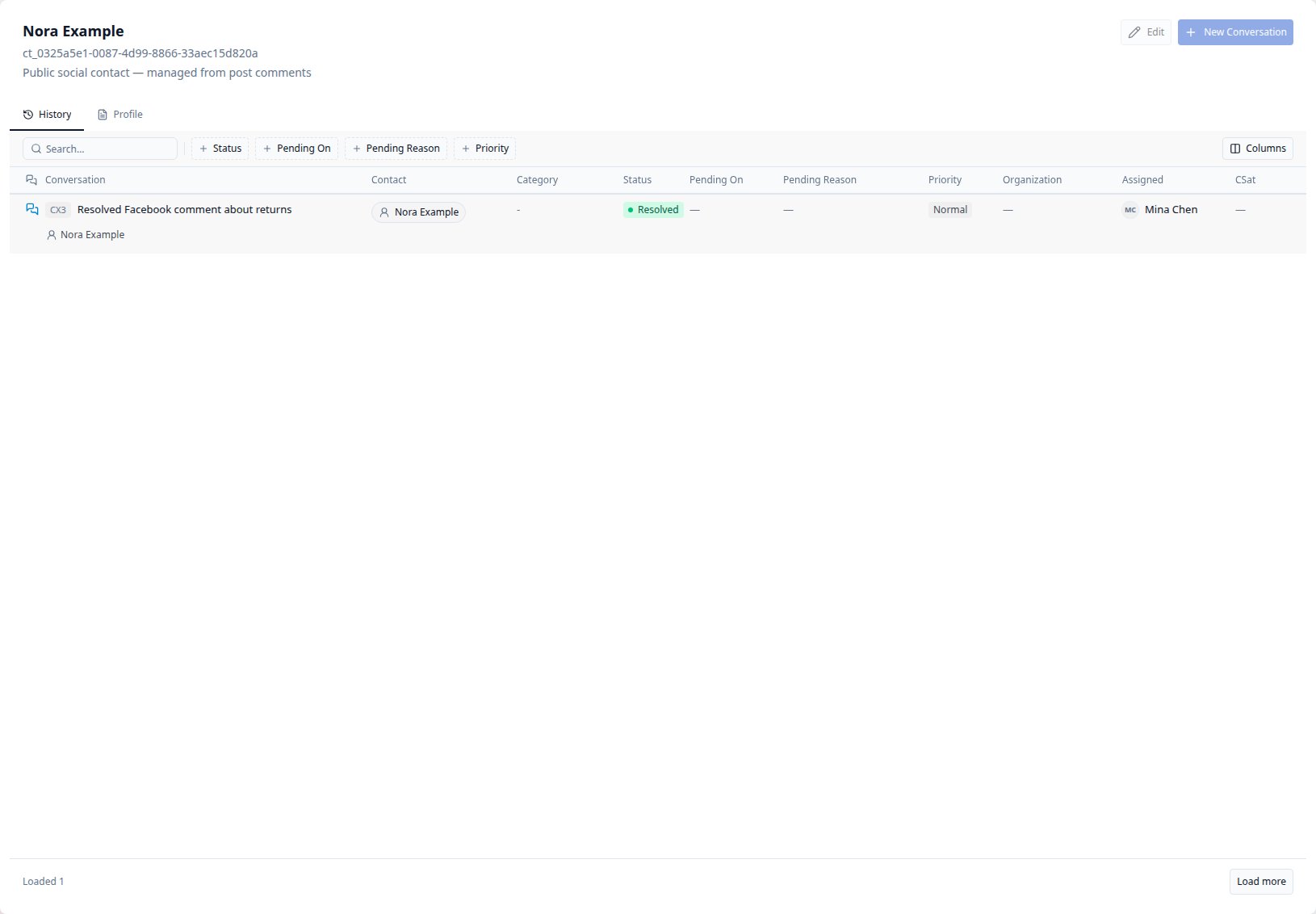
A public Contact stays protected after its comment conversation is resolved.
End and resume the work
- Resolved releases the agents from active Chat workload but keeps the comment session available. Reopen the conversation before sending another reply.
- Closed ends the comment session and its active agent participation.
- End Chat also ends the session. Pending keeps it active.
Save a Facebook comments View
- Open Search and add Social source > Facebook comments.
- Add other criteria if needed, such as Status Open or your team.
- Save the search as a View, or configure the same filter in a shared View.
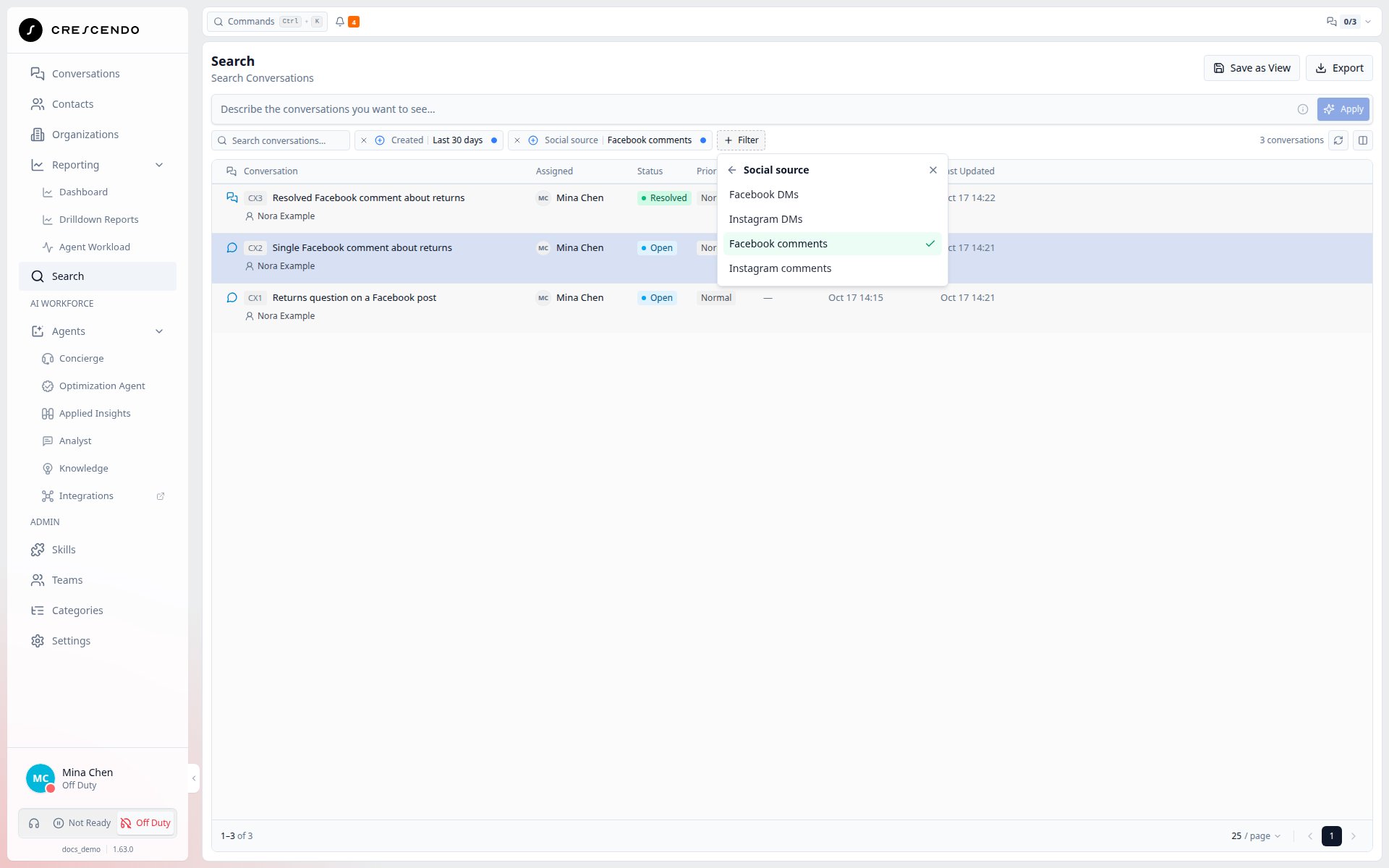
Social source finds active and ended comment work without a Media filter.
Delivery limits and troubleshooting
Incoming hooks can be acknowledged before the comment is saved. A reply saved in CXP can remain unsent. Delivery uses bounded duplicate suppression for up to seven days; there is no durable replay queue or permanent exactly-once guarantee.
Do not repeatedly resend an uncertain result. CXP does not automatically change
the selected target, fall back to a direct message, or retry an unknown public
posting outcome. Moderation, comment-to-DM conversion and historical import are outside this
feature. Instagram comments use their own connection and
reply-placement rules.