

Before you start
- You need Owner or Administrator access to create, generate, validate, change, import, or delete definitions.
- Your organization needs indexed conversations to produce a meaningful sample.
- Readers can use saved dimensions through the filters and reports their role already permits.
Example: classify support segments
The screenshots use synthetic conversations withvip and repeat-customer
tags. The intended classification is:
In the six-conversation report sample, these rules produce two VIP, two
Returning, and two Standard conversations. The
docs-handle-time tag
identifies that sample; it is not part of the segment rules. The editor images
illustrate the same rules using an earlier, separate demonstration definition.
1. Add the name and description
Open Settings → Custom Dimensions, then select New Dimension. In the Dimension tab, enter:
Copy this description and adapt its tag names to your organization:
2. Apply and validate
Select Apply inside the bottom-right corner of Description. CXP generates the type and script, then automatically runs validation. The six-line Description area can be resized vertically if you need more room. Save stays disabled until the current definition passes validation. When validation is required, Validate is the highlighted action. You can run it again without regenerating the script.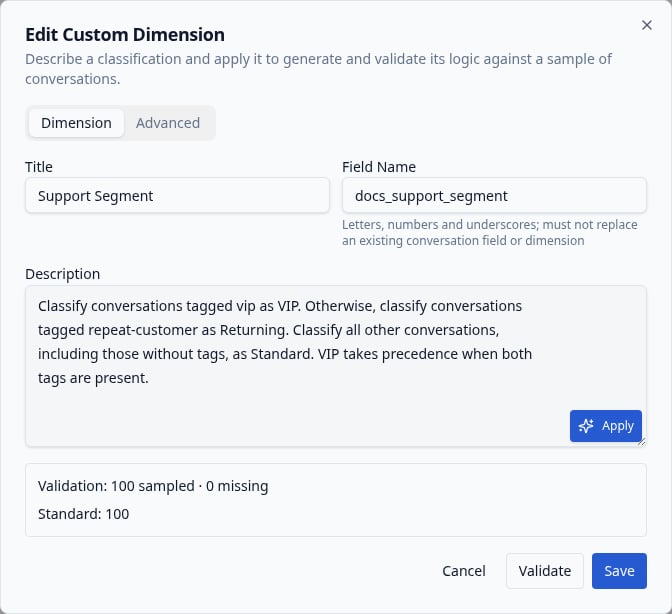
Describe the classification, apply it, and review the validation sample before saving.
Validation uses recent conversations across the organization, not a particular
report’s filters. The earlier editor screenshot shows a Standard-only validation
sample. The separate six-conversation report example below includes all three
segments. Successful validation confirms execution on the sample; inspect a
filtered report to check the classification across your intended population.
3. Inspect or edit the script
Open Advanced to inspect the generated type and Painless script. The script editor provides syntax highlighting and at least ten lines of space. The following keyword script implements the example’s ordered rules: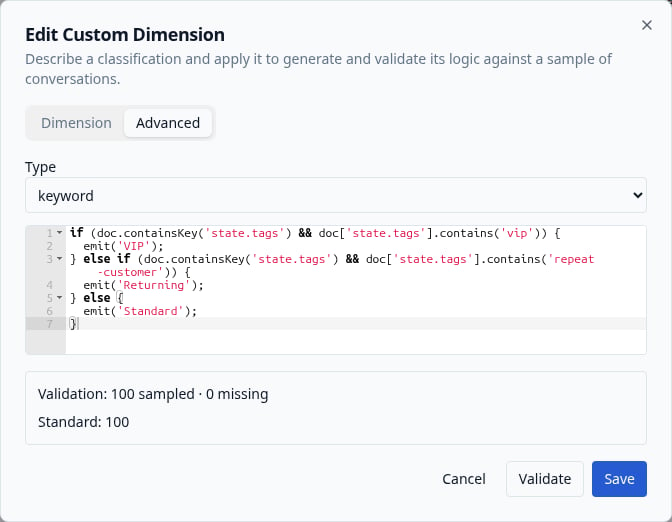
Advanced exposes the keyword type and the script implementing the segment rules.
Use the dimension in a Drilldown report
Open a Drilldown report and select Support Segment in Group By. Choose Status in Split By. To reproduce the example, add Tagsdocs-handle-time and select the date range covering the synthetic conversations.
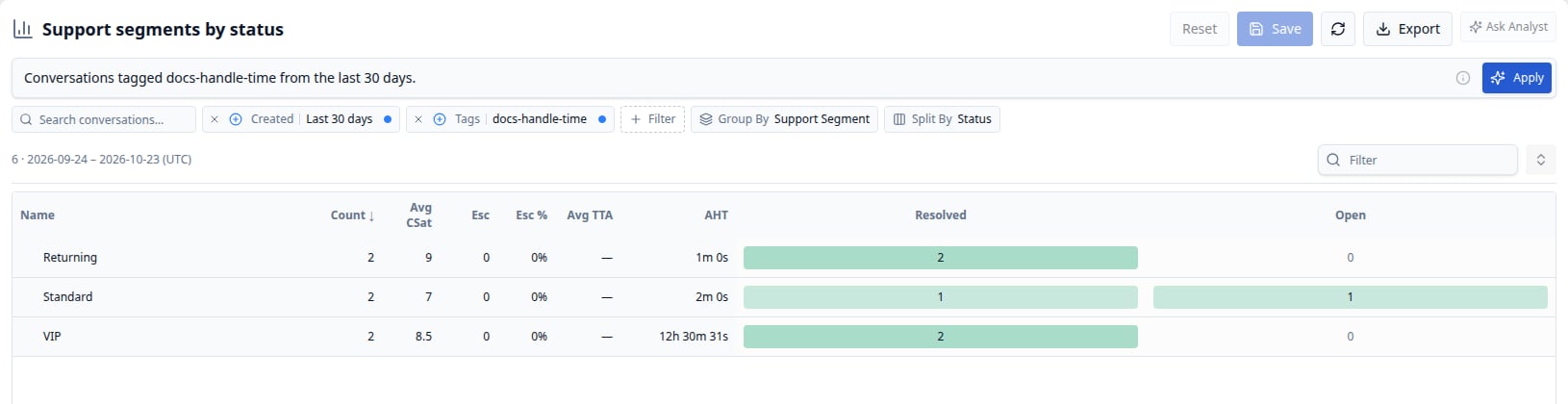
The same six conversations classified into three equal segments and compared by status.
Use the dimension in Search and Views
In Search, a View editor, or a Drilldown report, select Filter → Custom Dimensions, then select Support Segment. Choose the desired value and apply the filter. Include or exclude values, or test whether a value is missing or present. Numeric and date dimensions also support comparison/range controls. A report count opens the same editable controls automatically: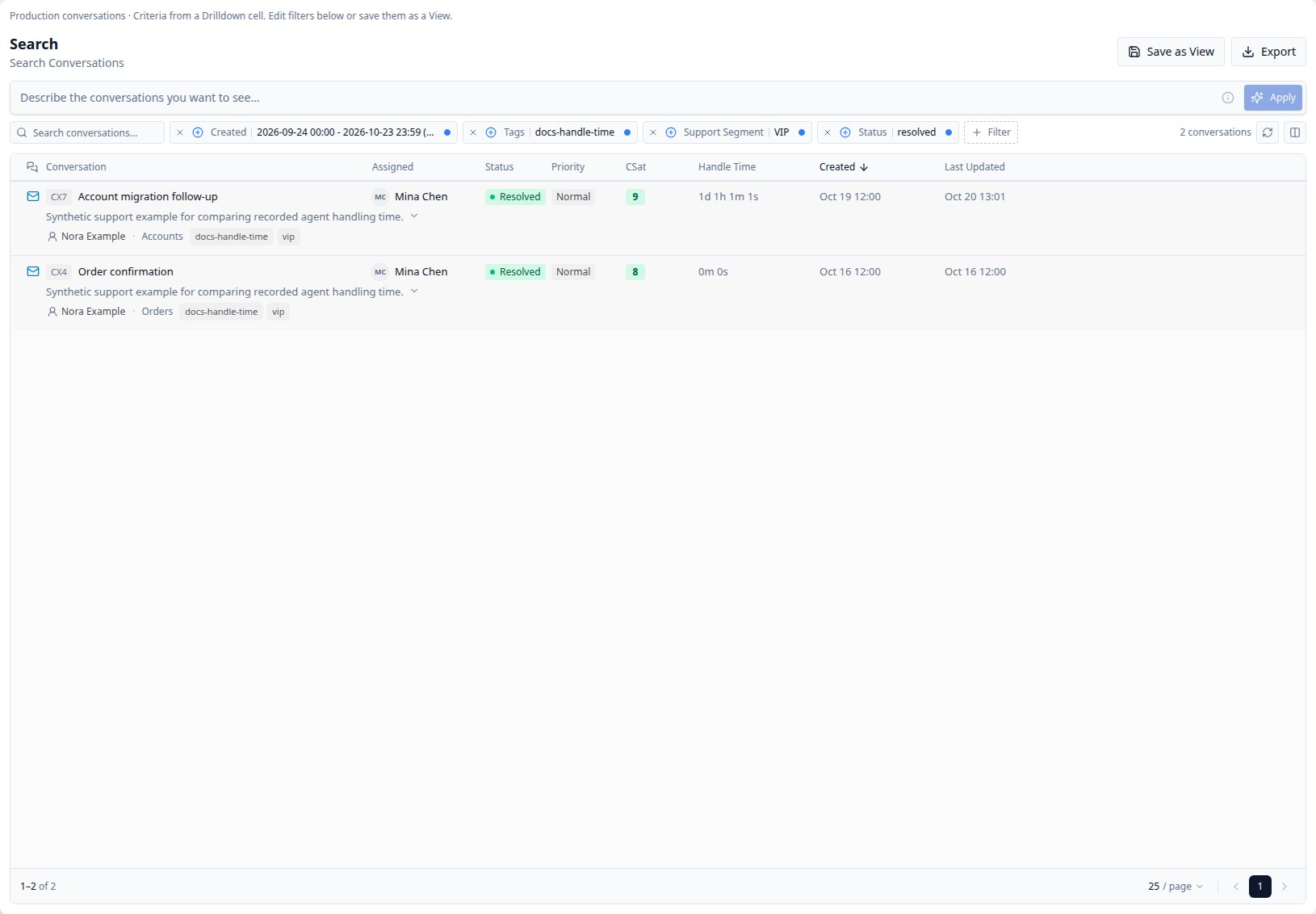
The VIP/Resolved count opens two conversations in Search with the custom-dimension filter visible and editable.
Combine conditions correctly
Separate filter chips use AND. Multiple values inside a single Any of condition use OR.- Support Segment Any of VIP, Returning includes either segment.
- Support Segment VIP plus Status Open includes only open VIP work.
- Two separate conditions on a multi-valued dimension require both values.
Choose the right output type
A script may emit one value, several values, or none. Emitting nothing means
missing. An empty keyword string, numeric zero, and boolean false are actual
values, not missing values. Multi-valued classifications can place one
conversation in multiple report groups or split columns.
Created and Updated are the report’s calendar split properties. Custom date
dimensions use exact values; they do not add Day/Week/Month calendar controls.
Manage definitions
The Custom Dimensions directory supports search, refresh, editing, row export, row deletion, and selected-row bulk deletion.
An older report link or paged Search detects a changed definition and asks you to
refresh rather than silently changing the meaning of the query. Refresh the
report and open a new count link after changing a definition. If someone else
edits the definition while your dialog is open, reload before saving over it.
Troubleshooting
A single query supports at most 16 active custom dimensions. Keep scripts focused
and narrow the conversation population for large reports. Validation is a sample,
not a guarantee that every historical record matches your intended business rules.